We mainly use sticky notes to jot down our thoughts. We also use them to copy-paste content from the web or many other places. This content may be very lengthy at times. When we have such lengthy sticky notes on our desktop, they make look clustered and come in the way of our other tasks.
A feature to minimize the sticky note and maximize it anytime at our convenience would be the best solution. But how? Most sticky notes software, including the leading Windows sticky notes, do not have any such feature.
We therefore bring to you an alternative software, Notezilla.
Here is a short video showing this feature:
What is Notezilla?
Notezilla is a professional, elegant & highly rated sticky notes app for Windows & Phones (Android, iOS, iPhone, iPad etc). You can also access your sticky notes from a Mac.
Notezilla helps you organize various tiny bits of information you would need through out your life. It keeps all your notes, tasks & reminders handy where ever you are. With sticky notes, you hardly have to put effort to take notes, set reminders, etc. Quickly jot down & move on with your task at hand.
Here are some features of Notezilla:
Sticky notes with reminders
Attach sticky notes to websites, documents, folders & apps
Organize sticky notes inside folders to keep your Windows desktop clean.
Pin sticky notes on top of other apps
Sync sticky notes between Windows, Android, iPhone, iPad
Add pictures inside sticky notes
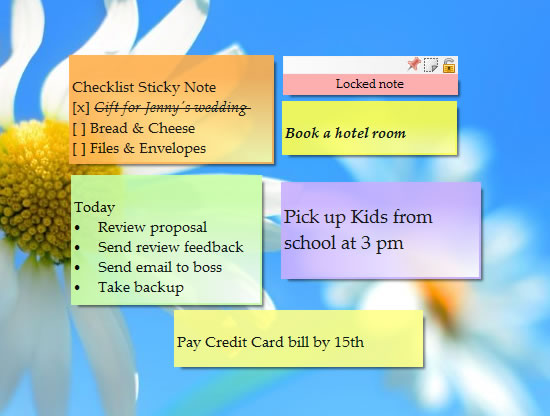
Checklist sticky notes
Lock sticky notes (password protect)
Markdown support
Send notes over local network (LAN) or across the globe
Notezilla allows you to roll up and down the sticky note. To roll up a sticky note, click on the Roll Up icon in the note toolbar.
To roll down a sticky note, click on the Roll Down icon in the Note Toolbar.
A faster way to roll up/down note is to use the shortcut key Ctrl+O from the note.
Notezilla thus makes your sticky note experience fun and joyful.
And here is another lovely thing. Notezilla has free apps for iPhone, iPad & Android to let you access your sticky notes anytime and anywhere! Install it on your phone from App Store or Google Play Store & sync all your sticky notes with the Windows version of Notezilla.
We like to have things our way. It makes us feel powerful and in full control of whatever we are doing. The same should go with your sticky notes. You should have the ultimate choice of how to use them.
Rarely does any sticky note software give you options on how you want their app to behave. This customization is not available even in the leading Windows sticky notes app.
We are here to help. This article will tell you about an alternative software, Notezilla which lets you design your own sticky notes experience.
What is Notezilla?
Notezilla is a professional, elegant & highly rated sticky notes app for Windows & Phones (Android, iOS, iPhone, iPad etc). You can also access your sticky notes from a Mac.
Notezilla helps you organize various tiny bits of information you would need through out your life. It keeps all your notes, tasks & reminders handy where ever you are. With sticky notes, you hardly have to put effort to take notes, set reminders, etc. Quickly jot down & move on with your task at hand.
Here are some features of Notezilla:
Sticky notes with reminders
Attach sticky notes to websites, documents, folders & apps
Organize sticky notes inside folders to keep your Windows desktop clean.
Pin sticky notes on top of other apps
Sync sticky notes between Windows, Android, iPhone, iPad
Add pictures inside sticky notes
Checklist sticky notes
Lock sticky notes (password protect)
Markdown support
Send notes over local network (LAN) or across the globe
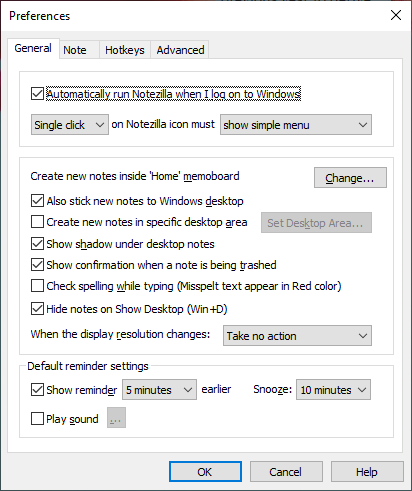
Notezilla has four tabs under it’s “Preferences Menu.” These tabs let you change and apply different settings for the software.
To access this menu, right-click on the Notezilla icon next to the clock and choose ‘Preferences’ menu.
PREFERENCES – GENERAL TAB
This tab provides settings for the general behavior of the app, and it’s regular usage.
Some of the options available are:
Automatically run Notezilla when I log on to Windows
Check this option if you want to start Notezilla automatically, every time you start to log on to your computer.
Show confirmation when a note is being Trashed
Check this option if you want to be prompted with a message box when trashing a note.
Create new notes in specific desktop area
New notes can be created in a specific desktop area. This feature is handy if you are using multiple monitors. Check this option and choose the Set Desktop Area button to specify the desktop area.
Check spelling while typing note
Enable this option if you want to check the spelling while typing inside a note.
PREFERENCES – NOTE TAB
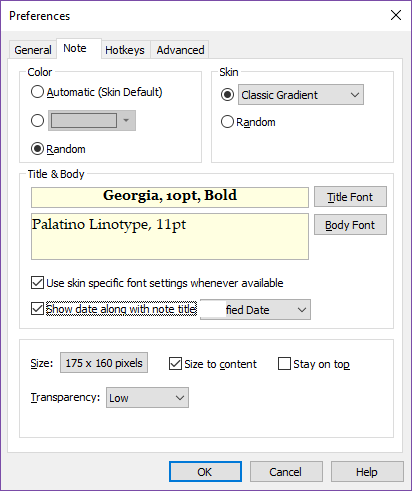
The Note tab lets you set the default sticky note settings.
Some of the options available are:
Color
Choose the default note color that should be used for new notes. Automatic will use the skin setting. Random will randomly select any color from a set of 16 predefined light colors.
Skin
Choose the default skin that should be used for new notes. Random will randomly select any skin from the currently installed skin.
Title
Choose the default note title, font, font size & font color. Automatically sets the note title to the first sentence that you type inside the note.
Transparency
Set the default transparency level for the new desktop notes
Stay On top
Check this to make the new notes always stay on top, by default.
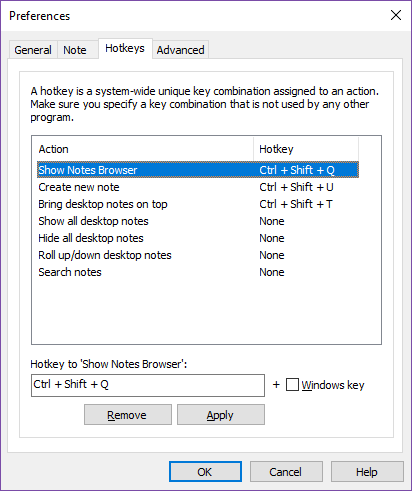
PREFERENCES – HOTKEYS TAB
A hotkey is a system-wide unique key combination assigned to an action. Make sure you specify a key combination that is not used by any other program.
Setting a Hotkey
To set a hotkey, select an action from the list, specify the key combination in the edit box below the list, and choose the Apply button.
Removing a Hotkey
To remove a hotkey, select an action from the list, press backspace key in the edit box below the list so that the edit box shows ‘None’ and choose Remove button.
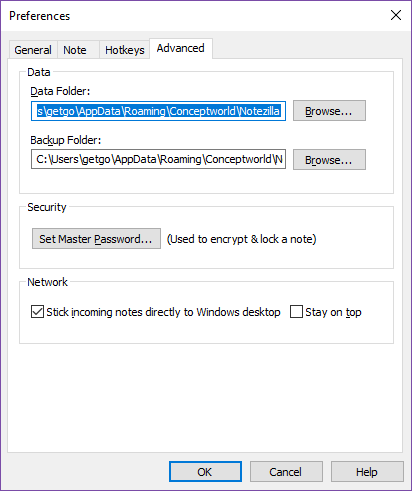
PREFERENCES – ADVANCED TAB
This tab lets you set advanced settings of the app related to backup, restore, and master password.
Data Folder
This folder is the location where Notezilla stores all the notes data. Choose the Browse button to change this location. You will need to exit and relaunch Notezilla to apply this setting.
Backup Folder
Notezilla keeps five backup copies of its data under this folder, date-wise. Choose the Browse button to change this location. Notezilla takes the backup, every time it launches.
Set Master Password
Choose this button to set the single master password used to lock/unlock notes and memoboards.
Conclusion
Notezilla is really helpful to increase your work productivity by letting you work without disturbance.
It thus saves a lot of your time and effort. Notezilla also has free apps for iPhone, iPad & Android to let you access your sticky notes anytime and anywhere! Install it on your phone from App Store or Google Play Store & sync all your sticky notes with the Windows version of Notezilla.
Notezilla is a professional, elegant & highly rated sticky notes app for Windows & Phones (Android, iOS, iPhone, iPad etc). You can also access your sticky notes from a Mac.
Notezilla helps you organize various tiny bits of information you would need through out your life. It keeps all your notes, tasks & reminders handy where ever you are. With sticky notes, you hardly have to put effort to take notes, set reminders, etc. Quickly jot down & move on with your task at hand.
Here are some features of Notezilla:
Sticky notes with reminders
Attach sticky notes to websites, documents, folders & apps
Organize sticky notes inside folders to keep your Windows desktop clean.
Pin sticky notes on top of other apps
Sync sticky notes between Windows, Android, iPhone, iPad
Add pictures inside sticky notes
Checklist sticky notes
Lock sticky notes (password protect)
Markdown support
Send notes over local network (LAN) or across the globe
Tag sticky notes
Fully transparent sticky notes
Dark mode
An image showing one of the features of Notezilla.
Windows uses the Segoe Print font. Changing the default font is currently not supported in Sticky Notes. You will have to type your text in the desired font in a text editor like Word, and copy-paste it in your sticky note. This might help you get the font you want.
But this is an unneeded task. Why waste time doing this when you can directly format text from within the note itself in Notezilla.
Text formatting in Notezilla
Here is a short video perfectly depicting this feature:
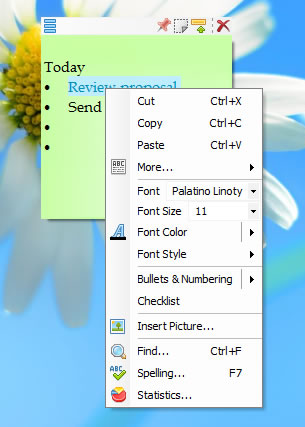
Notezilla provides varied options to edit a sticky note. It supports text formatting features like :
and lots more. There are also shortcut keys available for faster formatting.
Notezilla thus makes your sticky note experience really productive. And guess what? Notezilla also has free apps for iPhone, iPad & Android to let you access your sticky notes anytime and anywhere! Install it on your phone from App Store or Google Play Store & sync all your sticky notes with the Windows version of Notezilla.
We often store important information in our sticky notes. Losing the data due to any reason say upgrade or while trying to import from other software is thus a significant threat. What is required is a secure method to back up the data and safely restore it anytime. And what about moving them to another system? This is an important feature too.
With the recent updates in Windows sticky notes, we surely are happy with the new sync feature and dark theme. It will make our experience better for sure. But taking backups and restoring is still tedious and time-consuming.
We therefore present to you an alternative software, Notezilla which will take multiple backups for you and restore all your sticky notes back from the cloud.
What is Notezilla?
Notezilla is a professional, elegant & highly rated sticky notes app for Windows & Phones (Android, iOS, iPhone, iPad etc). You can also access your sticky notes from a Mac.
Notezilla helps you organize various tiny bits of information you would need through out your life. It keeps all your notes, tasks & reminders handy where ever you are. With sticky notes, you hardly have to put effort to take notes, set reminders, etc. Quickly jot down & move on with your task at hand.
Here are some features of Notezilla:
Sticky notes with reminders
Attach sticky notes to websites, documents, folders & apps
Organize sticky notes inside folders to keep your Windows desktop clean.
Pin sticky notes on top of other apps
Sync sticky notes between Windows, Android, iPhone, iPad
Add pictures inside sticky notes
Checklist sticky notes
Lock sticky notes (password protect)
Markdown support
Send notes over local network (LAN) or across the globe
Tag sticky notes
Fully transparent sticky notes
Dark mode
An image showing one of the features of Notezilla.
Here is a short video perfectly depicting this feature:
Notezilla keeps 5 backups of your notes data in a separate backup folder. You can even change this backup folder to another location or use your own backup tool.
Restore from Notezilla’s backup folder
Follow the steps below to restore your notes from Notezilla’s backup folder:
1. Open both data & backup folders in Windows Explorer.
2. Exit Notezilla.
3. Inside the backup folder, you would notice different dated folders (e.g., Backup\2019-01-12). Open a dated folder that you think would contain your latest & best notes data.
4. Copy Notes8.db file (& other files) from that folder to the data folder. Replace/rename duplicate files.
5. Run Notezilla.
Restore from your own backup location
Follow the steps below:
1. Open the data folder in Windows Explorer.
2. Exit Notezilla.
3. From your backup location, copy Notes8.db file (& other files) to the data folder. Replace/rename duplicate files.
4. Run Notezilla.
Moving your sticky notes to another computer
Old Computer
On the old computer, copy all the files from the data folder to a removable drive (pen drive, external hard drive, etc.) Know where Notezilla stores its notes data.
You may also want to copy all the skin files. Skins are stored under %AppData%\Conceptworld\Notezilla\Skins folder. Just copy this address & open it in Windows Explorer. Copy all *.nsz files so that you can import them on the new computer.
New Computer
1. Download & install Notezilla on the new computer.
2. Know where Notezilla stores its notes data & open that data folder in Windows Explorer.
3. Exit Notezilla.
4. Copy Notes8.db (& other files) from your removable drive to the data folder. Replace/rename duplicate files.
5. (Optional step) Copy all skin files (*.nsz) to %AppData%\Conceptworld\Notezilla\Skins folder. Replace/rename duplicate files.
6. Run Notezilla.
Conclusion
Notezilla thus ensures that all your data is safely stored in the cloud and can be retrieved in case of any untoward incident.
Note: The contents of your notes are totally safe in the cloud, and we do not have any kind of access to them.
Notezilla thus saves a lot of your time and efforts. Notezilla also has free apps for iPhone, iPad & Android to let you access your sticky notes anytime and anywhere! Install it on your phone from App Store or Google Play Store & sync all your sticky notes with the Windows version of Notezilla.
Sticky notes are right on your desktop. For this reason, sometimes it is essential to password protect and lock sticky notes.
You will agree that this is a really important feature since we often write sensitive content like our passwords in our sticky notes.
While this feature is not yet available in Windows sticky notes, this article will tell you about an alternative software, Notezilla which lets you lock and unlock your sticky notes with a password.
What is Notezilla?
Notezilla is a professional, elegant & highly rated sticky notes app for Windows & Phones (Android, iOS, iPhone, iPad etc). You can also access your sticky notes from a Mac.
Notezilla helps you organize various tiny bits of information you would need through out your life. It keeps all your notes, tasks & reminders handy where ever you are. With sticky notes, you hardly have to put effort to take notes, set reminders, etc. Quickly jot down & move on with your task at hand.
Here are some features of Notezilla:
Sticky notes with reminders
Attach sticky notes to websites, documents, folders & apps
Organize sticky notes inside folders to keep your Windows desktop clean.
Pin sticky notes on top of other apps
Sync sticky notes between Windows, Android, iPhone, iPad
Add pictures inside sticky notes
Checklist sticky notes
Lock sticky notes (password protect)
Markdown support
Send notes over local network (LAN) or across the globe
Tag sticky notes
Fully transparent sticky notes
Dark mode
An image showing one of the features of Notezilla.
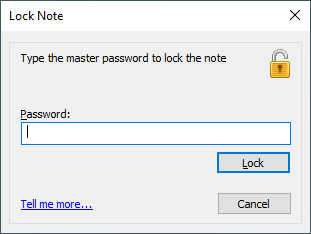
Notezilla lets you to password protect a note so that it cannot be read or edited. Also, the note is encrypted so that it cannot be read from the database too.
A single master password is used to lock/unlock any note. If you are locking a note for the first time after installing Notezilla, you will be requested to set the master password. You can change this master password using Preferences.
Conclusion
Notezilla thus takes care of your every need in detail.
It also has free apps for iPhone, iPad & Android to let you access your sticky notes anytime and anywhere! Install it on your phone from App Store or Google Play Store & sync all your sticky notes with the Windows version of Notezilla.
When you think of a sticky note, the first thing you would obviously expect is for it to stick. Well, that’s why it’s called a sticky note. But what about digital sticky notes? How would I stick them anywhere? You would be surprised that you can literally stick/attach digital sticky notes to websites, documents, apps, folders, and emails in your Windows PC and mobile devices.
This feature is rarely available in any sticky note software, including the much-acclaimed Windows sticky notes, which has advanced with exciting updates. We therefore bring to you an alternative software, Notezilla that lets you stick notes anywhere and everywhere!
What is Notezilla?
Notezilla is a professional, elegant & highly rated sticky notes app for Windows & Phones (Android, iOS, iPhone, iPad etc). You can also access your sticky notes from a Mac.
Notezilla helps you organize various tiny bits of information you would need through out your life. It keeps all your notes, tasks & reminders handy where ever you are. With sticky notes, you hardly have to put effort to take notes, set reminders, etc. Quickly jot down & move on with your task at hand.
Here are some features of Notezilla:
Sticky notes with reminders
Attach sticky notes to websites, documents, folders & apps
Organize sticky notes inside folders to keep your Windows desktop clean.
Pin sticky notes on top of other apps
Sync sticky notes between Windows, Android, iPhone, iPad
Add pictures inside sticky notes
Checklist sticky notes
Lock sticky notes (password protect)
Markdown support
Send notes over local network (LAN) or across the globe
Tag sticky notes
Fully transparent sticky notes
Dark mode
A visual showing one of the features of Notezilla.
Here is a short video perfectly depicting this feature:
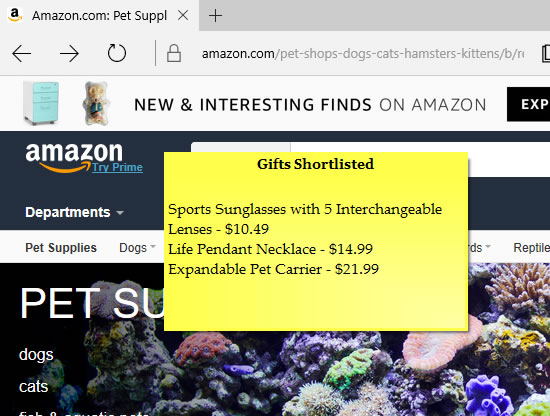
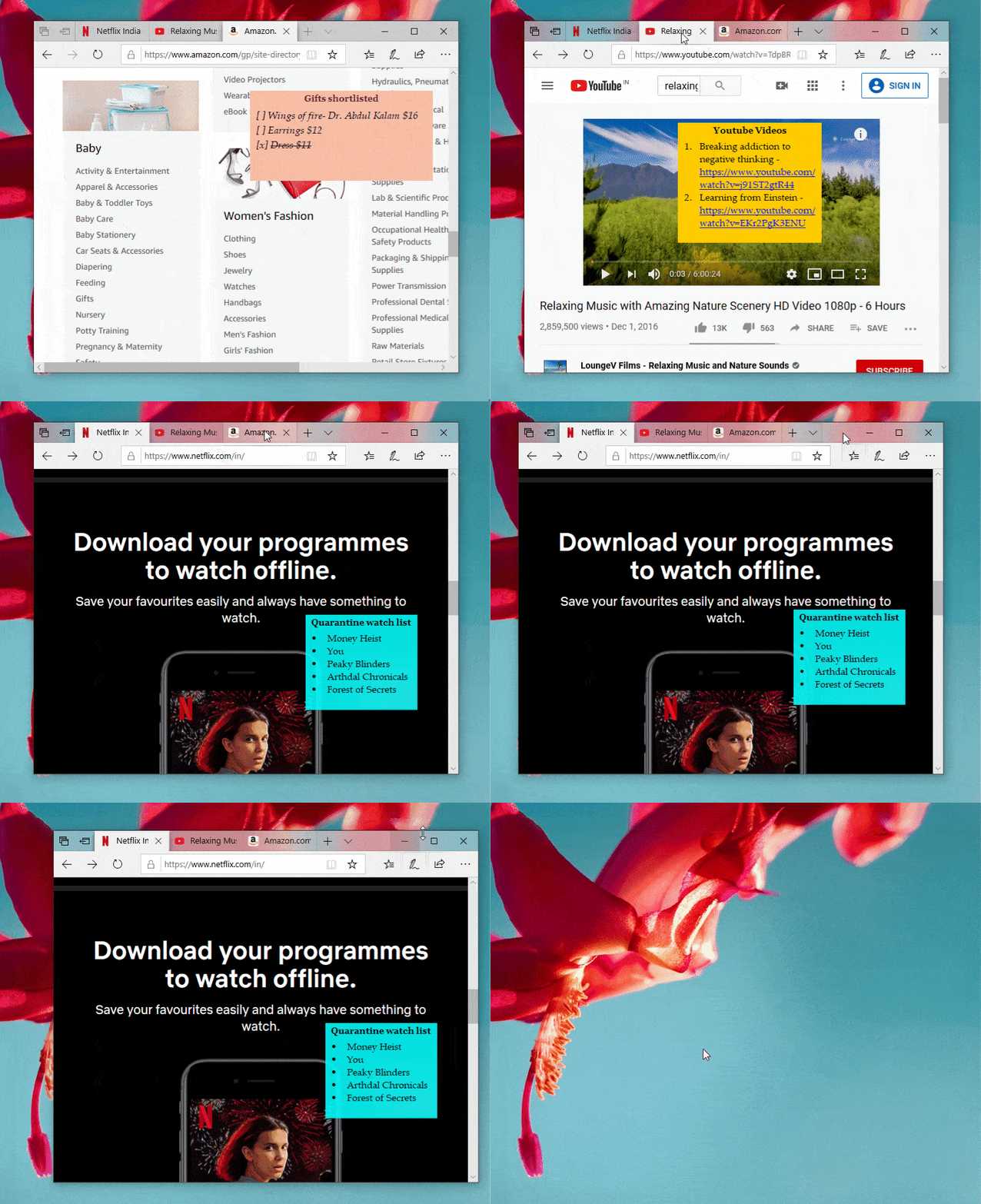
Notezilla lets you to associate a sticky note with any document, website, program or a window (such as an email window, or Windows Explorer).
Sticking a Note
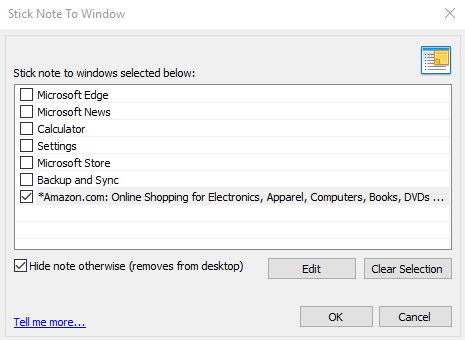
To stick a note to any window, right-click on the sticky note title and choose ‘Stick To Window’ 0icon from the menu. A faster way to do this is to use the shortcut key Ctrl+W. You will be shown the list of windows that are currently open. These windows include websites, documents, and programs currently open. Just select a window from the list and choose the OK button to stick the note.
Tip: You can directly stick a note to the underlying window by pressing Ctrl+Shift+W keys from the note.
Sticking notes to websites and web pages
We frequently visit certain websites like shopping websites, bank websites, etc. to access information or any other purpose. But have you ever imagined that you could pin sticky notes to the website? You can do that with Notezilla sticky notes. The sticky note will immediately pop up when you access that particular website. This can save you a lot of effort and valuable time.
For step by step guide on how to do this, you can read the following blog post on the same:
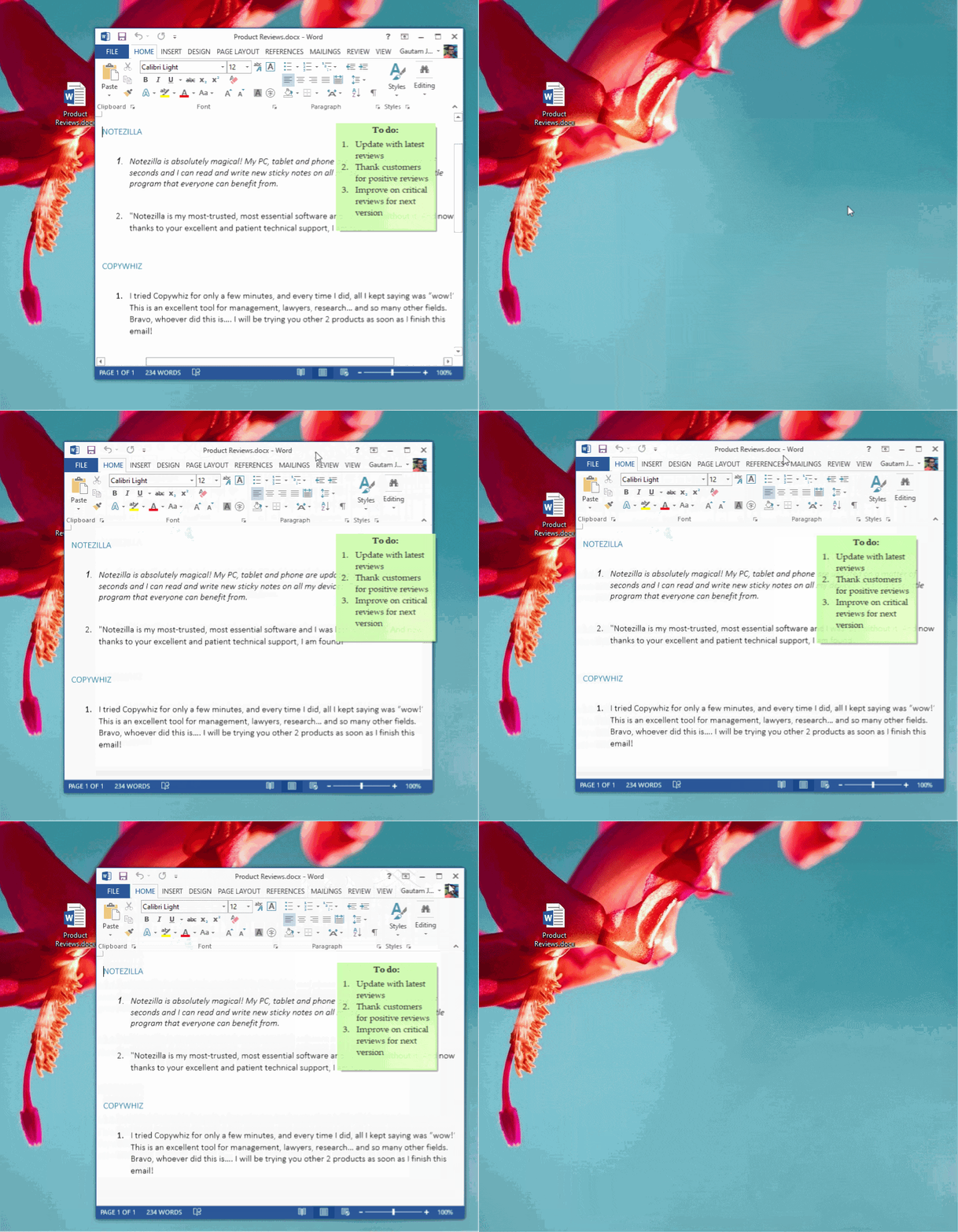
Attaching sticky notes to Microsoft Word, Excel and other types of documents
You can attach sticky notes to any type of document in a similar manner in Windows. The note will pop up when you open the document. This will help you accomplish tasks faster.
You can read the below blog post for more information:
The process of sticking notes to a folder is the same as sticking notes to any other website or document using Notezilla. However, to make it work correctly, there is a setting in Windows Explorer that needs to be enabled.
Notezilla sticks sticky notes to different web pages, documents, folders & emails based on the title of the window. In the case of Windows Explorer, by default, the title of the window is the folder name. So here comes the problem. If you have multiple folders with the same name, then the sticky note would show up on all those folders because of the same window title. This is not what we want.
To solve this, we have to enable a setting in Windows Explorer – “Display the full path in title bar.” On Windows 7 and above, you would also see a note “Classic theme only” against this setting. It only means that the full path will be shown only in the Classic Windows theme. Other themes will use the full path internally (which is what Notezilla requires).
Sticking notes to emails
This is another beneficial feature. You can attach sticky notes to emails that can help you stay updated and always ahead. Note that the note is only stuck there, and it is not associated with the mail. Meaning, it will not be sent along with mail or deleted along with the mail.
Shortcut
Here’s your reward for reading till here: A shortcut to making life easier!
Notezilla uses the title of the window to show or hide a particular sticky note. Sometimes, you may want to stick the note to windows of a similar kind. Ex: All pages of Amazon website, or all documents in Microsoft Word. In such cases, you would need to use the ‘wildcard’ method.
To match only a part of the window title, double click on any window title that is listed (shown in the above picture) and prefix or suffix the title with the * wildcard.
Examples: 1. *Google Search* (shows the note for any search query in Google and in any browser) 2. *Microsoft Outlook (shows the note even if you change folders in Outlook)
Now, this is what you call beauty with brains!
Notezilla thus saves a lot of your time and efforts and makes your sticky note experience joyful.
And here is another attractive feature. Notezilla has free apps for iPhone, iPad & Android to let you access your sticky notes anytime and anywhere! Install it on your phone from App Store or Google Play Store & sync all your sticky notes with the Windows version of Notezilla.
This article will show you how to switch between different sets of sticky notes to stick when you are working from different locations or working from different PCs. That is, you can have a set of sticky notes visible on one desktop and a different set of sticky notes visible on another desktop. This can be done only using Notezilla.
What is Notezilla?
Notezilla is a professional, elegant & highly rated sticky notes app for Windows & Phones (Android, iOS, iPhone, iPad etc). You can also access your sticky notes from a Mac.
Notezilla helps you organize various tiny bits of information you would need through out your life. It keeps all your notes, tasks & reminders handy where ever you are. With sticky notes, you hardly have to put effort to take notes, set reminders, etc. Quickly jot down & move on with your task at hand.
Here are some features of Notezilla:
Sticky notes with reminders
Attach sticky notes to websites, documents, folders & apps
Organize sticky notes inside folders to keep your Windows desktop clean.
Pin sticky notes on top of other apps
Sync sticky notes between Windows, Android, iPhone, iPad
Add pictures inside sticky notes
Checklist sticky notes
Lock sticky notes (password protect)
Markdown support
Send notes over local network (LAN) or across the globe
Tag sticky notes
Fully transparent sticky notes
Dark mode
Switching between desktop sticky notes
Let us look at an example.
Let us say you have a different set of notes for your work and personal information. When at work, you only want to have work-related notes appear on your desktop and not your personal notes. And at home, you want the opposite, i.e., only personal notes and not work notes.
Manually hiding each note from the desktop and then sticking the other set of notes is not a wise option, especially if you have to keep doing this every day, that too twice.
So how will you achieve this quickly and without much effort?
At this moment, an important feature of Notezilla steps in: Memoboards!
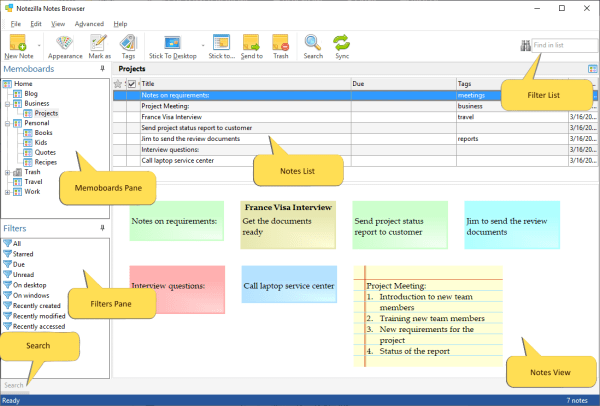
A memo board is a folder inside which sticky notes can be placed. They are like containers for sticky notes. The stickies are neatly arranged in each memo board, just like a storyboard.
Why use Memo Boards?
You can simultaneously view the contents of multiple sticky notes. Memo boards appear within the Notes Browser, a feature that lets you view, sort, and filter all of your notes at once. The Notes Browser lets you keep virtually unlimited sticky notes inside memo boards.
Memo Boards can help you do lots more.
Watch this short video for more clarity:
How will these memoboards help me switch?
The first thing you will do is create separate memoboards for both your office & personal sticky notes. The notes of each type will go into their respective memoboard.
So now, when you are at home, but your office notes are at the desktop:
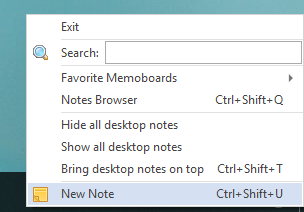
1. Hide all existing desktop notes. Left-click on the Notezilla icon and choose the option “Hide all desktop notes.”
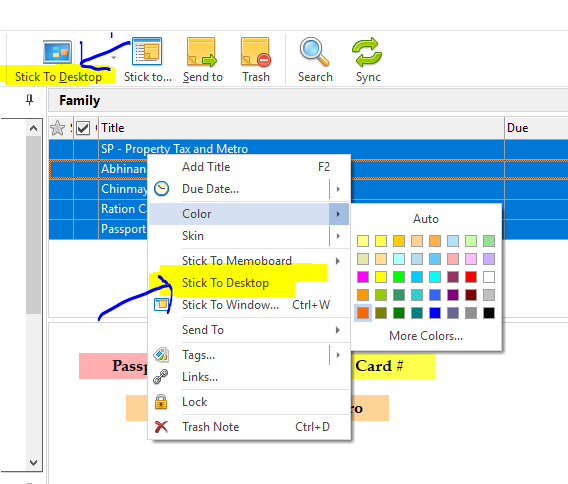
2. Next, go to the memoboard containing your personal notes. From the notes list, select all notes by pressing Ctrl+A and then choose ‘Stick to desktop’ option:
3. All the notes from this memoboard will now stick to your desktop!
Back at work:
Go to your personal memoboard. Select all the notes in the same way by pressing Ctrl+A and select the option, “Remove from desktop”. And all your personal notes will be instantly hidden!
Then stick your work notes on the desktop by going to your work memoboard and repeating the steps mentioned above. All work-related notes are now on the desktop!
This is so simple and fast. Notezilla therefore lets you work smoothly.
Bonus tip: Mark both the memobaords as ‘favorite’ and access them faster.
Notezilla thus makes your sticky note experience really productive. And guess what? Notezilla also has free apps for iPhone, iPad & Android to let you access your sticky notes anytime and anywhere! Install it on your phone from App Store or Google Play Store & sync all your sticky notes with the Windows version of Notezilla.
We are all aware of the latest updates in Windows sticky notes. While they are handy and will help make our work smoother, we haven’t yet found a much-needed feature: Multi-level bulleting and indentation. We can add bullets in Windows Sticky notes, but only of one type and only one level, while what we need the most are multiple level bullets and indentation, also called outlining.
It is a helpful feature when working on various projects.
Not many of the sticky notes programs offer this function. We, therefore, bring to you, an alternative software, Notezilla which will let you perform outlining (multiple level bullets and numbering) in your sticky notes.
What is Notezilla?
Notezilla is a professional, elegant & highly rated sticky notes app for Windows & Phones (Android, iOS, iPhone, iPad etc). You can also access your sticky notes from a Mac.
Notezilla helps you organize various tiny bits of information you would need through out your life. It keeps all your notes, tasks & reminders handy where ever you are. With sticky notes, you hardly have to put effort to take notes, set reminders, etc. Quickly jot down & move on with your task at hand.
Here are some features of Notezilla:
Sticky notes with reminders
Attach sticky notes to websites, documents, folders & apps
Organize sticky notes inside folders to keep your Windows desktop clean.
Pin sticky notes on top of other apps
Sync sticky notes between Windows, Android, iPhone, iPad
Add pictures inside sticky notes
Checklist sticky notes
Lock sticky notes (password protect)
Markdown support
Send notes over local network (LAN) or across the globe
Tag sticky notes
Fully transparent sticky notes
Dark mode
An image showing one of the features of Notezilla.
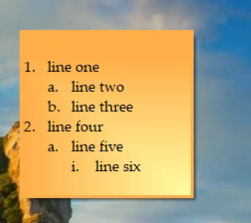
Outlining (multi-level bullets & numbering) in sticky notes on Windows using Notezilla
Here is a short video easily depicting this feature:
In Notezilla, you can press Shift+Tab to go back to one level down. To add bullets without using the menu, you can use Ctrl+Shift+L. Then use Tab and Shift-Tab to indent & unindent.
Why Notezilla?
Notezilla helps you mind map your tasks, goals and even the simplest thoughts. You do not need a separate planning tool for your tasks. Your list grows in a structured fashion, and it ensures that your tasks do not get mixed up. Assigning tasks and tracking them becomes easy and fast too.
It can tremendously boost your productivity.
Notezilla thus saves a lot of your time and efforts. And guess what? Notezilla also has free apps for iPhone, iPad & Android to let you access your sticky notes anytime and anywhere! Install it on your phone from App Store or Google Play Store & sync all your sticky notes with the Windows version of Notezilla.
Virtual sticky notes let you instantly type what’s on your mind without changing your task in hand. It provides a lot of ease, and they stay there right in front of you when you are working. For this reason, sticky notes are better than other types of note programs.
An essential thing when working on projects would be the ability to Tag your Sticky Notes. Tags are labels or categories that you can assign to notes to group them and locate them quickly.
This feature is not offered by most of the digital sticky note software. But you can do that using an alternative software, Notezilla, where tagging is one of it’s most useful feature.
What is Notezilla?
Notezilla is a professional, elegant & highly rated sticky notes app for Windows & Phones (Android, iOS, iPhone, iPad etc). You can also access your sticky notes from a Mac.
Notezilla helps you organize various tiny bits of information you would need through out your life. It keeps all your notes, tasks & reminders handy where ever you are. With sticky notes, you hardly have to put effort to take notes, set reminders, etc. Quickly jot down & move on with your task at hand.
Here are some features of Notezilla:
Sticky notes with reminders
Attach sticky notes to websites, documents, folders & apps
Organize sticky notes inside folders to keep your Windows desktop clean.
Pin sticky notes on top of other apps
Sync sticky notes between Windows, Android, iPhone, iPad
Add pictures inside sticky notes
Checklist sticky notes
Lock sticky notes (password protect)
Markdown support
Send notes over local network (LAN) or across the globe
Tag sticky notes
Fully transparent sticky notes
Dark mode
An image showing one of the features of Notezilla.
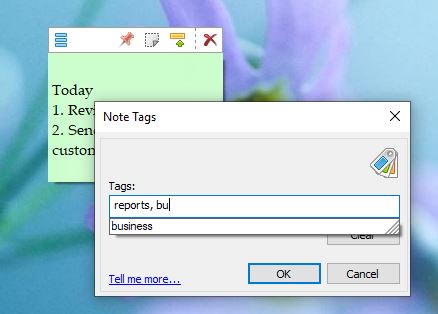
Example: You may tag a sticky note ‘project1, supermarket’, and tag another note ‘project2, supermarket’. Now you can easily find and group all the items to purchase from the Supermarket for all the projects.
Assigning Tags
To assign tags to a sticky note, choose Tags from the Note Menu or press Ctrl+T. The Note Tags window will appear (as shown above). Just type the tags separated by comma and press OK. The Note menu will also allow you to directly assign/remove the tag from the Tags popup menu.
Faster way to assign tags
To quickly assign tags, hover the mouse on tags from the Note menu and click on the drop-down from sub-menu. A list of already existing tags will be displayed. Directly assign tags to the note from that popup.
Conclusion
Notezilla is really helpful to increase your work productivity. You can efficiently work on the tasks at hand and stay organized.
It thus saves a lot of your time and effort. Notezilla also has free apps for iPhone, iPad & Android to let you access your sticky notes anytime and anywhere! Install it on your phone from App Store or Google Play Store & sync all your sticky notes with the Windows version of Notezilla.
The sticky note world has changed a lot with the development of digital sticky notes that appear on your desktop. Instantly type what’s on your mind on desktop sticky notes without changing your task in hand. It provides a lot of ease.
For this reason, sticky notes are better than other types of note programs. And many sticky note software offer other important features. Like recently, Windows added new updates to its sticky notes software with features like sync, pen support, new and improved design, etc.
But one essential feature Windows skipped to add was the ability to hide sticky notes from the desktop and make them visible anytime at your convenience. You can therefore use an alternative software, Notezilla that lets you do exactly this.
What is Notezilla?
Notezilla is a professional, elegant & highly rated sticky notes app for Windows & Phones (Android, iOS, iPhone, iPad etc). You can also access your sticky notes from a Mac.
Notezilla helps you organize various tiny bits of information you would need through out your life. It keeps all your notes, tasks & reminders handy where ever you are. With sticky notes, you hardly have to put effort to take notes, set reminders, etc. Quickly jot down & move on with your task at hand.
Here are some features of Notezilla:
Sticky notes with reminders
Attach sticky notes to websites, documents, folders & apps
Organize sticky notes inside folders to keep your Windows desktop clean.
Pin sticky notes on top of other apps
Sync sticky notes between Windows, Android, iPhone, iPad
Add pictures inside sticky notes
Checklist sticky notes
Lock sticky notes (password protect)
Markdown support
Send notes over local network (LAN) or across the globe
Having the sticky note on the desktop right in front of your eyes is good but, it gets annoying at times when there are a lot of notes on the desktop. It looks very cluttered and unprofessional. Also, they may come in the way of using other programs or might prove a problem when you don’t want someone else to see a particular note of yours. Hiding notes from your desktop is thus an important feature.
Hiding sticky notes in Notezilla
Here is a short video perfectly depicting this feature:
Hiding a particular note
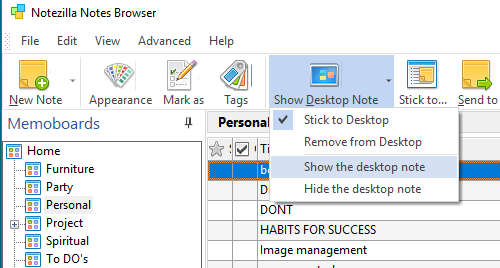
To hide a sticky note, click on the ‘Hide Note’ icon in the Note Toolbar. Double click on the note in the Notes List of the Notes Browser to view the hidden sticky note. To view it on your desktop, from the Notes Browser, select the sticky note stuck to the Windows desktop. Then click on the ‘Stick to Desktop’ toolbar button and choose ‘Show the desktop note.’
Note: Hiding sticky notes only make them invisible from your desktop even though they are still there. They are not deleted. Also, only desktop notes can be hidden.
Hiding all desktop sticky notes
To hide all desktop notes, left-click on the Notezilla icon and choose ‘Hide all desktop notes’ from the menu. You can also right-click on the Notezilla icon and choose ‘Desktop Notes//Hide all notes’ from the menu.
The faster and recommended way of hiding all desktop notes is to use a hotkey. You can set a hotkey for hiding all desktop notes using Preferences.
Showing all hidden notes
To show all desktop notes (including hidden notes), left-click on the Notezilla icon and choose ‘Show all desktop notes’ from the menu. You can also right-click on the Notezilla icon and choose ‘Desktop Notes/Show all notes’ from the menu. You have hotkeys for this too.
Notezilla thus makes your sticky note experience really worth the time. And guess what? Notezilla also has free apps for iPhone, iPad & Android to let you access your sticky notes anytime and anywhere! Install it on your phone from App Store or Google Play Store & sync all your sticky notes with the Windows version of Notezilla.