Add non rectangular transparent pictures to your Windows desktop using Notezilla

Hello Guys!

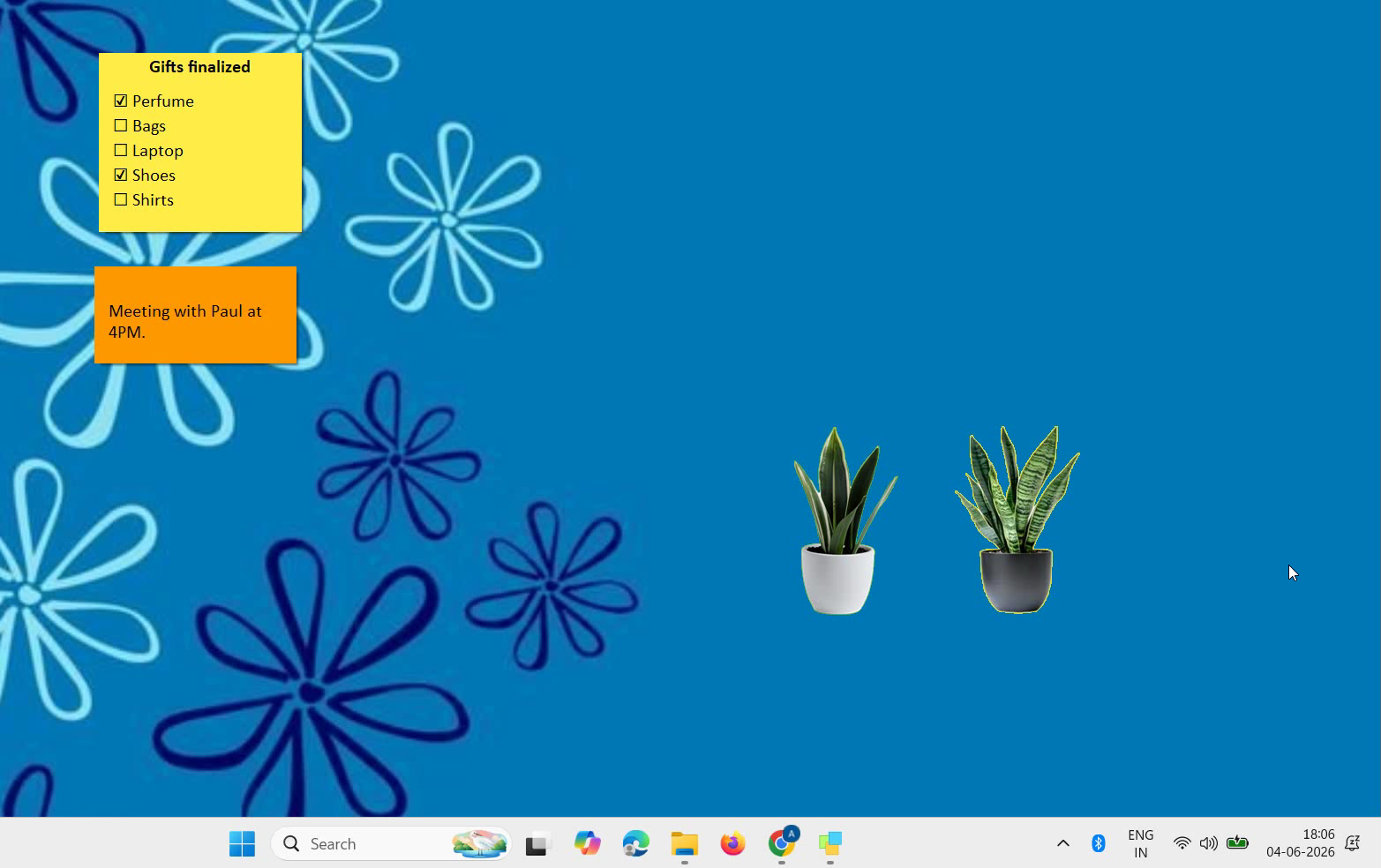
In this blog post we will be learning how Notezilla allows us to add non rectangular transparent pictures on Windows desktop using fully transparent sticky notes having invisible background. Change the transparency level (opacity) of sticky notes on Windows anytime or create new sticky notes with the transparency level already set.

The best part about this feature is images blend naturally into the background instead of appearing inside plain rectangular boxes. Makes it easy to combine multiple visuals without visible borders.
What is Notezilla?

Notezilla is a professional, elegant & highly rated sticky notes app for Windows & Phones (Android, iOS, iPhone, iPad etc). You can also access your sticky notes from a Mac.

Notezilla helps you organize various tiny bits of information you would need through out your life. It keeps all your notes, tasks & reminders handy where ever you are. With sticky notes, you hardly have to put effort to take notes, set reminders, etc. Quickly jot down & move on with your task at hand. 

Here are some features of Notezilla:

  • Sticky notes with reminders
  • Attach sticky notes to websites, documents, folders & apps
  • Organize sticky notes inside folders to keep your Windows desktop clean.
  • Pin sticky notes on top of other apps
  • Sync sticky notes between Windows, Android, iPhone, iPad
  • Add pictures inside sticky notes
  • Checklist sticky notes
  • Lock sticky notes (password protect)
  • Markdown support
  • Send notes over local network (LAN) or across the globe
  • Tag sticky notes
  • Fully transparent sticky notes
  • Dark mode

Here is short video describing this feature:

Video Transcription:

  1. As you can see in the video, we already have a rolled-up sticky note created using Notezilla.
  2. Right click inside the sticky note and select the option on Add picture.
  3. Select the desired picture.
  4. Then click on the top-left button of the sticky note to access the note’s menu.
  5. Go to appearance menu and choose transparency, full.
  6. And as we see in the video, we have a nice non-rectangular picture on the desktop.
  7. To move the note, click on the title and drag the note.
  8. There’s more than one way to add the images to your sticky note. We will drag and drop a picture inside the sticky note.
  9. Next, choose transparency as full.

That’s it. So easy to use and very convenient. Try it today and you will love it for sure. Go download it from the Play store or app store today and sync all your sticky notes with the Windows version of Notezilla.

Learn more about Notezilla.

Subscribe to our YouTube channel for interesting videos.

Check out our other cool products.

Have a good day!

Thanks for your time :)
Making Directory Opus work with Filezo

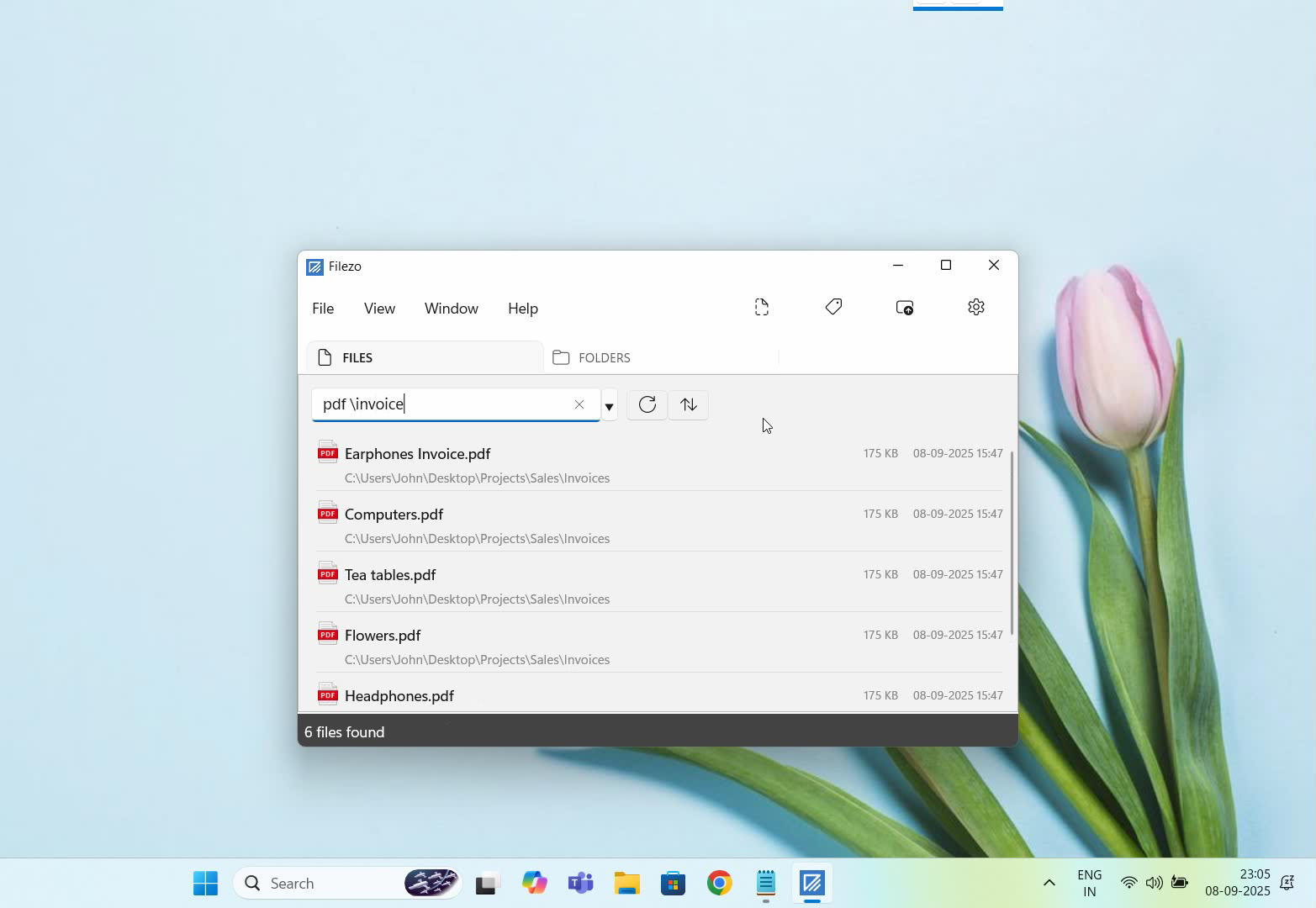
Filezo lets you quickly launch any file, folder or program. What is special about it is that it automatically tracks what file & folder you access. While it successfully tracks ‘file/document‘ opened in different file managers, it can only track ‘folder‘ opened from within Windows Explorer.

This post will show you how to make Filezo track folders opened in Directory Opus.

What is Filezo?

Filezo is a superfast launcher for Windows designed to make your computing life joyful. It gives you instant access to any of your files, folders and apps without the need to browse through hierarchical folders. Type and go! That’s it.

Here is are some of the key Filezo features:

  • Lightning speed access to any file, folder or app on your Windows PC.
  • Tag files and folders. Supports color-coded and hierarchical tags.
  • Pin frequently used files and folders on top of the list for quick one click access.
  • Add a note to any file without modifying the file itself.
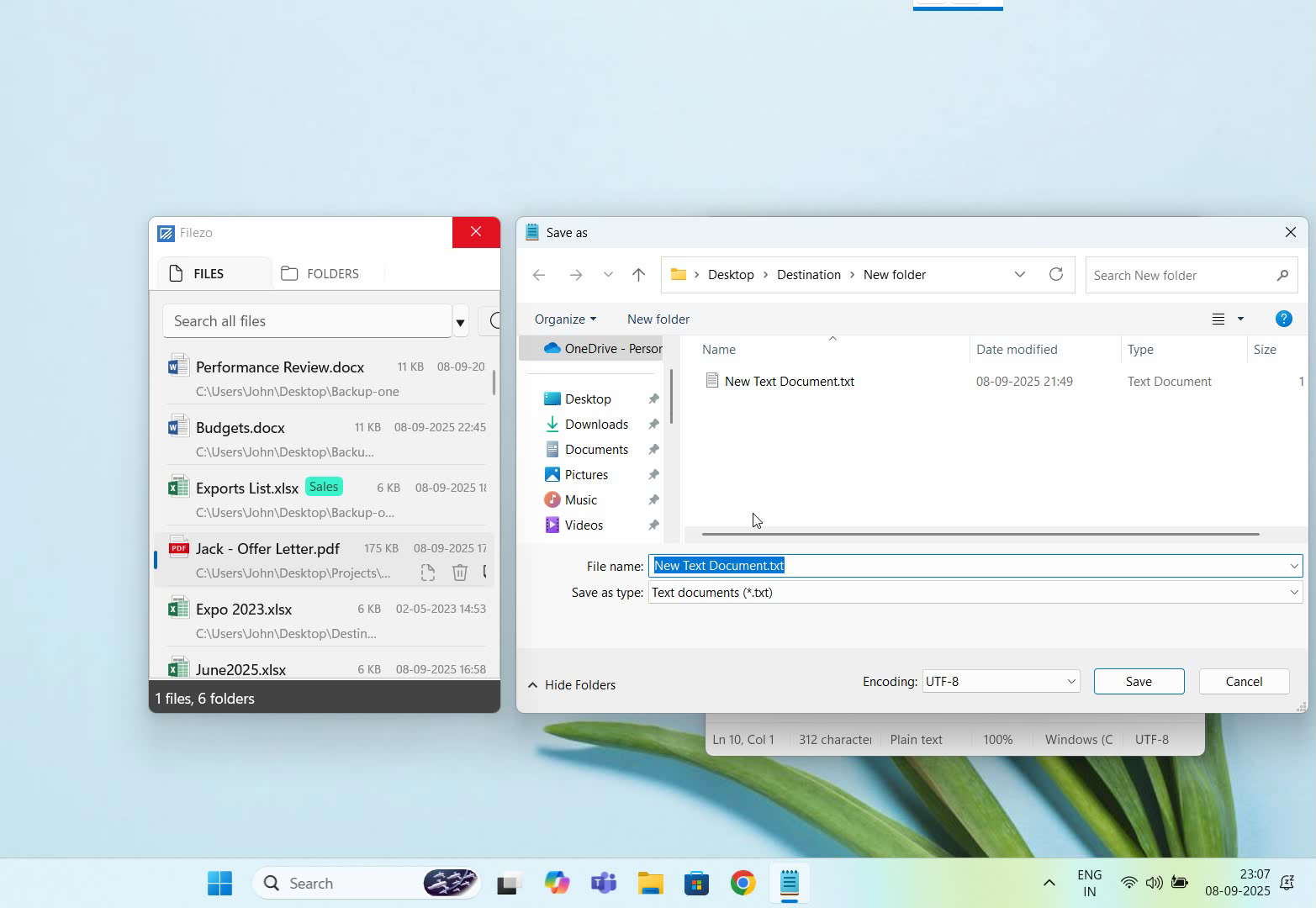
  • Integrates with the Windows File open/save window. Directly select a file or jump to any folder in Windows File open/save window using Filezo.
  • Preview various types of files including audio/video. Install previewer add-ons to support more files.
  • Quick manage files (copy, rename, delete, move) directly from Filezo without the need to open your File manager like Windows File Explorer..
  • Share tagged files and folders with other Filezo users over network.
  • Share annotated files and folders with other Filezo users over network.
  • Quickly find and drag/drop a file over other apps such as the Internet browser, email app, messaging app etc.
  • Many more hidden nuggets designed to make file and folder access easier.

Here we have an image representing Filezo features.

Recently John (one of Filezo users, don’t know last name) showed us an innovative way of making Filezo track files & folders opened in Directory Opus.

Filezo lets you take a quick shortcut, skipping several steps, to do the same thing. Apart from these functions, you can use the standard Windows File Explorer menu too from within Filezo to access advanced File Explorer plug-ins. Filezo makes things fast and fun!

Learn more about Filezo and also check out more tutorial videos, check out this page.

Thanks :)

Have a good day!


Launch any program quickly (Including portable apps) in Windows using Filezo

Hello Friends!

This video will guide you how to instantly launch any program in Windows using Filezo. Quickly launching applications with Filezo saves time and eliminates unnecessary navigation. Instead of searching through the Start menu, desktop shortcuts, or deep folder paths, you can instantly open any application by simply typing its name into Filezo’s search bar.

Filezo offers a faster, more efficient workflow, reduces clutter, and helps you maintain focus by cutting down repetitive steps. It also works well when you don’t remember the exact location of an app, since Filezo indexes everything and presents accurate, quick results.

What is Filezo?

Filezo is a superfast launcher for Windows designed to make your computing life joyful. It gives you instant access to any of your files, folders and apps without the need to browse through hierarchical folders. Type and go! That’s it.

Here is are some of the key Filezo features:

  • Lightning speed access to any file, folder or app on your Windows PC.
  • Tag files and folders. Supports color-coded and hierarchical tags.
  • Pin frequently used files and folders on top of the list for quick one click access.
  • Add a note to any file without modifying the file itself.
  • Integrates with the Windows File open/save window. Directly select a file or jump to any folder in Windows File open/save window using Filezo.
  • Preview various types of files including audio/video. Install previewer add-ons to support more files.
  • Quick manage files (copy, rename, delete, move) directly from Filezo without the need to open your File manager like Windows File Explorer..
  • Share tagged files and folders with other Filezo users over network.
  • Share annotated files and folders with other Filezo users over network.
  • Quickly find and drag/drop a file over other apps such as the Internet browser, email app, messaging app etc.
  • Many more hidden nuggets designed to make file and folder access easier.

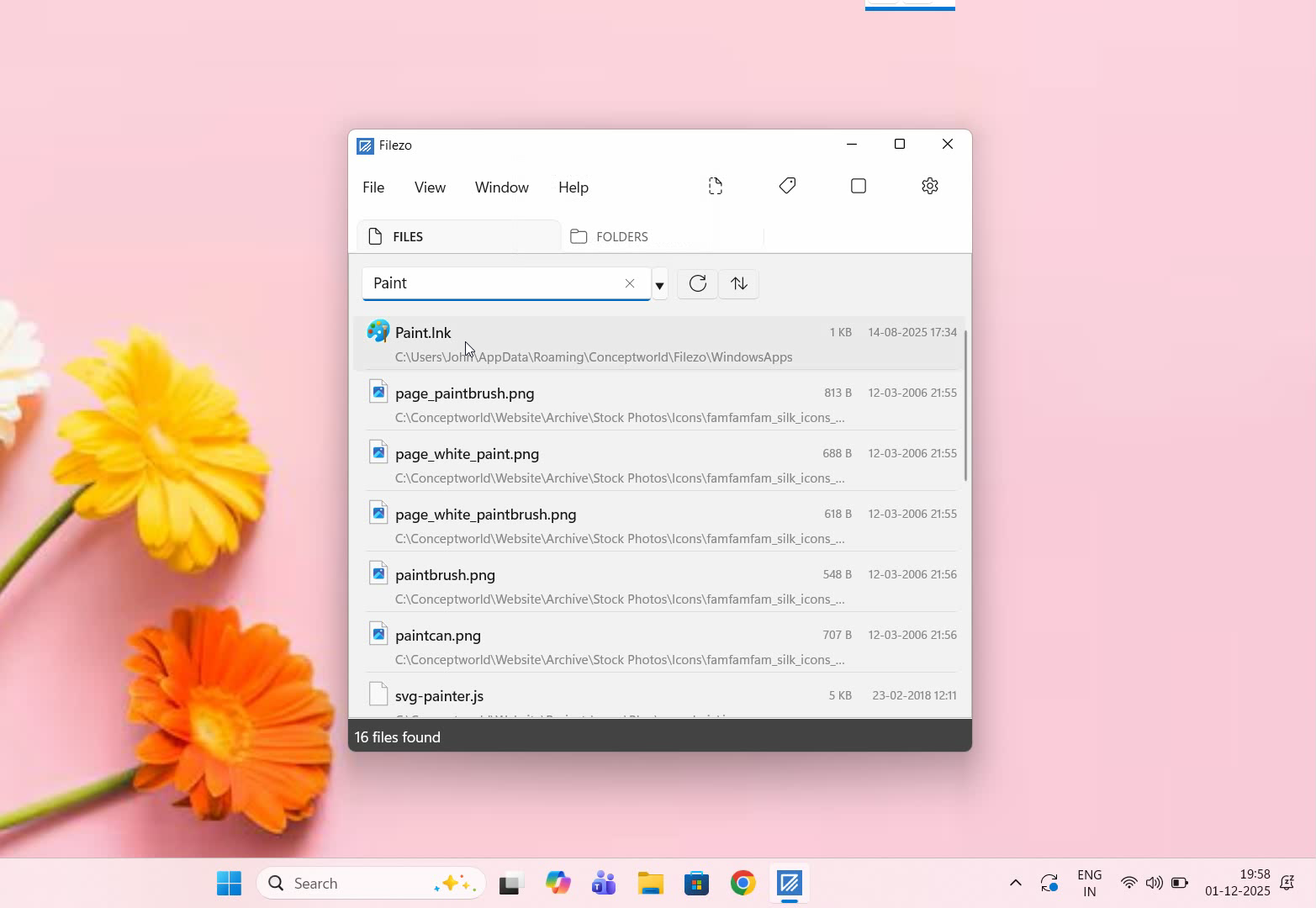
One of the features of Filezo is that you can launch any program faster and easier than the Windows start menu & Windows search.

Quickly launch apps using Filezo.

Here’s a short video depicting this feature:

Transcription of the above video:

  1. As shown in the video, open the ‘Files’ tab in Filezo.
  2. We will search for the Paint app now.
  3. Type the keyword in the search bar and here it is!
  4. Now let’s look for the calculator program the same way.
  5. Wow! right at the top! As shown in the video.

That’s it in this video.

Filezo lets you search and open any file on your system including all the apps. With Filezo, you can instantly launch your portable apps and scripts too which Windows Search cannot find it easily.

Learn more about Filezo and also check out more tutorial videos, check out this page.

Thanks :)

Have a good day!