Skip to content
Aug 2 09

RecentX 3.0 (Build 6) Launched, supports Google Chrome

by Conceptworld Team


Conceptworld just launched a new build of RecentX 3.0 – Build 6.

The new build supports Google Chrome browser. It is is now possible to filter the list by folder names. Example: .doc \ProjectA will find all documents inside ProjectA folder. Plus it has many improvements and bug fixes.

If you are a registered user of RecentX 3.0 then you may download and install the new build for free.

To learn what else has been added, please visit RecentX Revision History page.

Thank you for all your encouragement.

Jul 24 09

RecentX performance due to bug in Google Toolbar

by Conceptworld Team


Due to a bug in Google Toolbar, the size of Firefox history/bookmarks file (places.sqlite) bloats up drastically. Instead of being in the range of 20MB-30MB, it can grow as big as 300 MB. And it keeps growing as you browse more websites.

Google Toolbar, instead of keeping only 9 thumbnails in Places.sqlite file. It stores thumbnail of each website you visit.

This affects RecentX’s performance as RecentX reads the history from Places.sqlite.

Here is a tool called CompressSqliteDatabase that can compress any sqlite3 database. As it was designed for RecentX, the tool automatically detects a firefox database and asks you if you wish to delete all the Google Toolbar thumbnails so that it can compress it back to a very small size.

If you have Google Toolbar installed then chances are that your Firefox history file will be too big.

Download the below tool to compress your Firefox history file. The file is stored under Firefox’s profile folder. Typically – %APPDATA%\Mozilla\Firefox\Profiles\ . Copy and paste this path in Start->Run window and press OK in the Run window. This will open the ‘Profiles’ folder. Open the right profile folder here. The profile folder is normally named as (something).default. Here you will find the places.sqlite file.

Download CompressSqliteDatabase from here


Thanks.

Jul 14 09

We are on Facebook :)

by Conceptworld Team


Hello All,


We have created 2 facebook pages. One for NoteZilla and another for RecentX.

You may join as fans of NoteZilla & RecentX on the following pages:

NoteZilla Page
RecentX Page

Thanks for your support.


Jun 20 09

RecentX 3.0 Launched

by Conceptworld Team


We are pleased to announce the launch of RecentX version 3.0.

This new version of RecentX has been improved from many dimensions. Nice new features, better performance & stability, improved usability and attractive looks.

Learn more about RecentX 3.0
Know what’s new in RecenX 3.0
Upgrade to RecentX 3.0  

Note:
Just download the new version and install it over the existing one. Existing data will be migrated automatically. If you don’t wish to keep the new version, you may revert back to the older version easily.

In the next few weeks, we will keep tweaking the new version. Do let us know if anything is missing or if anything needs improvement.

Finally, if RecentX has saved a lot of your time in the past, please do mention about it in forums, twitter, blog or your own website.


Jan 20 09

Request for improvements in RecentX

by Conceptworld Team


We are currently developing the new version of RecentX. The new version is being redesigned for better performance (memory and speed) with some interesting features that our customers have been requesting over the last couple of years.

If you have any feature request, please do drop it here.

Thanks for your support.

Oct 22 08

Marking a memoboard as ‘Favorite’ in NoteZilla

by Conceptworld Team


In NoteZilla, the ‘Send To’ menu that appears when clicking on the top-left button of a sticky note lists only the favorite memoboards.

To mark any memoboard as favorite, follow the below steps:

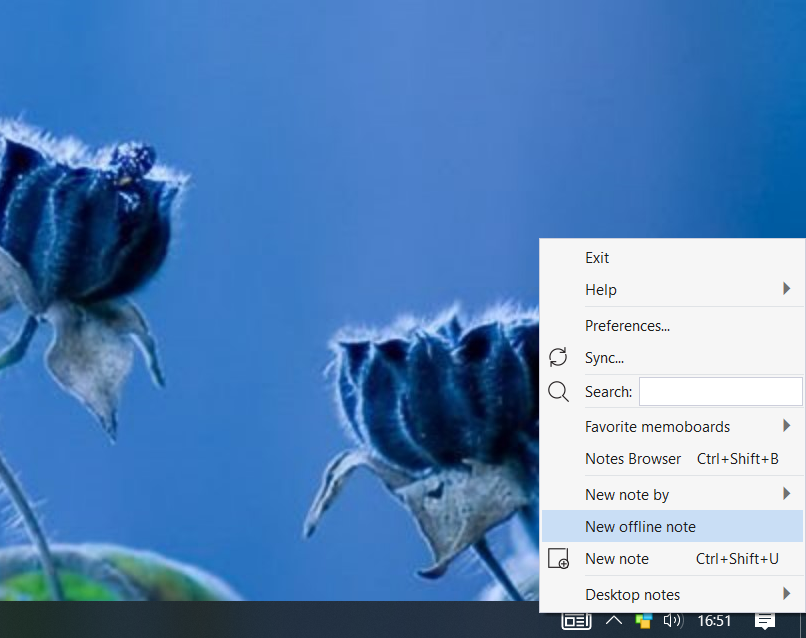
  1. Right click on NoteZilla icon in the taskbar (next to the clock) and choose Notes Browser.
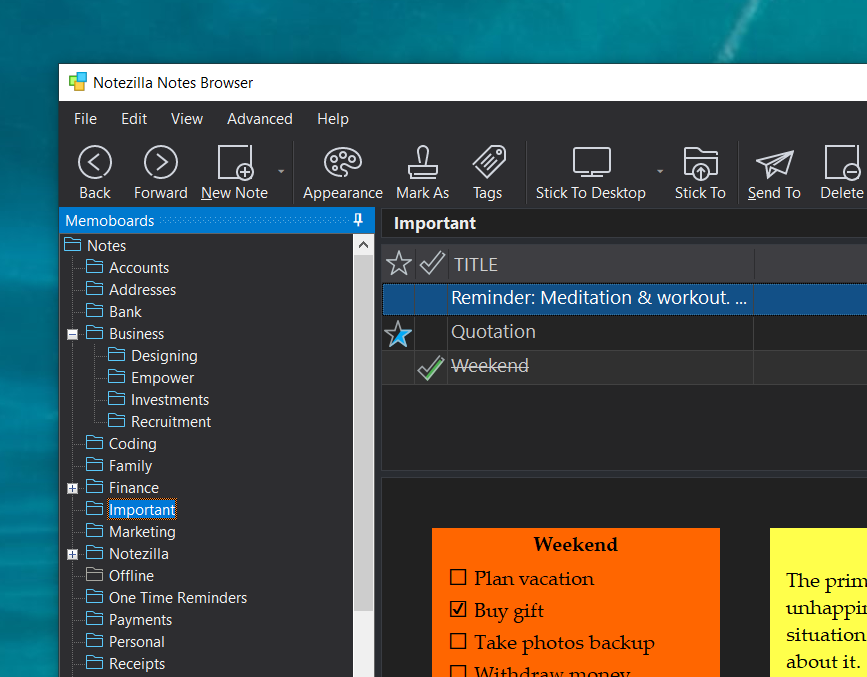
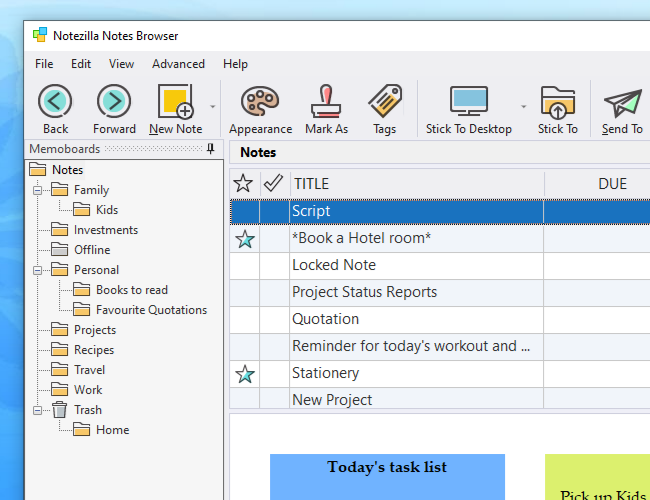
  2. In the Notes Browser, go to the ‘Memoboards’ pane on the left side and right click on the the memoboard item that you want to mark as ‘Favorite’.
  3. Choose ‘Favorite’ from the menu that appears on right clicking on the memoboard item


Jul 29 08

Lost registration code/key for a product?

by Conceptworld Team


If you are registered user of any of our products, you can retrieve your registration code/key from the following webpage: http://www.conceptworld.com/Support/LostActivationKey


If you don’t have the product installed, you can download and install it from our website www.conceptworld.com


Jun 18 08

Moving sticky notes between memoboards in NoteZilla

by Conceptworld Team


Yes, you can drag and drop notes between memoboards (including the ‘Desktop’ memoboard).

  1. Go to NoteZilla Browser
  2. Select the note from the notes list. Remember, you need to select it from the top notes list instead of the bottom sticky notes view.
  3. Drag the note item from the notes list and drop it over any other memoboard item on the left ‘Memoboards’ pane.

Note: If you hold the Ctrl key while dropping, NoteZilla will create a copy of that sticky note.
 

May 5 08

“My sticky notes are gone. What should I do?”

by Conceptworld Team


Often we get support queries that says ‘My notes are gone. What should I do?’.


In all the cases we have seen, there was nothing to panic about. Actually, the data did not get corrupted or the data was not lost. It was just misplaced due to some change in configuration settings (Windows profile, moving of folders, reinstallation etc)


Here are the different things you need to try when you do not find your notes:


May be the sticky notes are just hidden.


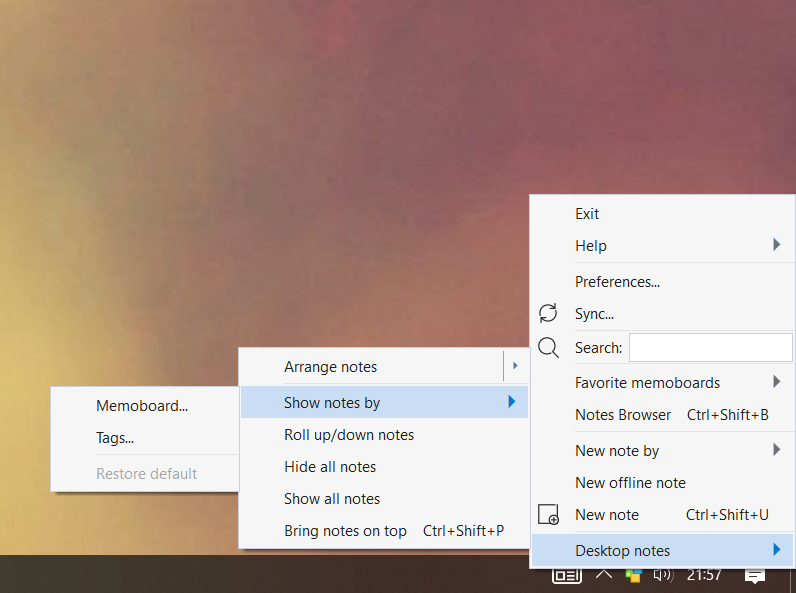
Right click on Notezilla icon in the taskbar (next to the clock) and choose Desktop Notes->Show All Notes.


May be the sticky notes are off your desktop


Sometimes, when changing the display resolution of your desktop, the notes be go off the desktop. Right click on Notezilla icon in the taskbar (next to the clock) and choose Desktop Notes->Layout->Stickers.


May be Notezilla is not seeing the right data folder.

  1. Go to Notezilla’s preferences. To access Notezilla’s Preferences, go to the Notes Browser, choose Advanced->Preferences from the menu.
  2. Click on the Advanced tab and note the data folder where Notezilla is looking for the notes data.
  3. Exit Notezilla.
  4. Search your whole computer (all drives) for Notes.db file. Check the size of this file and its date modified. Find the biggest file and the latest one. Copy this file to the above data folder.
  5. Launch Notezilla and check if you see your sticky notes.


May be the backup folder has your notes data.


Notezilla keeps 5 copies of the backup under the backup subfolder.


Windows XP: C:\Documents and Settings\(user name)\Application Data\Conceptworld\Notezilla\backup\
Windows Vista/7: C:\Users\(user name)\AppData\Roaming\Conceptworld\Notezilla\backup\


Each copy is stored in a subfolder, date wise. Go to each folder and check the size and date of Notes.db file. Find the biggest file and the latest one. Copy this file to the above data folder. To know the exact path of the data folder, go to Notezilla Preferences. To access Notezilla’s Preferences, go to the Notes Browser, choose Advanced->Preferences from the menu. The Advanced tab will show the right data folder path.


Apr 10 08

Memoboards are automatically sorted

by Conceptworld Team


In NoteZilla, new memoboards are added at the end of the ‘Memoboards’ pane on the left side of Notes Browser.


They are not sorted immediately, to avoid confusion.


When you exit and run Notezilla again, you will see a sorted list of memoboards in the ‘Memoboards ‘ pane.