Attaching sticky notes to Microsoft Excel spreadsheet in Windows

Whoever you are, be it a small business, a mid-size firm, or a large business organization, you have to use Excel Spreadsheets. For tracking trends, project reports, work schedules, customer data, and other financial and marketing aspects.

For this reason, MS Excel hasn’t lost it’s importance in today’s technologically advanced world.

While we create multiple spreadsheets in Excel every day, we also have certain notes to make regarding the information or decisions relating to it. The quickest and most sought after place for these notes are sticky notes. You can quickly create a sticky note on your desktop and jot down things related to the doc.

But then, how many sticky notes will you create? And how will you find and access the required sticky note for a particular document among the hundreds of notes?

The answer to this is Notezilla sticky notes app. Why? Because of the feature to attach a sticky note to a particular document, website, folder, or program. Just create a note and attach it to the excel sheet. The note will automatically appear when you open the sheet and disappear when you are not using that sheet.

Sounds cool, right? Well, it is. Notezilla does this using the title of the Window. It associates a sticky note to the title of a particular window, and therefore this feature can work smoothly.

Moreover, you also have a wildcard (*) to support a sticky note to multiple excel spreadsheet documents of a single folder.

What is Notezilla?

Notezilla is a professional, elegant & highly rated sticky notes app for Windows & Phones (Android, iOS, iPhone, iPad etc). You can also access your sticky notes from a Mac.

Notezilla helps you organize various tiny bits of information you would need through out your life. It keeps all your notes, tasks & reminders handy where ever you are. With sticky notes, you hardly have to put effort to take notes, set reminders, etc. Quickly jot down & move on with your task at hand. 

Here are some features of Notezilla:

  • Sticky notes with reminders
  • Attach sticky notes to websites, documents, folders & apps
  • Organize sticky notes inside folders to keep your Windows desktop clean.
  • Pin sticky notes on top of other apps
  • Sync sticky notes between Windows, Android, iPhone, iPad
  • Add pictures inside sticky notes
  • Checklist sticky notes
  • Lock sticky notes (password protect)
  • Markdown support
  • Send notes over local network (LAN) or across the globe
  • Tag sticky notes
  • Fully transparent sticky notes
  • Dark mode

A visual depicting how this works!

Attaching a sticky note

Watch this short video on how to attach notes to Microsoft Excel Sheets:

To stick a note to any excel spreadsheet document, right-click on the note title and choose the “Stick To Window” option from the menu, as shown in the below picture. Alternatively, press Ctrl+W from within the sticky note.

Stick to Window_

A list of all the currently opened windows will display, which includes Websites, Programs, documents. Select the excel spreadsheet document to which you wish to attach the sticky note. The note will stick to the particular excel spreadsheet document.

Stick to Window

Note: To directly stick a note to the underlying excel spreadsheet, Press Ctrl+Shift+W keys from the note.

This is how it will appear on the excel spreadsheet document:

Matching only a part of the window title (Wildcards)

As mentioned earlier, Notezilla uses the title of the window to show or hide a particular sticky note. Sometimes, you may want to stick a note to documents of a similar kind. In such cases, you would need to use the ‘wildcard’ method.

To match only a part of the window title, double click on any window title that is listed and prefix or suffix the title with the * wildcard. As per this, the sticky note will appear on all the documents of a particular folder.

So how about giving it a try today. It perfectly boosts your productivity by saving your time and efforts!

The best part of Notezilla is that it can sync notes between your mobile and PC or laptop! Therefore, you have the exact notes at both places! Try the sync feature today! You will surely love it.

Learn more about Notezilla.

Subscribe to our YouTube channel for interesting videos.

Check out our other cool products.

Have a good day!

Thanks :)

Notezilla sticky notes app: Price Slashed for subscription renewal!

Dear Customers,

Happy to inform you that we have slashed Notezilla’s yearly subscription renewal fee from $29.95 to just $14.95. You pay $29.95 only for the first year. However, renewals will be charged only $14.95.

Learn more about Notezilla Pricing.

Share this news with your friends, relatives, and co-workers. Help them improve their productivity. They may be interested in purchasing Notezilla, now that it is cheaper than earlier.

What is Notezilla?

Notezilla is a professional, elegant & highly rated sticky notes app for Windows & Phones (Android, iOS, iPhone, iPad etc). You can also access your sticky notes from a Mac.

Notezilla helps you organize various tiny bits of information you would need through out your life. It keeps all your notes, tasks & reminders handy where ever you are. With sticky notes, you hardly have to put effort to take notes, set reminders, etc. Quickly jot down & move on with your task at hand. 

Here are some features of Notezilla:

  • Sticky notes with reminders
  • Attach sticky notes to websites, documents, folders & apps
  • Organize sticky notes inside folders to keep your Windows desktop clean.
  • Pin sticky notes on top of other apps
  • Sync sticky notes between Windows, Android, iPhone, iPad
  • Add pictures inside sticky notes
  • Checklist sticky notes
  • Lock sticky notes (password protect)
  • Markdown support
  • Send notes over local network (LAN) or across the globe
  • Tag sticky notes
  • Fully transparent sticky notes
  • Dark mode

We wish you the best!

Copywhiz 5 Launched!

Dear Friends,

We are pleased to launch Copywhiz version 5 today :).

What is Copywhiz?

Copywhiz enhances your file-copy experience by letting you to have more flexibility & control over the file copying and backup process.

Here is how Copywhiz makes file copying a breeze:

  • Copy only new or modified files
  • Easily pick files by name, extension, folder etc from bunch of folders
  • Automatically organize files based on file attributes and metadata
  • Copy files to multiple folders/computers
  • Copy files from multiple folders and paste them at once
  • Sync files between source and destination
  • Pick files from multiple folders and compress in single .zip file
  • Schedule file backups
  • Verify copied files for data integrity
  • Retain security attributes of files & folders (ownership/user access)
  • Several more hidden nuggets designed to make your file-copy task easier.
Copywhiz Logo

Here is a brief list of features added:

  1. Use shortcut keys in File Explorer (Windows Explorer) to copy & paste files.
  2. Adding files from File Explorer (Windows Explorer) is faster than earlier versoin.
  3. Schedule a file backup using Copywhiz.
  4. Previewing files has gotten more useful.
  5. Working with projects is easier and faster.
  6. Do not keep empty folders feature when copying files.
  7. Ability to create full folder hierarchy.
  8. Ability to create folder structure only (Do not paste files).
  9. Pre-configure file replace rules.
  10. Copy only a subset of selected items for more flexibility.
  11. Skip same type of errors to avoid interruption when copying files.
  12. Auto-rename is quicker in the new version. No rename suffix required.
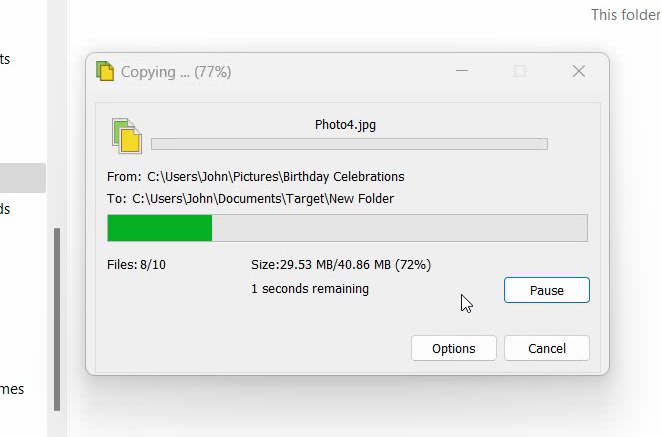
  13. Taskbar shows your file copy progress.
  14. Easier to add multiple items like multiple folders, multiple file include/exclude rules.

For more details, upgrade instructions and screenshots, check out what’s new in Copywhiz 5

Do subscribe to our YouTube channel for interesting videos.

Thanks a lot for your continued support.

Conceptworld launches Questions & Answers site

Hello Customers,

Pleased to announce that we have launched Questions & Answers (QA) site for faster, instant support. This site is similar to Stack Overflow. QA will let you search questions & answers (related to Notezilla, RecentX, Copywhiz etc) that other customers have asked. So there are high chances that you will instantly find your answer without having to send us email and wait for an answer.

Thank you all for your continued support & encouragement :)

Notezilla sticky note app for iOS-iPhone/iPad is here!

We are very happy to launch Notezilla sticky notes app for iPhone/iPad. Back in December, we had launched Notezilla for Android.

What is Notezilla?

Notezilla is a professional, elegant & highly rated sticky notes app for Windows & Phones (Android, iOS, iPhone, iPad etc). You can also access your sticky notes from a Mac.

Notezilla helps you organize various tiny bits of information you would need through out your life. It keeps all your notes, tasks & reminders handy where ever you are. With sticky notes, you hardly have to put effort to take notes, set reminders, etc. Quickly jot down & move on with your task at hand. 

Here are some features of Notezilla:

  • Sticky notes with reminders
  • Attach sticky notes to websites, documents, folders & apps
  • Organize sticky notes inside folders to keep your Windows desktop clean.
  • Pin sticky notes on top of other apps
  • Sync sticky notes between Windows, Android, iPhone, iPad
  • Add pictures inside sticky notes
  • Checklist sticky notes
  • Lock sticky notes (password protect)
  • Markdown support
  • Send notes over local network (LAN) or across the globe
  • Tag sticky notes
  • Fully transparent sticky notes
  • Dark mode

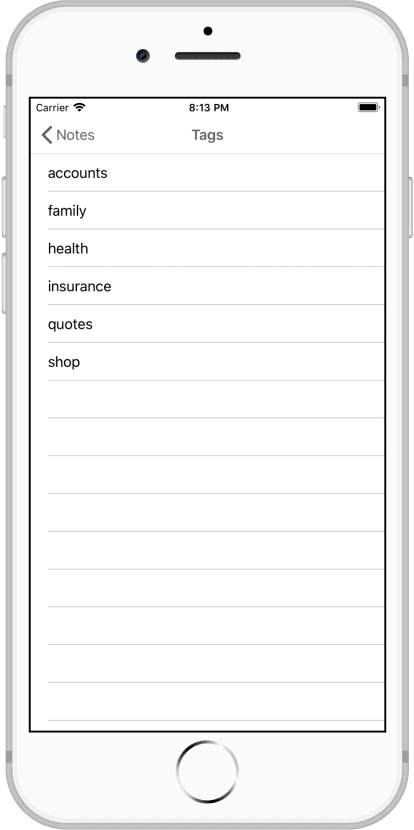
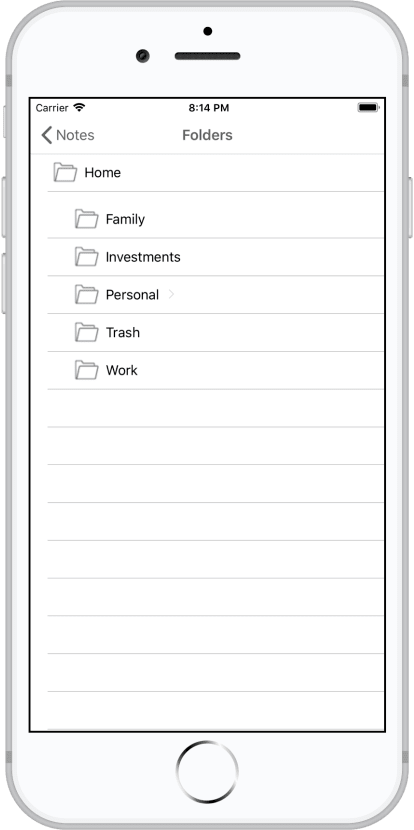
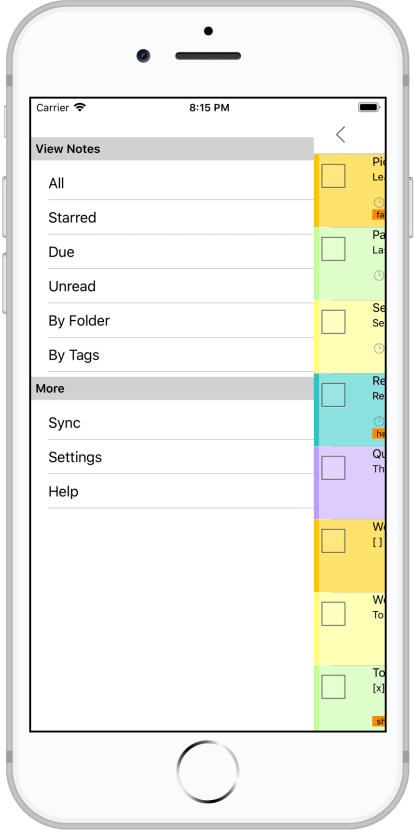
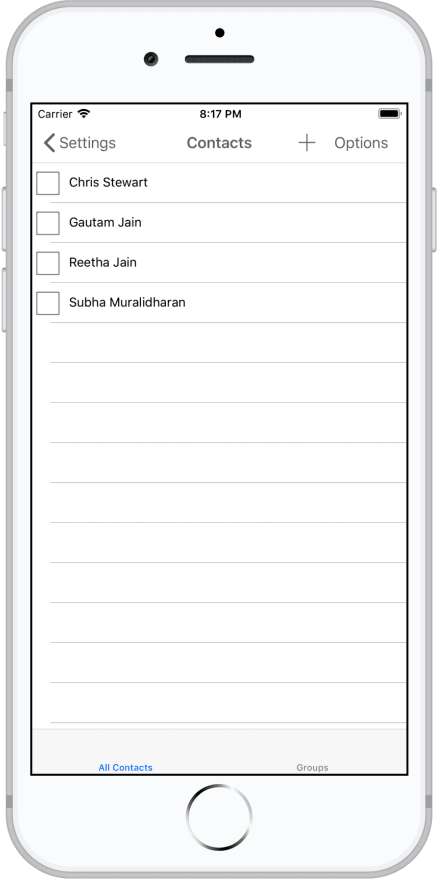
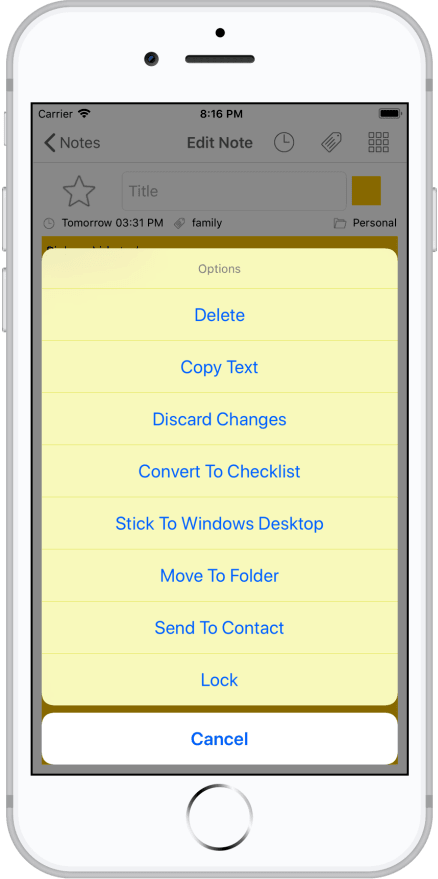
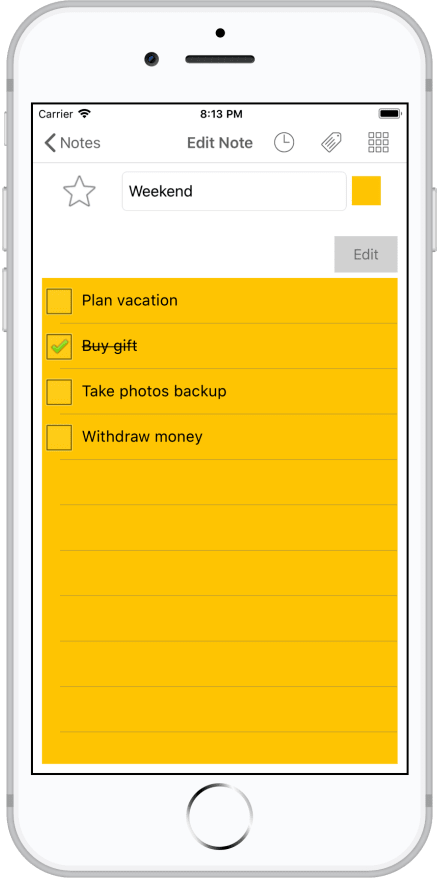
Screenshots

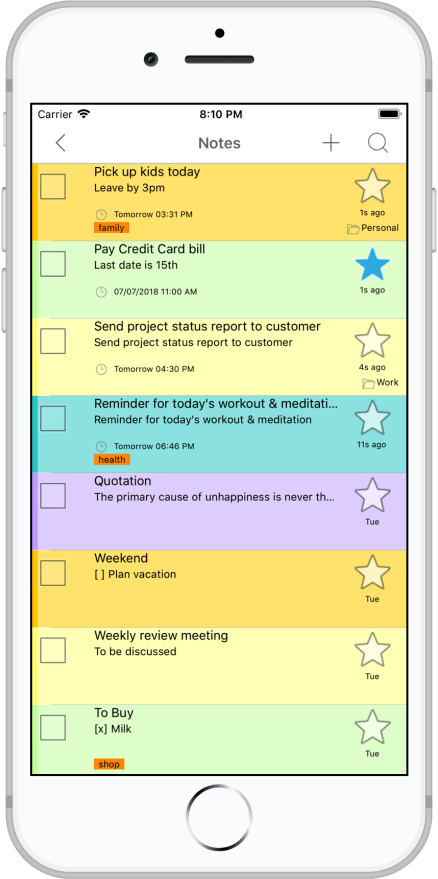
Here are the screenshots of the new Notezilla app for the iPhone/iPad. Download from App Store today and sync all your desktop sticky notes from Notezilla on Windows. Here is a short video depicting this feature:

Subscribe to our YouTube channel for interesting videos.

Check out our other cool products.

Have a good day.

Thanks for reading till the end :)

Copy all files into a single folder without any folder structure using Copywhiz

Hi!

This video will guide you to copy files into a single folder without creating any folders/sub-folders in Windows using Copywhiz.

What is Copywhiz?

Copywhiz enhances your file-copy experience by letting you to have more flexibility & control over the file copying and backup process.

Here is how Copywhiz makes file copying a breeze:

  • Copy only new or modified files
  • Easily pick files by name, extension, folder etc from bunch of folders
  • Automatically organize files based on file attributes and metadata
  • Copy files to multiple folders/computers
  • Copy files from multiple folders and paste them at once
  • Sync files between source and destination
  • Pick files from multiple folders and compress in single .zip file
  • Schedule file backups
  • Verify copied files for data integrity
  • Retain security attributes of files & folders (ownership/user access)
  • Several more hidden nuggets designed to make your file-copy task easier.

Why single folder?

Browsing & digging into several folders is very time-consuming. So you may want to extract all the files from different folders and put them in a single folder. Copywhiz allows you to copy only files without creating the folders/sub-folders.

Transcription:

To copy files into a single folder,

  1. Copy files from the source folder (a mix of files and folders), right-click on them and choose Copywhiz–>Copy.
  2. Right-click inside the destination folder where you wish to copy the files and select Copywhiz–>Paste Advanced.
  3. Copywhiz window will open with the destination folder already selected. You can add multiple folders by clicking on the Add button placed next to the Destination Folders text box. Alternatively, you can drag and drop the target folders over the Destination Folders text box.
  4. Tick the Paste all files to a single folder (do not create sub-folders) checkbox placed at the bottom of the window.
  5. Click on ‘Paste Now’ button.
  6. All your files will be copied successfully in a single folder without any multi-level folder structure.

That’s it in this video.

For more tutorial videos, check out this page.

Subscribe to our YouTube channel for interesting videos.

Learn more about Copywhiz. Download the free trial from here.

Have a good day

Thanks :)

Instantly backup specific files into a new folder in Windows using Copywhiz

Hello Friends!

This video will guide you how to instantly backup specific files in Windows using Copywhiz.

What is Copywhiz?

Copywhiz enhances your file-copy experience by letting you to have more flexibility & control over the file copying and backup process.

Here is how Copywhiz makes file copying a breeze:

  • Copy only new or modified files
  • Easily pick files by name, extension, folder etc from bunch of folders
  • Automatically organize files based on file attributes and metadata
  • Copy files to multiple folders/computers
  • Copy files from multiple folders and paste them at once
  • Sync files between source and destination
  • Pick files from multiple folders and compress in single .zip file
  • Schedule file backups
  • Verify copied files for data integrity
  • Retain security attributes of files & folders (ownership/user access)
  • Several more hidden nuggets designed to make your file-copy task easier.

Why Copywhiz?

It allows you to create backups using some standard variables such as %year%, %month%, %day%, %hour%, %minute% as part of the destination directories so that files are copied inside a new dated folder each time. The latest update also supports %date% and %datetime% variables for simplification.

The advantage of using these variables is that each time the files will be copied in a new dated folder, creating a new backup, instantly.

Transcription:

To backup specific files instantly,

  1. Copy the files from the Source folder and right-click on it and choose Copywhiz–>Copy.
  2. Right-click inside the destination folder where you wish to copy the files and select Copywhiz–>Paste Advanced.
  3. Copywhiz window will open with the destination folder already selected. You can suffix the destination folder with %date% or %datetime% to add current date to the folder name.
  4. You can save the selected files and destination folder as a Copywhiz project and run the project each time you want to create a backup of the same set of files.

That’s it in this video.

For more tutorial videos, check out this page.

Subscribe to our YouTube channel for interesting videos.

Learn more about Copywhiz. Download the free trial from here.

Have a good day.

Thanks for visiting our blog :)

Save selected files list to a Copywhiz project for Windows

Hi!

This video will teach you how to save files to a project and directly use them for future purposes using Copywhiz.

What is Copywhiz?

Copywhiz enhances your file-copy experience by letting you to have more flexibility & control over the file copying and backup process.

Here is how Copywhiz makes file copying a breeze:

  • Copy only new or modified files
  • Easily pick files by name, extension, folder etc from bunch of folders
  • Automatically organize files based on file attributes and metadata
  • Copy files to multiple folders/computers
  • Copy files from multiple folders and paste them at once
  • Sync files between source and destination
  • Pick files from multiple folders and compress in single .zip file
  • Schedule file backups
  • Verify copied files for data integrity
  • Retain security attributes of files & folders (ownership/user access)
  • Several more hidden nuggets designed to make your file-copy task easier.

Why Copywhiz?

If you require to copy the same set of files frequently, you can save the selected files as a Copywhiz project and run it later whenever required. Once saved, you can use Copywhiz command line parameters to run the project file from a batch file or a script file.

This short video will guide you:

Transcription:

  1. Select the required files that you wish to copy from different folders, right-click on them and choose Copywhiz–>Copy.
  2. Go to the Destination folder, right-click on it and choose Copywhiz–>Paste Advanced.
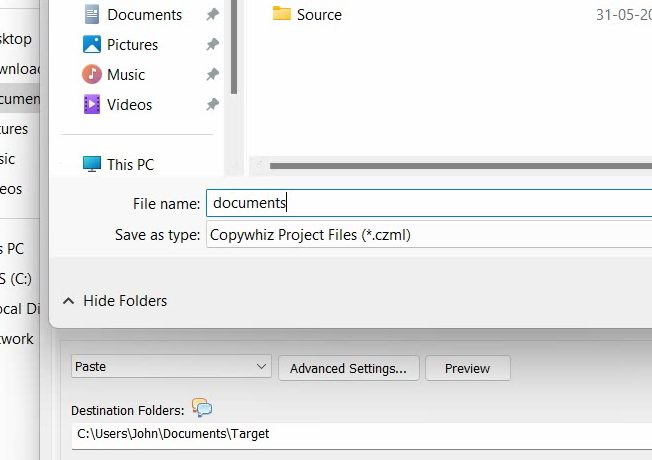
  3. Click on the File button placed at the top-left side of the window and choose Save.
  4. Type the project file name and click on the Save button.


  5. To open the saved list of files, run Copywhiz, click on the File button placed at the top-left side of the window and choose Open.
  6. An Open dialog box will appear, select on the desired project file name and click on Open button.

That’s it in this video.

For more tutorial videos, check out this page.

Subscribe to our YouTube channel for interesting videos.

Learn more about Copywhiz. Download the free trial from here.

Have a good day.

Thanks for reading :)

Windows: Copy files and folders once and paste them multiple times using Copywhiz

You all might have heard about clipboards. For those of you who haven’t, a clipboard is a temporary storage area for data. While scrolling through any document or website, etc., you might come across some content you want to copy and paste to some other place. While moving back and to the source and destination is okay once or twice, it becomes tedious to do it multiple times.

Clipboard, therefore, saves you from all the hassle! It lets you copy all that you want from various places. Store each of them in the clipboard and paste them all together at once to the location to want.

So instead of copy-paste copy-paste, you have to copy-copy-copy and then paste-paste-paste.

You might be wondering why am I talking about clipboards when this article is about file copy? Well, you will be happy to know that this feature can be applied to your file copy tasks too! Yes, you can just copy files from various places and then paste them all at once. This reduces your time and efforts in going to the source and destination and then the next source and destination etc.

This is the feature we all have wanted for so long, and the file copy software Copywhiz now answers our wish!

What is Copywhiz?

Copywhiz enhances your file-copy experience by letting you to have more flexibility & control over the file copying and backup process.

Here is how Copywhiz makes file copying a breeze:

  • Copy only new or modified files
  • Easily pick files by name, extension, folder etc from bunch of folders
  • Automatically organize files based on file attributes and metadata
  • Copy files to multiple folders/computers
  • Copy files from multiple folders and paste them at once
  • Sync files between source and destination
  • Pick files from multiple folders and compress in single .zip file
  • Schedule file backups
  • Verify copied files for data integrity
  • Retain security attributes of files & folders (ownership/user access)
  • Several more hidden nuggets designed to make your file-copy task easier.

Why Copywhiz?

With Copywhiz, you can copy once and paste multiple times without copying them again and again. This option would simplify your file copy task and save you time and effort. This feature can be used to backup files, synchronize files between two computers, run programs with different data files, test a program with different versions of a file, etc.

Here is a short video depicting this feature:

Transcription:

  1. Go to the different Source folders, select the required files that you wish to copy, right-click on them and choose Copywhiz–>Copy
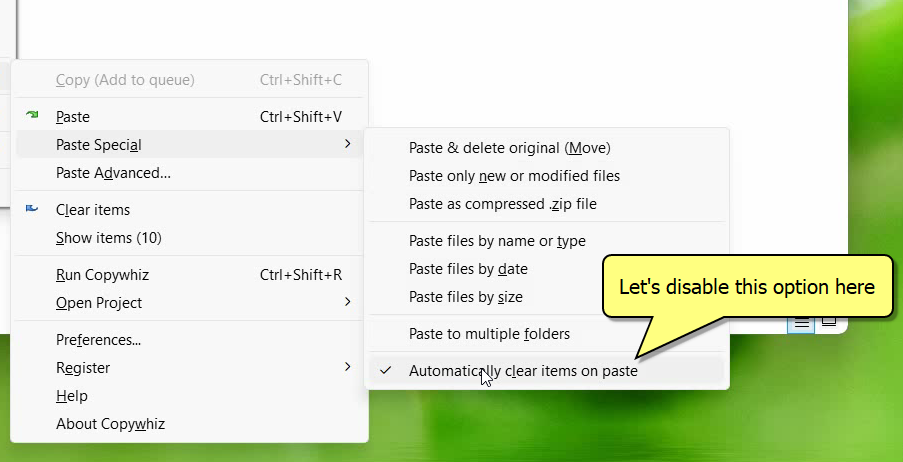
  2. Go to the Destination folder, right-click on it and choose Copywhiz–> Paste Special. By default, the selected items are automatically cleared once the files are pasted. To copy same set of files to multiple folders uncheck the option Automatically clear items on paste from the Paste Special menu list.


  3. Go to different destination folders, right-click on them and choose Copywhiz–>Paste. You will see that the same set of files are copied in different destination folders.

Copywhiz acts just like the regular clipboard. Instead of text, you have files and folders.

The biggest advantage of using Copywhiz is that you can take automatic backups of your files and folders! Read more about it here:
For more tutorial videos, click here .

Subscribe to our YouTube channel for regular updates and interesting videos!

Learn more about Copywhiz.

Download the free trial from here.

Check out our other cool products.

Have a good day.

Thanks for staying till the end :)

Copy files to multiple folders or computers in Windows using Copywhiz

Hello Friends!

Today we have a cool video that will show you how to copy files to multiple folders or computers in Windows using Copywhiz.

What is Copywhiz?

Copywhiz enhances your file-copy experience by letting you to have more flexibility & control over the file copying and backup process.

Here is how Copywhiz makes file copying a breeze:

  • Copy only new or modified files
  • Easily pick files by name, extension, folder etc from bunch of folders
  • Automatically organize files based on file attributes and metadata
  • Copy files to multiple folders/computers
  • Copy files from multiple folders and paste them at once
  • Sync files between source and destination
  • Pick files from multiple folders and compress in single .zip file
  • Schedule file backups
  • Verify copied files for data integrity
  • Retain security attributes of files & folders (ownership/user access)
  • Several more hidden nuggets designed to make your file-copy task easier.

Why Copywhiz?

Copywhiz allows you to choose multiple destination folders when copying files in Windows. You can also select remote network folders to copy files to multiple computers. It is beneficial for deploying the same set of files to multiple systems.

So here’s the video:

Transcription:

  1. Select files using Windows Explorer, right-click on them and choose Copywhiz–>Copy from the menu.
  2. Right-click inside any folder and select Copywhiz–> Paste Advanced.
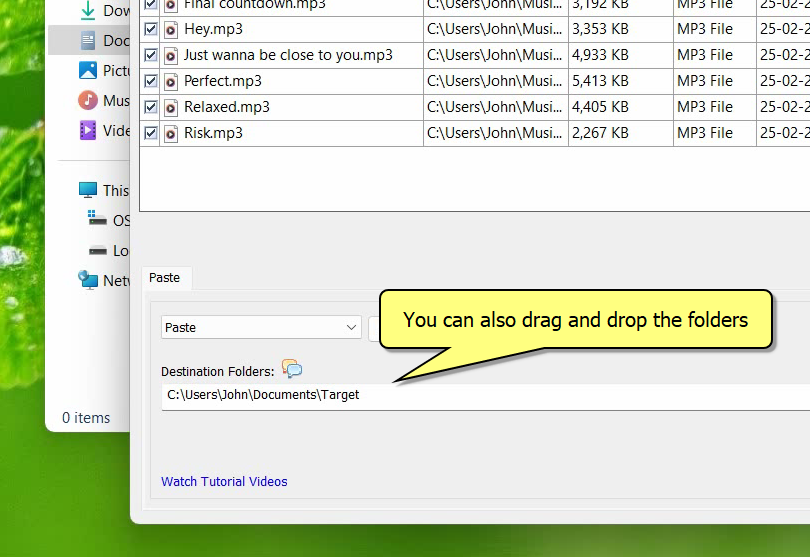
  3. Copywhiz window will open. You can add multiple folders by clicking on the Add button placed next to the Destination Folders text box. Alternatively, you can simply drag and drop target folders over the Destination Folders text box. When specifying the Destination Folders, you can suffix the name with %date% or %datetime% variables if you wish to have a dated folder name.


  4. Click on Paste Now. Files will now be copied to all the destination folders sequentially.

Similarly you can copy files to multiple computers by adding remote destination folders (Network folders/shares).

That’s it in this video.

The most significant advantage of using Copywhiz is that you can take automatic backups of your files and folders! Read more about it here:
For more tutorial videos, click here .

Subscribe to our YouTube channel for regular updates and interesting videos!

Learn more about Copywhiz.

Download the free trial from here.

Check out our other cool products.

Have a good day.

Thanks for reading till the end :)