Just added a feature in Filezo! You can now pin frequently used files and folders on top of the search list.
Although Filezo! supports color coded tagging of files and folders, many customers requested for the ability to pin favorite files and folders for fastest access. We heard you!
The top row listing ‘Documents’, ‘Downloads’, ‘Reviews’ etc are pinned folders. Similarly you can pin files that you access often.
What is Filezo?
Filezo is a superfast launcher for Windows designed to make your computing life joyful. It gives you instant access to any of your files, folders and apps without the need to browse through hierarchical folders. Type and go! That’s it.
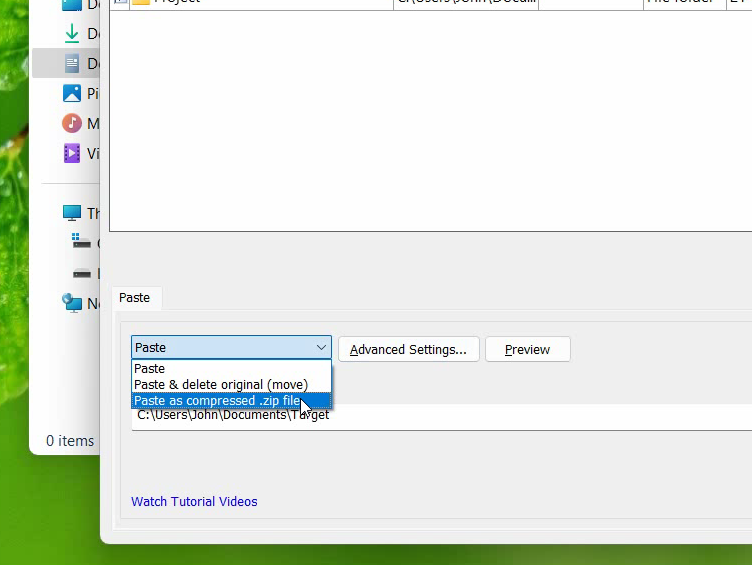
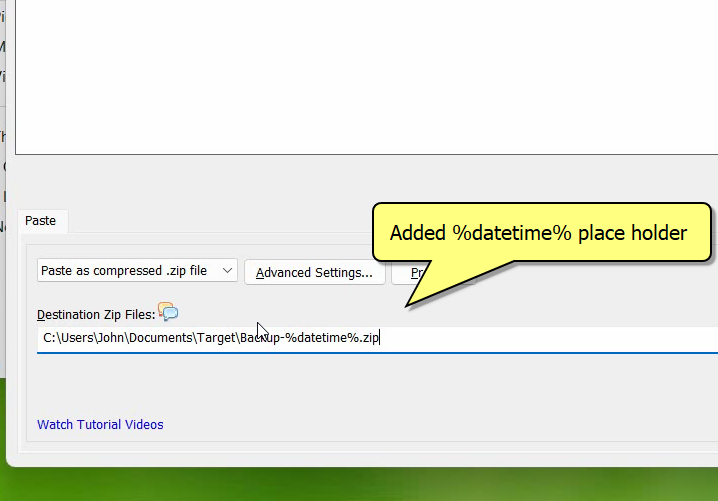
Automatically create new .zip file based on current date/time each time you backup them. Create new version of backups each time. To compress files from various folders is a tedious task but now Copywhiz allows to compress them all into a single .zip file so easily.
Name the zip file based on current date/time so that a new file is created each time.
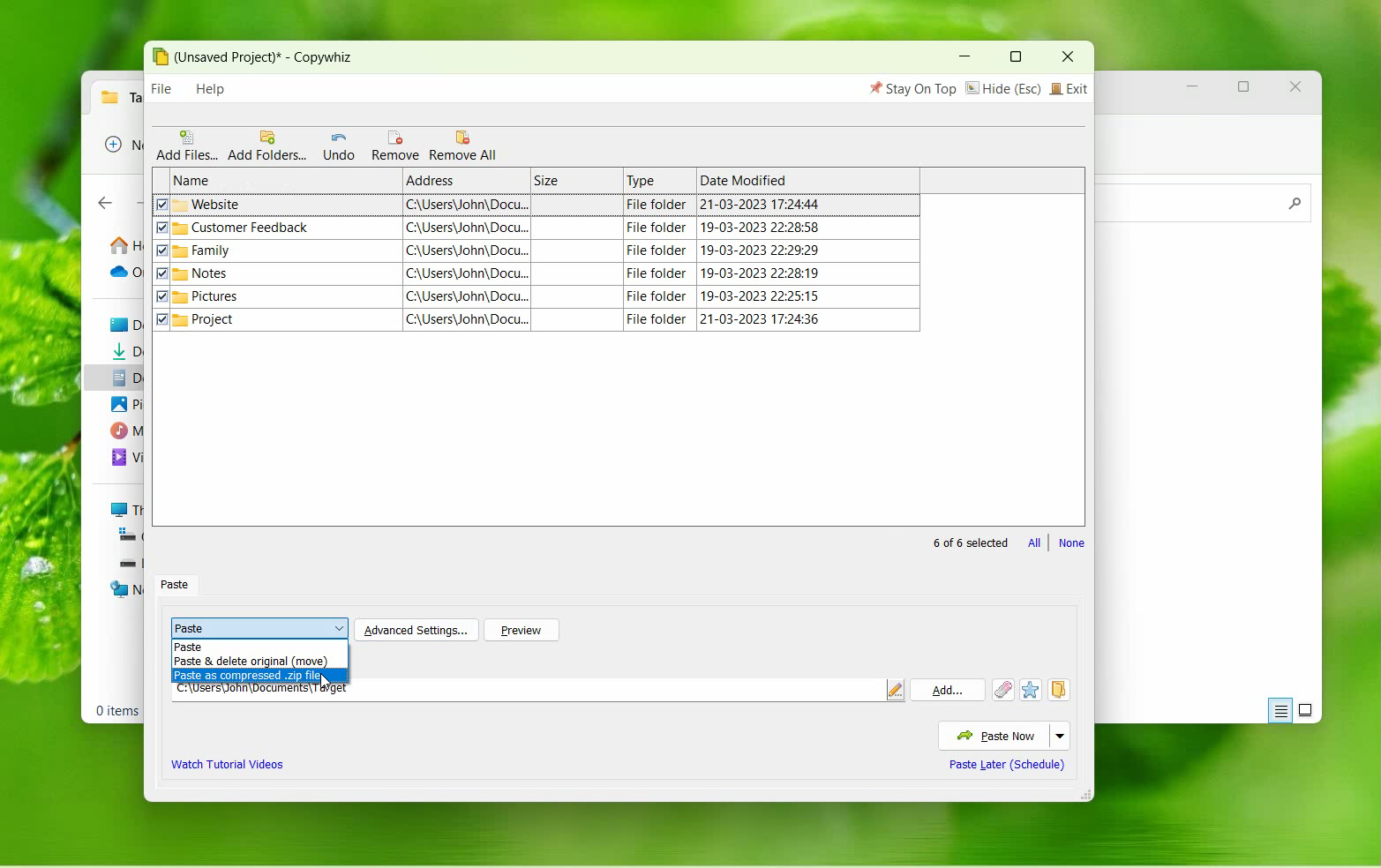
Create a new zip file for every file backup
What is Copywhiz?
Copywhiz enhances your file-copy experience by letting you to have more flexibility & control over the file copying and backup process.
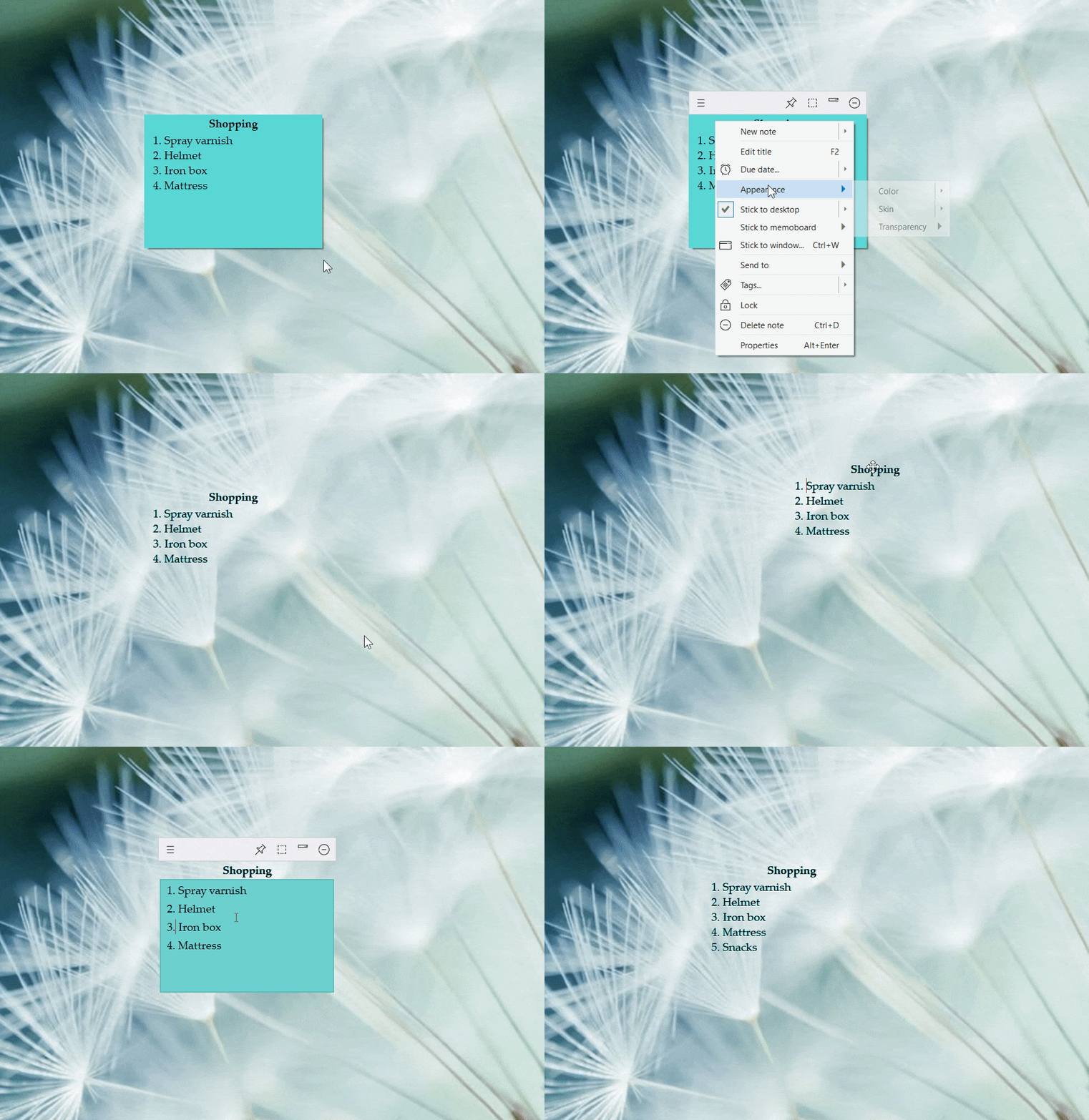
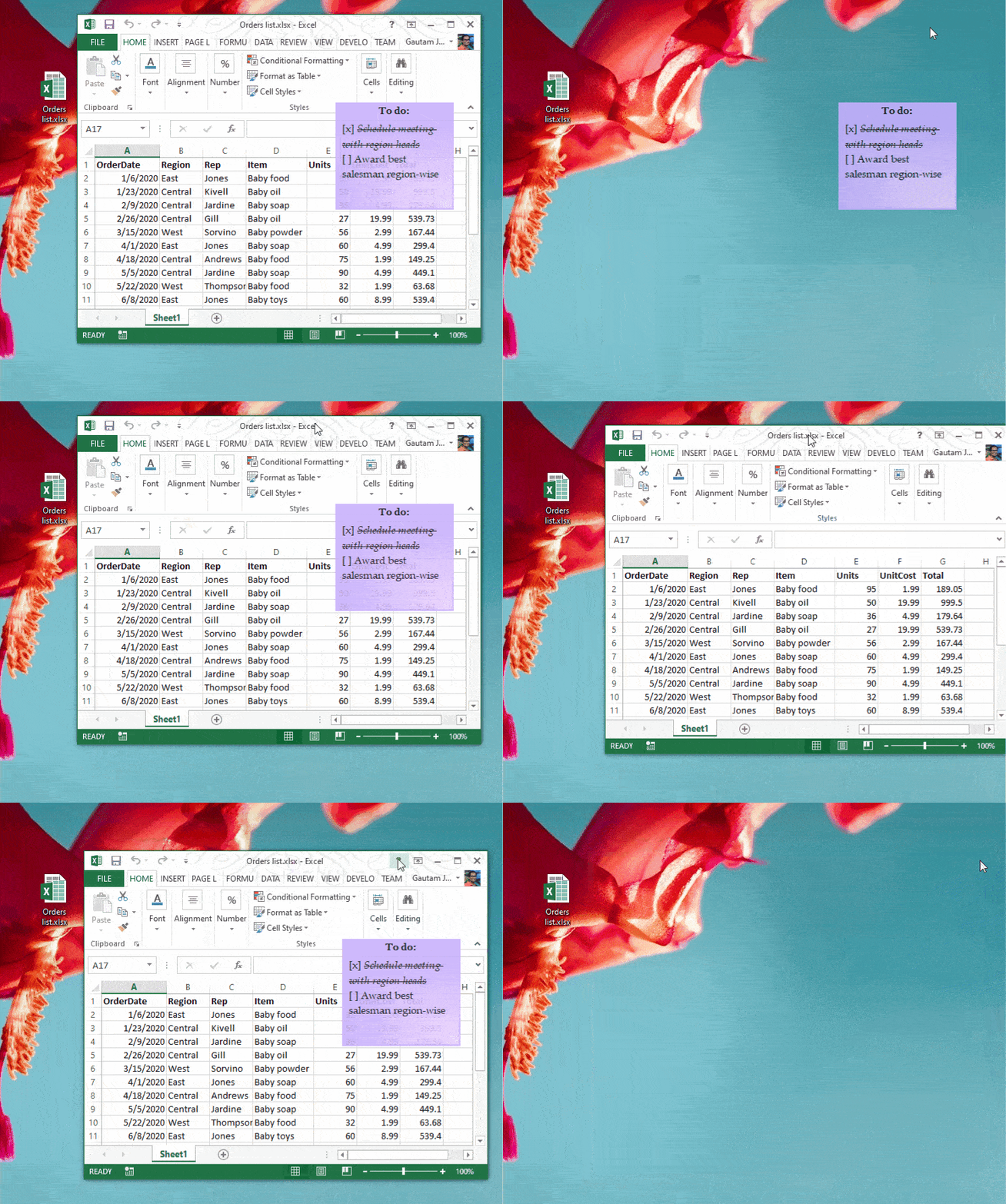
This month we released a new update to our sticky notes app Notezilla that allows fully transparent sticky notes, where in only text / image is visible. See the below animation:
Fully transparent sticky notes in Notezilla
See through sticky notes on Windows desktop
Notezilla lets you set different levels of transparency on sticky notes in Windows. From translucent sticky notes to completely transparent sticky notes (invisible desktop notes).
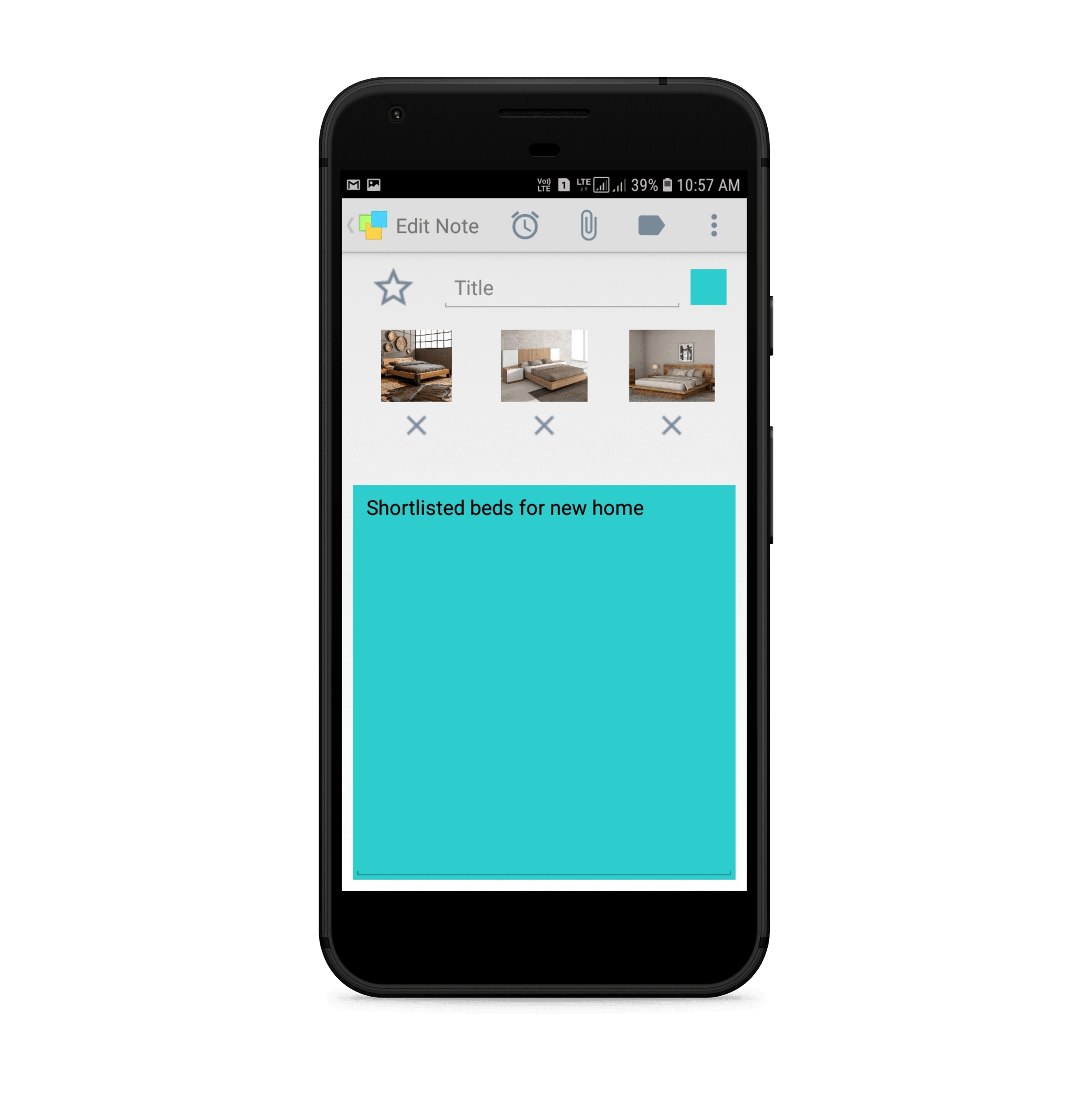
You can also insert pictures inside a sticky note, make the sticky note completely transparent so that only the picture is seen floating on your Windows desktop. Pin it on top of all other programs. Wow!
This feature will let you create floating text widgets or picture widgets on Windows desktop.
What is Notezilla?
Notezilla is a professional, elegant & highly rated sticky notes app for Windows & Phones (Android, iOS, iPhone, iPad etc). You can also access your sticky notes from a Mac.
Notezilla helps you organize various tiny bits of information you would need through out your life. It keeps all your notes, tasks & reminders handy where ever you are. With sticky notes, you hardly have to put effort to take notes, set reminders, etc. Quickly jot down & move on with your task at hand.
Here are some features of Notezilla:
Sticky notes with reminders
Attach sticky notes to websites, documents, folders & apps
Organize sticky notes inside folders to keep your Windows desktop clean.
Pin sticky notes on top of other apps
Sync sticky notes between Windows, Android, iPhone, iPad
Add pictures inside sticky notes
Checklist sticky notes
Lock sticky notes (password protect)
Markdown support
Send notes over local network (LAN) or across the globe
Tag sticky notes
Fully transparent sticky notes
Dark mode
Sticky note transparency
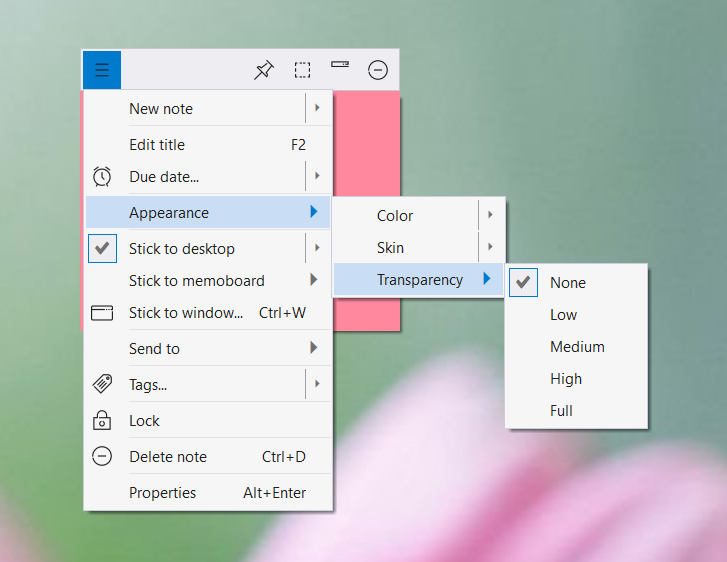
To change the transparency of a single sticky note, click on the Notezilla Note menu and choose the Transparency option from the list. A sub-menu will pop up from which you can select the required transparency level.
To make the sticky note fully transparent (invisible background), choose the “Full” option.
To set the default transparency of new notes, right-click on the Notezilla icon and go to Preferences. In the Note tab, set the default transparency level for the new desktop notes.
Note: Only desktop notes can be transparent. Notes inside memoboards always remain opaque.
Here is a short video to demonstrate how to create floating picture widgets using sticky notes on Windows desktop.
Video Transcription
Here, we already have a sticky note with a picture in it, created in Notezilla
Click on the top-left button of a sticky note to access the note’s menu.
Select transparency under appearance menu and select the option Full for complete transparency.
As you can see in the video, the sticky note with image is completely transparent.
Here is a short video to demonstrate how to create floating text widgets using sticky notes on Windows desktop.
Video Transcription
Here, we already have a text sticky note created through Notezilla
Click on the top-left button of a sticky note to access the note’s menu.
Select transparency under appearance menu and select the option Full for complete transparency.
As you can see in the video, the sticky note is completely transparent after selecting Full option.
The best part of Notezilla is that it can sync notes between your mobile and PC or laptop! Try the sync feature today! You will surely love it.
Download it from the Play Store or App Store today and sync all your sticky notes with the Windows version of Notezilla.
Many users wanted “selective” syncing of sticky notes in the Windows version of Notezilla. Meaning, they didn’t want all the notes to sync with the cloud. Some notes may contain sensitive information that the user may not want to send outside their computer’s boundary.
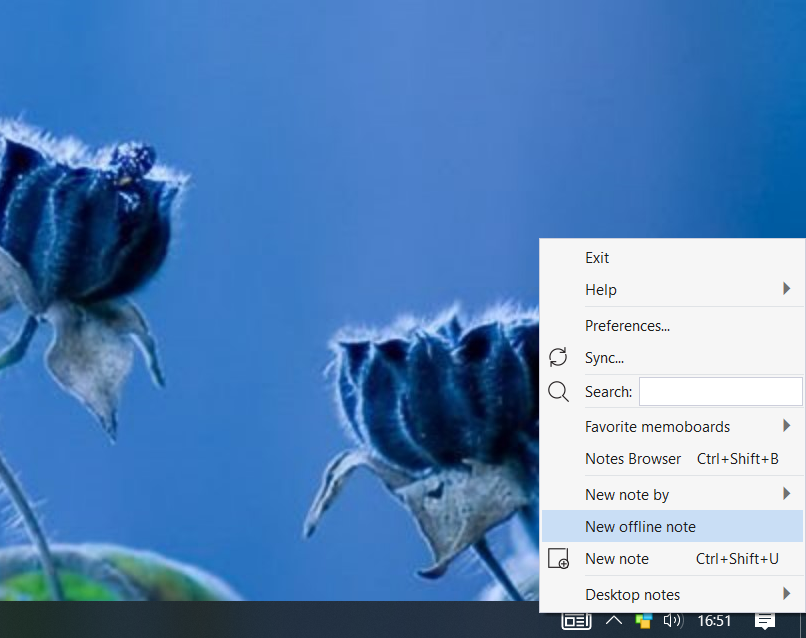
Yes, we have added the feature to create “Offline sticky notes” in the new version Notezilla 9, to be launched by end of July 2021. When a sticky note is marked as “offline”, they are never synced. They are local to your computer. Those sticky notes are stored under “Offline” memoboard. You can even create more offline memoboards from the Notes Browser. Here is how you create new offline sticky notes.
Selective syncing of sticky notes in Windows using “Offline” sticky notes
Please leave your feedback below. Visit Notezilla product page for more information.
We love using apps in dark mode. Apps like Twitter, Instagram and even YouTube have rolled out dark modes.
I think we all can agree that there is something really soothing and visually appealing about the dark mode. It also gives relief to our eyes that might get strained looking at the bright light of our PC and mobile screens. Another good thing is that dark mode reduces battery usage of devices and therefore ensures longer battery life.
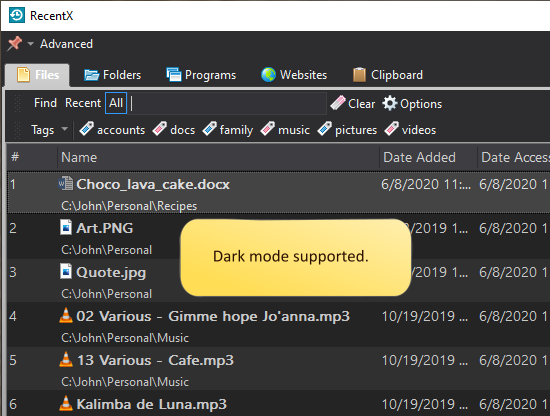
Joining this trend is RecentX. After requests from users, we have finally introduced a dark mode option in RecentX.
What is RecentX?
RecentX is a smart launcher for Windows designed to make your computing life joyful. Here are some of the many cool things you can do with RecentX:
Effortlessly access any file, folder or program on Windows in less than 5 seconds!
Assign tags to frequently used files/folders. Makes things even faster.
Integrates with Windows File open/save window so that you don’t have to navigate any folder when opening or saving a document.
It has a clipboard manager too that remembers all the text & pictures copied to a clipboard so that you can quickly pick & paste them again.
This is how it will look
How to activate dark mode?
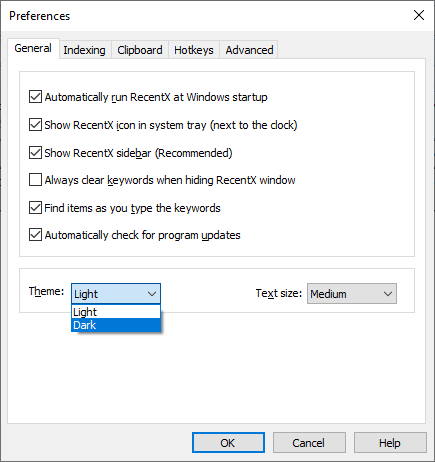
Open the RecentX Window and go to the ‘Advanced’ tab on the top.
Select the ‘Preferences’ option and you will find the setting there.
You can switch back to the normal light mode anytime.
Hope you enjoy using RecentX even more after this update.
Have you ever felt the need to urgently write down something when traveling or running paperless? It could be a sudden thought when in a public transport or a quote you saw while traveling somewhere or even an important business-related idea which you want to come back later to ponder on.
When you don’t find a paper to jot it down quickly, the first thing that comes to your mind is using the inbuilt notes program on your phone. While this is a good idea, you can still go for a better idea- using the Notezilla sticky notes app!
Why? One, it provides you various additional features, two, it can sync your notes with your PC! So now, you can create a note on your phone and see it appear even on your desktop. It works fine the other way too. You can modify a note created earlier on your desktop, even when out of office. Three. It’s completely free!
What is Notezilla?
Notezilla is a professional, elegant & highly rated sticky notes app for Windows & Phones (Android, iOS, iPhone, iPad etc). You can also access your sticky notes from a Mac.
Notezilla helps you organize various tiny bits of information you would need through out your life. It keeps all your notes, tasks & reminders handy where ever you are. With sticky notes, you hardly have to put effort to take notes, set reminders, etc. Quickly jot down & move on with your task at hand.
Here are some features of Notezilla:
Sticky notes with reminders
Attach sticky notes to websites, documents, folders & apps
Organize sticky notes inside folders to keep your Windows desktop clean.
Pin sticky notes on top of other apps
Sync sticky notes between Windows, Android, iPhone, iPad
Add pictures inside sticky notes
Checklist sticky notes
Lock sticky notes (password protect)
Markdown support
Send notes over local network (LAN) or across the globe
Tag sticky notes
Fully transparent sticky notes
Dark mode
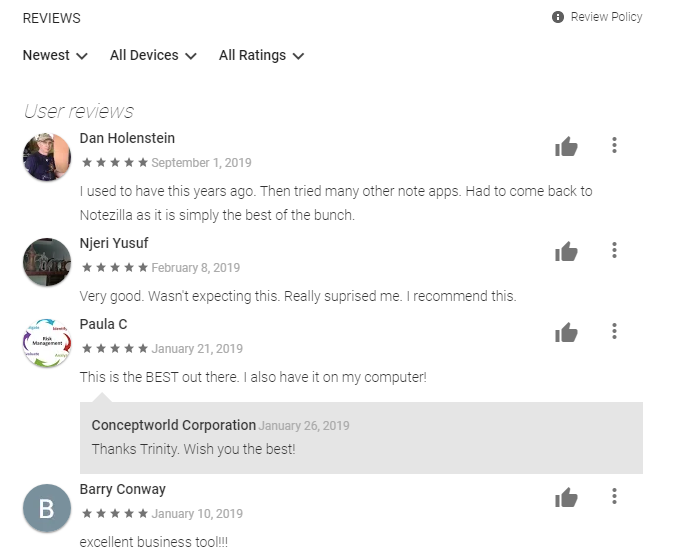
Above are some overwhelming customer reviews on the app.
Read more reviews or leave a review here. Download it for free from the Play store.
Features in a nutshell:
Quickly jot down your thoughts & to-do lists on colorful sticky notes. It is comfortable, easy and fun.
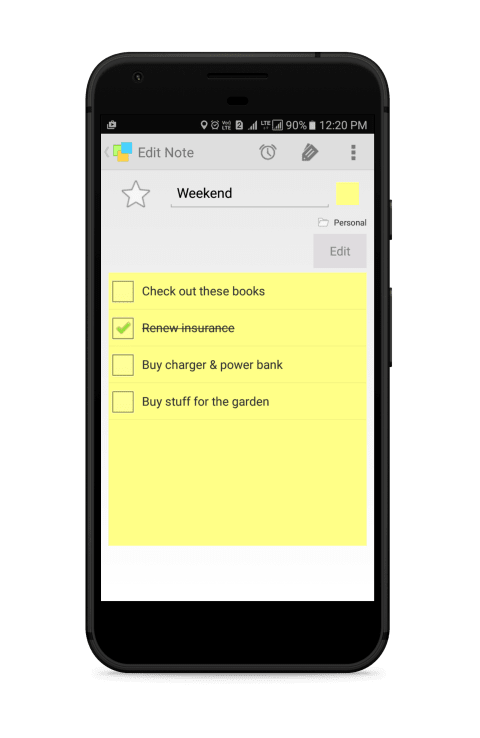
Create checklist notes to keep track of pending tasks. Your shopping is now tension free.
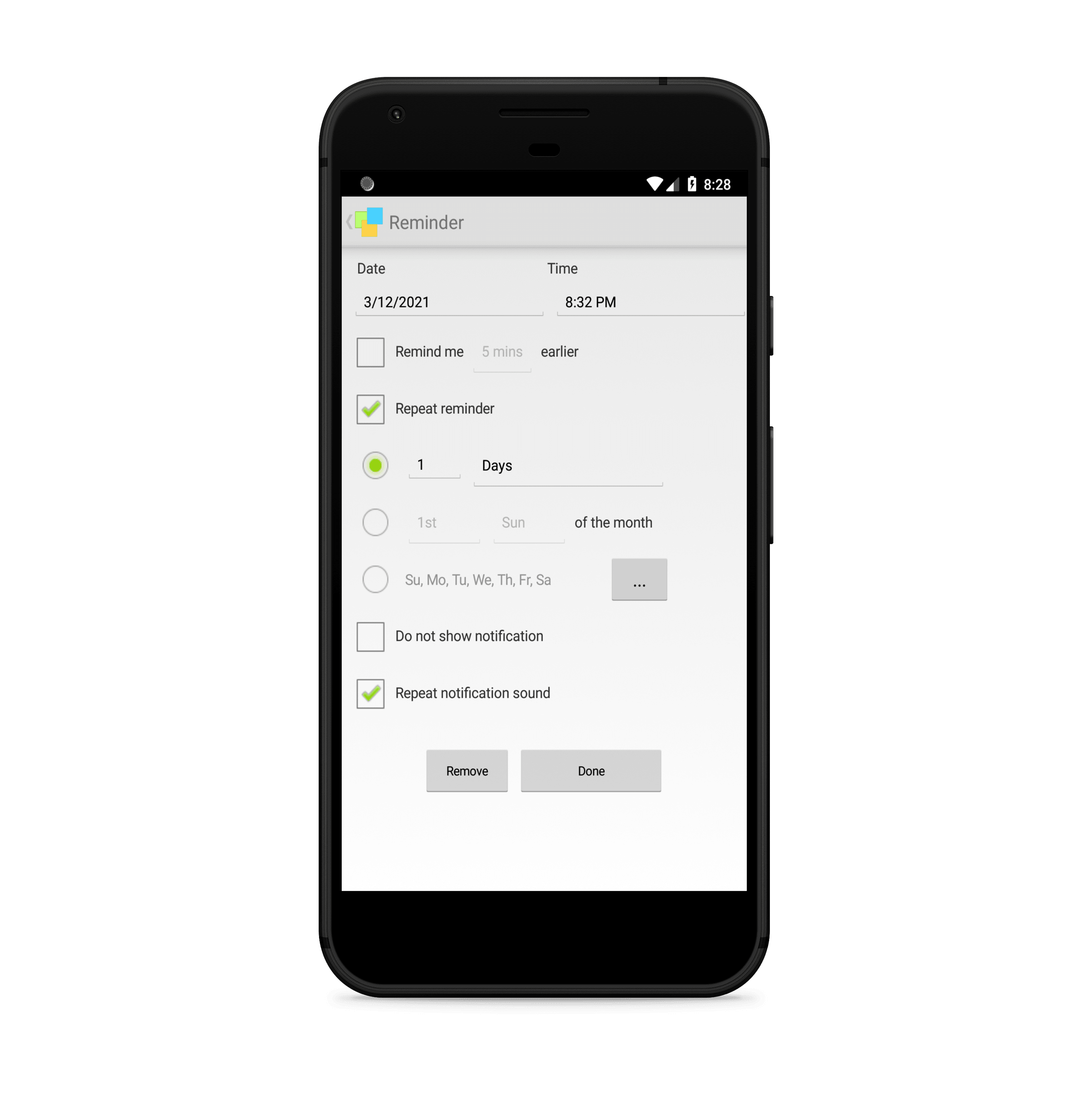
Set reminder alarms to automatically notify you about your tasks. You don’t need Facebook anymore to remember birthdays! And no more of missing deadlines.
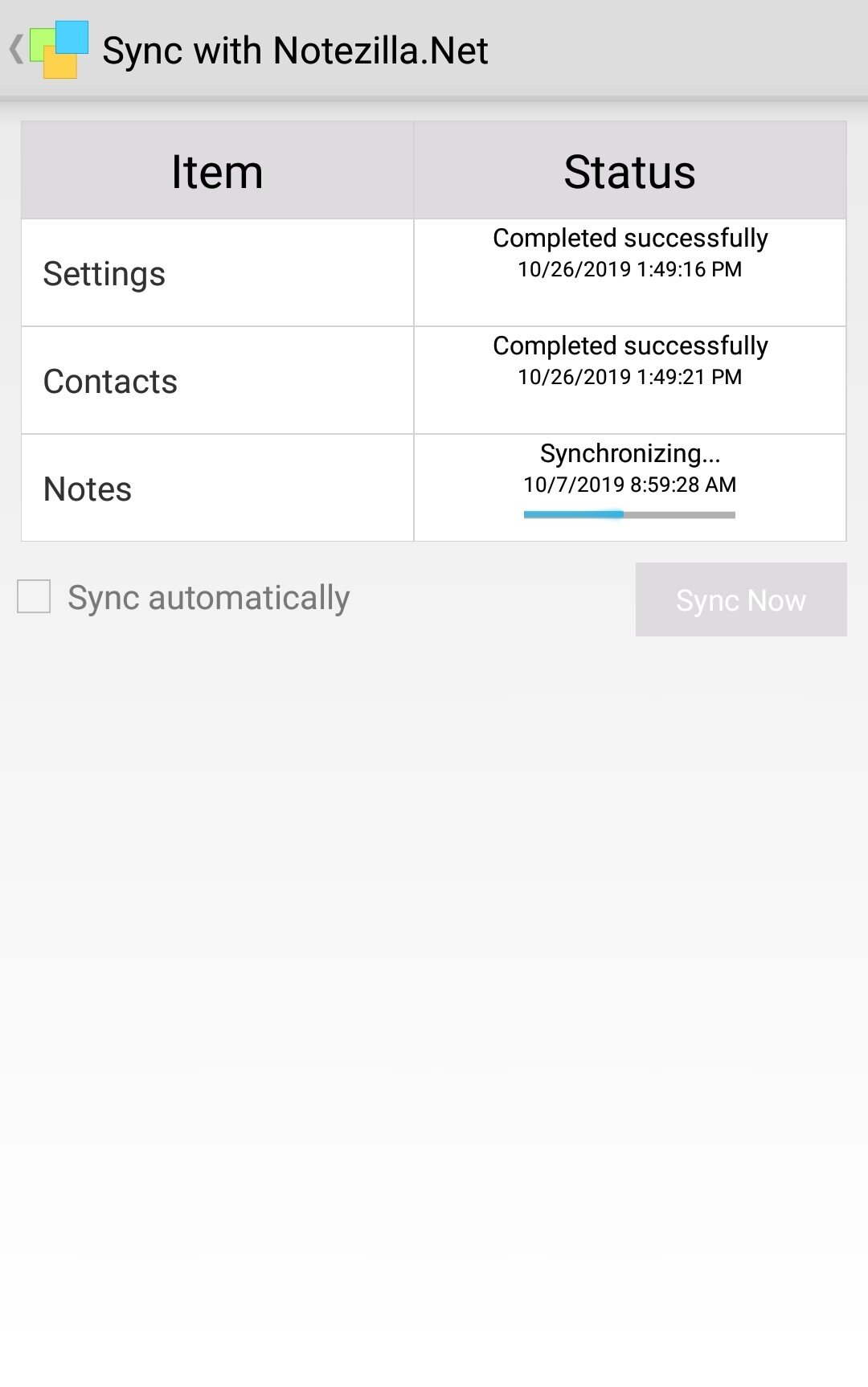
Sync & access your notes from any device (Windows PC, Android, iPhone, iPad).
Insert and also sync pictures. A much needed feature.
Backup your notes to our secured cloud so that you can restore your notes back when you switch to another phone.
Send notes & reminders to other Notezilla users, right to their phone or Windows desktop. Good things are meant for sharing, and Notezilla comes first in the list!
Attach sticky notes right on your phone’s home screen!
There are many other handy features like tagging of notes, star notes, password protect sticky notes, quickly search for sticky notes, sort notes into folders or memoboards, and lots more!
So how about giving it a try today. It’s free and also perfectly boosts your productivity by saving your time and efforts!
The best part of Notezilla is that it can sync notes between your mobile and PC or laptop! Therefore, you have the exact notes at both places! Try the sync feature today! You will surely love it.
Download it from the Play Store or App Store today and sync all your sticky notes with the Windows version of Notezilla.
Too many sticky notes on Windows desktop can be cluttery. That’s why many users avoid using a sticky notes app. But you can keep your desktop clean if you are using Notezilla sticky notes app for Windows.
Notezilla lets you to keep only selected sticky notes on the desktop and place the others (that you don’t need all the time) in separate folders called Memoboards.
What is Notezilla?
Notezilla is a professional, elegant & highly rated sticky notes app for Windows & Phones (Android, iOS, iPhone, iPad etc). You can also access your sticky notes from a Mac.
Notezilla helps you organize various tiny bits of information you would need through out your life. It keeps all your notes, tasks & reminders handy where ever you are. With sticky notes, you hardly have to put effort to take notes, set reminders, etc. Quickly jot down & move on with your task at hand.
Here are some features of Notezilla:
Sticky notes with reminders
Attach sticky notes to websites, documents, folders & apps
Organize sticky notes inside folders to keep your Windows desktop clean.
Pin sticky notes on top of other apps
Sync sticky notes between Windows, Android, iPhone, iPad
Add pictures inside sticky notes
Checklist sticky notes
Lock sticky notes (password protect)
Markdown support
Send notes over local network (LAN) or across the globe
Tag sticky notes
Fully transparent sticky notes
Dark mode
What is a Memoboard?
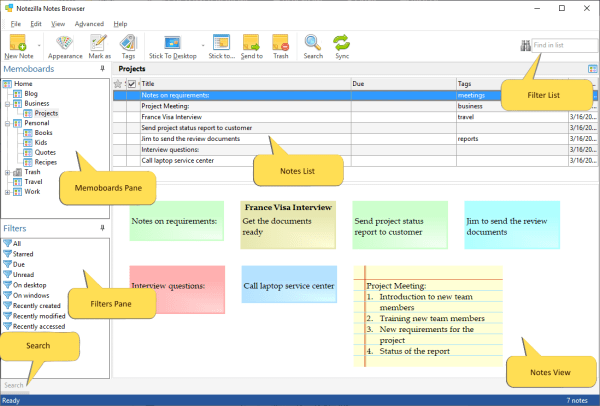
A memo board is a folder inside which sticky notes can be placed. They are like containers for sticky notes. The stickies are neatly arranged in each memo board, just like a storyboard.
Why use Memo Boards?
You can simultaneously view the contents of multiple sticky notes. Memo boards appear within the Notes Browser, a feature that lets you view, sort, and filter all of your notes at once. The Notes Browser enables you to keep virtually unlimited sticky notes inside memo boards.
You can arrange notes into memo boards, which in turn can be organized in a hierarchical tree structure. In Notezilla, you can choose to automatically arrange notes whenever the memo board loads for the first time. It even lets you change the background color of the memo board.
Notezilla lets you organize sticky notes simply by dragging & dropping them between memo boards.
Access your most used memo boards easily either by marking it as favorite or by activating it using a unique key combination (hotkey). Once you set a hotkey for a memo board, you can easily activate that particular memo board from any program.
The best part of Notezilla is that it can sync sticky notes between your mobile and PC or laptop! Therefore, you have the exact notes at both places! Try the sync feature today! You will surely love it.
Recently we made significant improvements to Notezilla phone apps (especially iOS – iPhone/iPad) and also the Windows app.
Some of them include:
The iPhone/iPad app is easier to use, more stable and lot faster.
In all apps, you will notice that syncing of sticky notes happens more often.
Added pictures support in sticky notes for mobile apps.
What is Notezilla?
Notezilla is a professional, elegant & highly rated sticky notes app for Windows & Phones (Android, iOS, iPhone, iPad etc). You can also access your sticky notes from a Mac.
Notezilla helps you organize various tiny bits of information you would need through out your life. It keeps all your notes, tasks & reminders handy where ever you are. With sticky notes, you hardly have to put effort to take notes, set reminders, etc. Quickly jot down & move on with your task at hand.
Here are some features of Notezilla:
Sticky notes with reminders
Attach sticky notes to websites, documents, folders & apps
Organize sticky notes inside folders to keep your Windows desktop clean.
Pin sticky notes on top of other apps
Sync sticky notes between Windows, Android, iPhone, iPad
Add pictures inside sticky notes
Checklist sticky notes
Lock sticky notes (password protect)
Markdown support
Send notes over local network (LAN) or across the globe
Tag sticky notes
Fully transparent sticky notes
Dark mode
Here is what one of our customers has to say:
Great piece of software replacing the way too heavy Evernote. The latest update is a major improvement and makes this the perfect companion to the desktop solution. Look and feel now very practical, synching works now without glitches. And fast and great support, the folks react fast to questions and suggestions – Baloo Tom
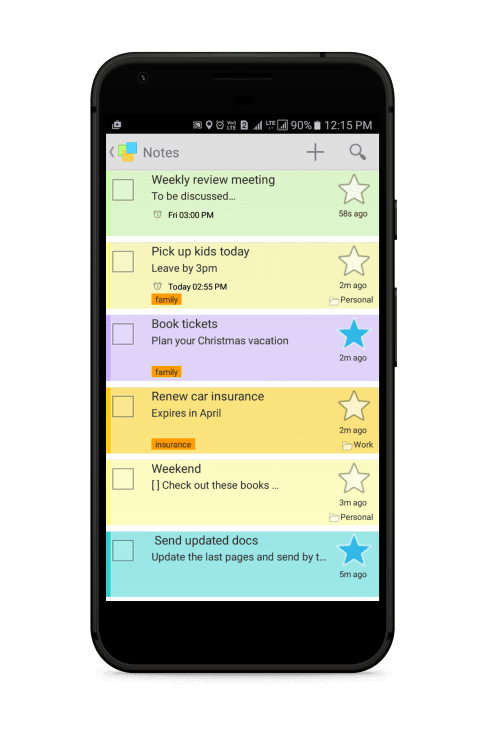
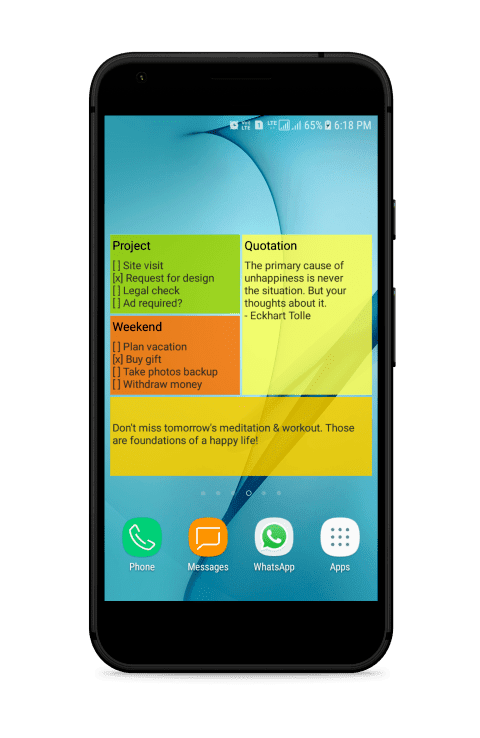
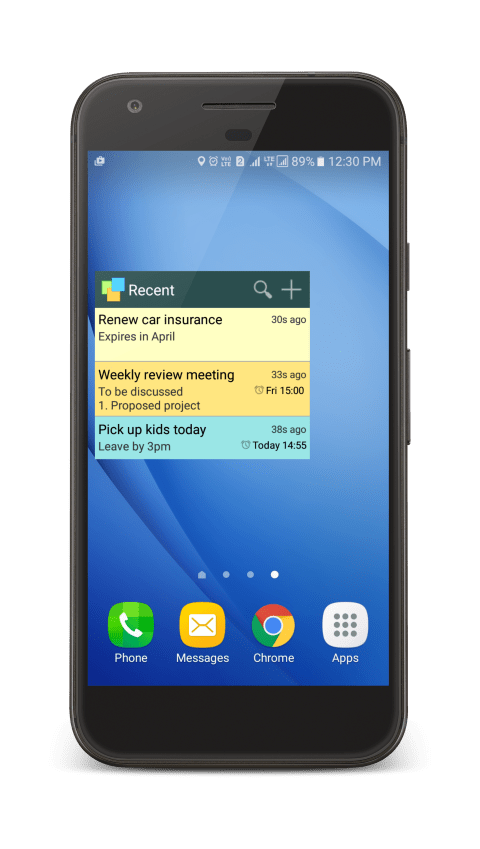
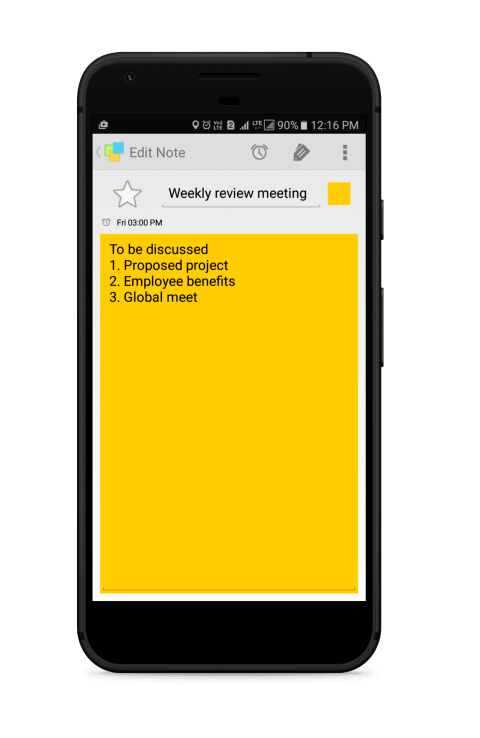
Just launched! A new version of Notezilla for Android. This version supports widgets! Also, the notes list is colorful, and notes can be shared with other apps and vice versa. Download today from the Google Play Store. Sync them with your sticky notes on Windows PC. Learn more about Notezilla.
What is Notezilla?
Notezilla is a professional, elegant & highly rated sticky notes app for Windows & Phones (Android, iOS, iPhone, iPad etc). You can also access your sticky notes from a Mac.
Notezilla helps you organize various tiny bits of information you would need through out your life. It keeps all your notes, tasks & reminders handy where ever you are. With sticky notes, you hardly have to put effort to take notes, set reminders, etc. Quickly jot down & move on with your task at hand.
Here are some features of Notezilla:
Sticky notes with reminders
Attach sticky notes to websites, documents, folders & apps
Organize sticky notes inside folders to keep your Windows desktop clean.
Pin sticky notes on top of other apps
Sync sticky notes between Windows, Android, iPhone, iPad
Add pictures inside sticky notes
Checklist sticky notes
Lock sticky notes (password protect)
Markdown support
Send notes over local network (LAN) or across the globe
Tag sticky notes
Fully transparent sticky notes
Dark mode
So what’s new in Notezilla 2.0 for Android?
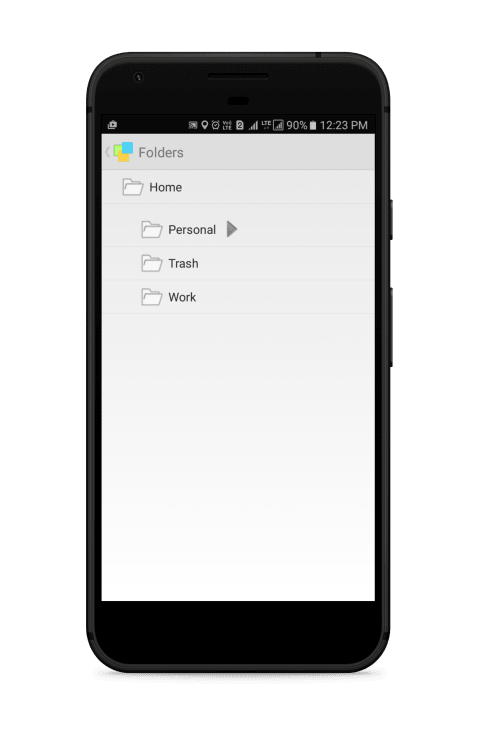
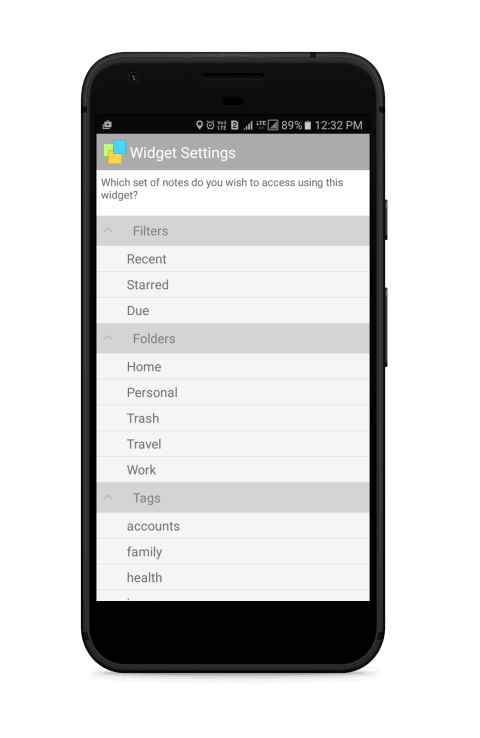
You can now add multiple widgets on your phone’s home screen. Each widget can list notes based on a filter, tag, or a folder. Just this feature can boost your productivity.
Insert and sync pictures in the mobile apps.
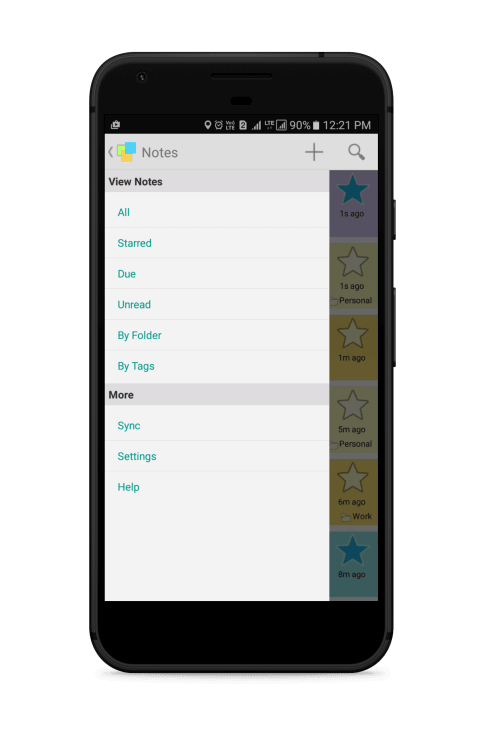
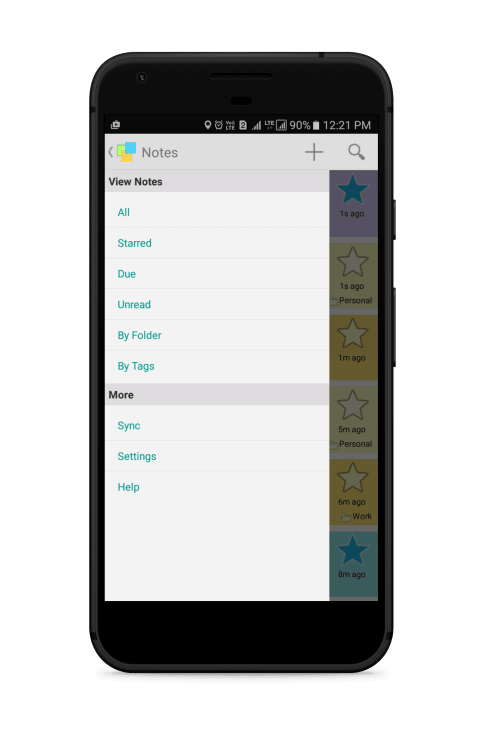
The notes list shows note color. So now, it is easier and faster to pick your sticky note. Color code your sticky notes based on your preferred category.
Share your notes with other apps, right from the notes list.
Create new notes directly in Notezilla using the share option in other apps.
We create sticky notes for various purposes. One of them is to jot down information related to any document or PDF we are working with. While we create notes related to the word document, we have to find and open that note again and again whenever we open that particular document. This is a clear waste of our time and effort.
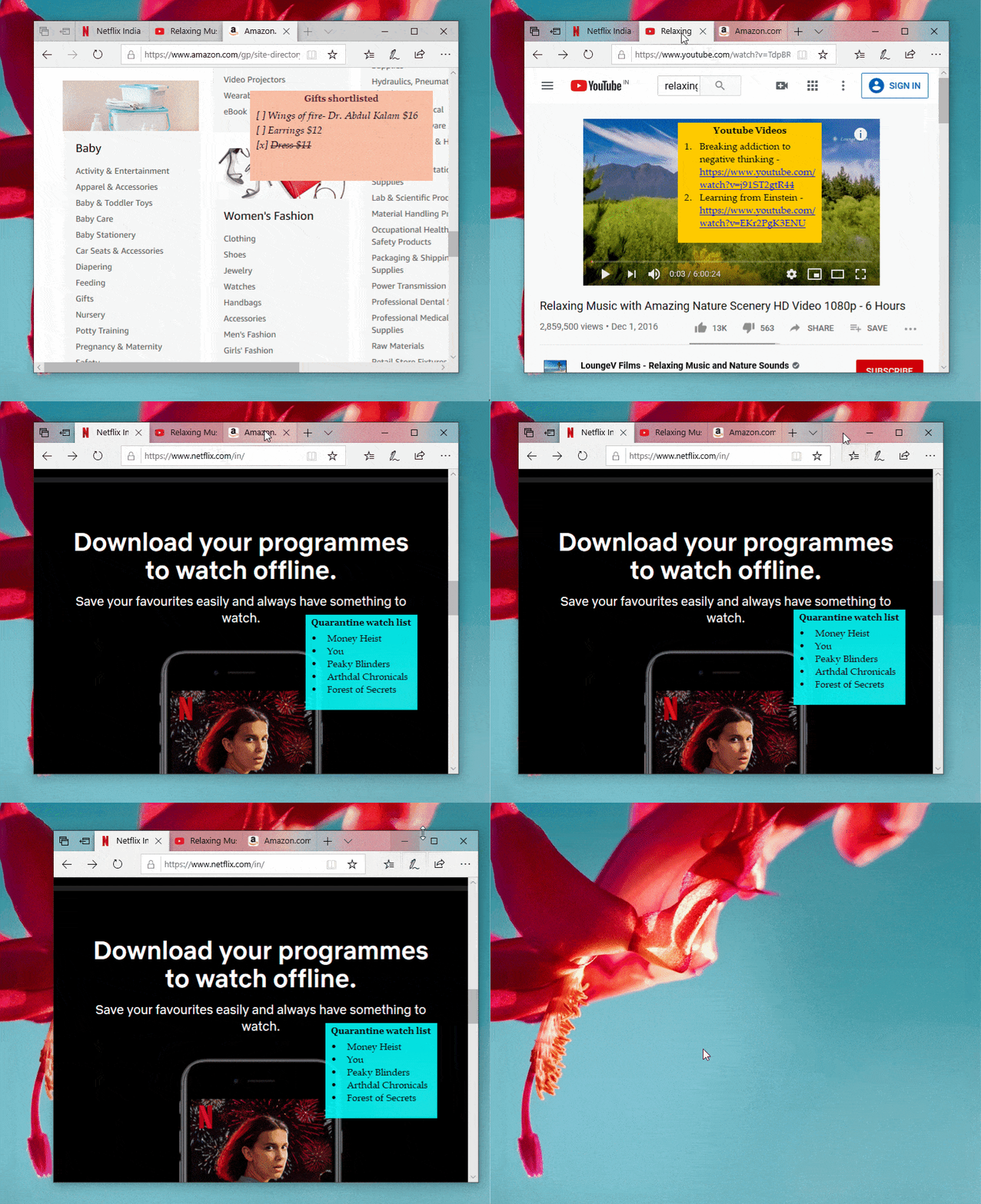
Notezilla therefore has a fix for this. It offers a unique feature to attach sticky notes to any document, folder, app, and website. The note will open along with the file, folder, or program it is stuck to and will disappear when you don’t access it.
What is Notezilla?
Notezilla is a professional, elegant & highly rated sticky notes app for Windows & Phones (Android, iOS, iPhone, iPad etc). You can also access your sticky notes from a Mac.
Notezilla helps you organize various tiny bits of information you would need through out your life. It keeps all your notes, tasks & reminders handy where ever you are. With sticky notes, you hardly have to put effort to take notes, set reminders, etc. Quickly jot down & move on with your task at hand.
Here are some features of Notezilla:
Sticky notes with reminders
Attach sticky notes to websites, documents, folders & apps
Organize sticky notes inside folders to keep your Windows desktop clean.
Pin sticky notes on top of other apps
Sync sticky notes between Windows, Android, iPhone, iPad
Add pictures inside sticky notes
Checklist sticky notes
Lock sticky notes (password protect)
Markdown support
Send notes over local network (LAN) or across the globe
Tag sticky notes
Fully transparent sticky notes
Dark mode
Attaching sticky note to MS Word Document
With Notezilla, you can attach sticky notes to Microsoft Word documents and PDFs. This way, you will have the right information at the right time automatically, without any effort from your side. The sticky note will pop up automatically whenever you access that particular document or PDF.
This feature will help you access related information and accomplish your tasks faster and without added confusion. Moreover, you also have a wildcard (*) to support a sticky note to multiple word documents of a single folder.
Attaching a sticky note
Watch a short video on how to attach notes to Microsoft Word documents:
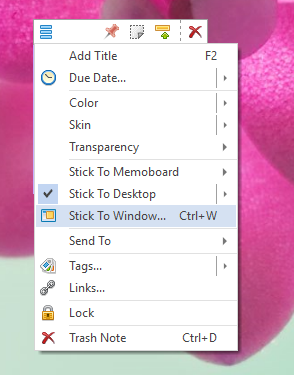
To stick a note to any Microsoft word document, right-click on the note title and choose the “Stick To Window” option from the menu, as shown in the below picture. Alternatively, press Ctrl+W from within the sticky note.
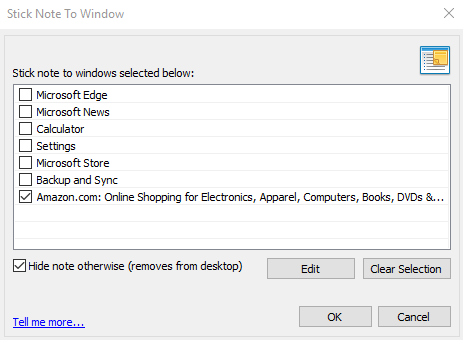
A list of all the currently opened windows will be shown, which includes Websites, Programs, documents. Select the Microsoft word document to which you wish to attach the sticky note, as shown in the below image and press OK. The note will stick to the particular word document.
Note: To directly stick a note to the underlying word document, Press Ctrl+Shift+W keys from the note.
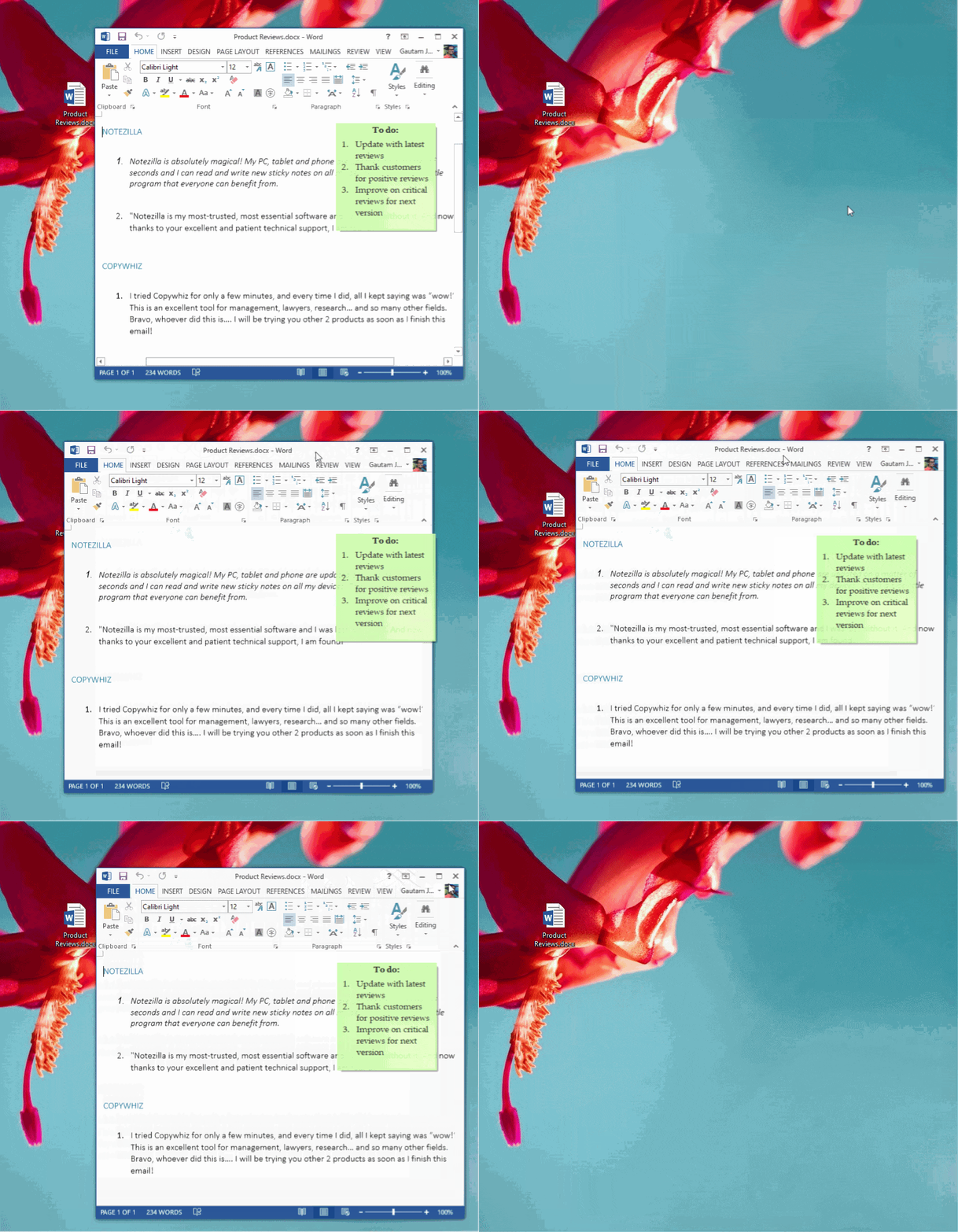
This is how it will appear on the Microsoft word document:
Matching only a part of the window title (Wildcards)
Notezilla uses the title of the window to show or hide a particular sticky note. Sometimes, you may want to stick a note to documents of a similar kind. In such cases, you would need to use the ‘wildcard’ method.
To match only a part of the window title, double click on any window title that is listed (shown in the above picture) and prefix or suffix the title with the * wildcard. As per this, the sticky note will appear on all the documents of a particular folder.
Also, the sticky note is just attached to the document in this system. It is not embedded in the document; therefore, it does not go along with the document if you share it with any other system or via email.