Tag files and folders directly from Windows File Explorer using Filezo

Tagging items is a great option to organize your content. The same goes for the files and folders in your system as well.

Most of us don’t tag our files and folders in Windows since either we don’t know how to or it is a complicated procedure for us. This is not the case with Filezo. Tagging files, folders or apps is smooth using Filezo.

We have another good news for you. Filezo now supports tagging of files and folders directly from Windows File Explorer.
What is Filezo?

Filezo is a superfast launcher for Windows designed to make your computing life joyful. It gives you instant access to any of your files, folders and apps without the need to browse through hierarchical folders. Type and go! That’s it.

Here is are some of the key Filezo features:

  • Lightning speed access to any file, folder or app on your Windows PC.
  • Tag files and folders. Supports color-coded and hierarchical tags.
  • Add a note to any file without modifying the file itself.
  • Integrates with the Windows File open/save window. Directly select a file or jump to any folder in Windows File open/save window using Filezo.
  • Preview various types of files including audio/video. Install previewer add-ons to support more files.
  • Quick manage files (copy, rename, delete, move) directly from Filezo without the need to open your File manager like Windows File Explorer..
  • Share tagged files and folders with other Filezo users over network.
  • Share annotated files and folders with other Filezo users over network.
  • Quickly find and drag/drop a file over other apps such as the Internet browser, email app, messaging app etc.
  • Many more hidden nuggets designed to make file and folder access easier.

Tagging Files & Folders

With Filezo, you can tag your files and folders directly from the app or from Windows File Explorer.

Here’s a short video depicting this feature:

These are the steps to tag files and folders directly from Windows file explorer, using Filezo:

  1. Open Windows File Explorer.
  2. As shown in the video, we will add tags to files first. Select the files and right click and choose “Show more options”.
  3. Click on Tag files and folders.
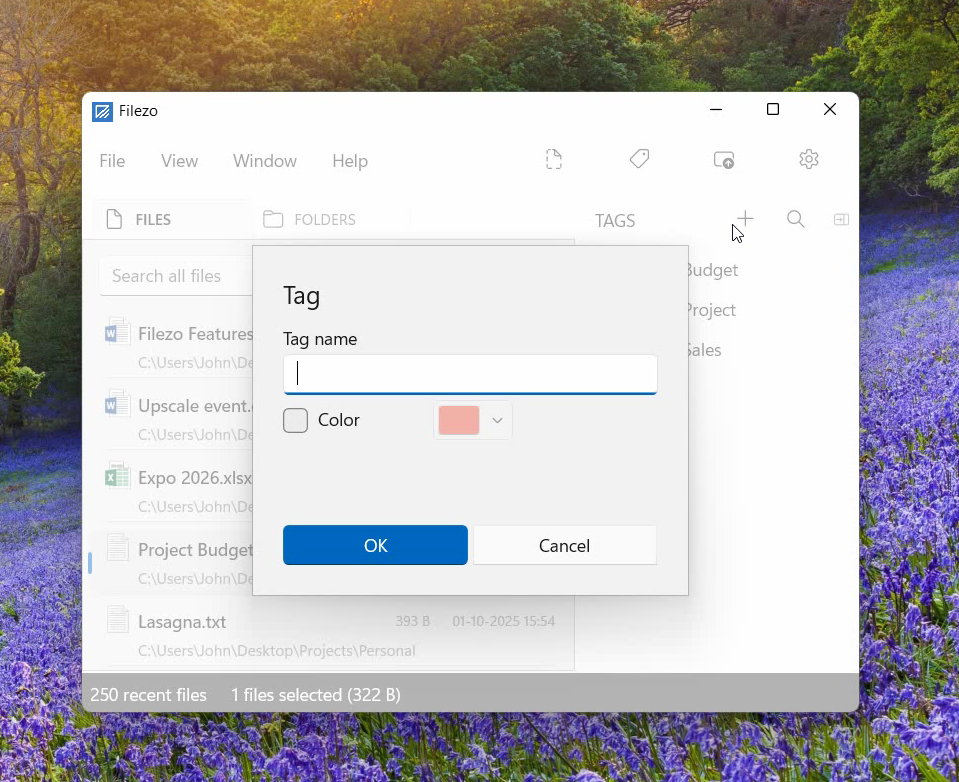
  4. We have created a new tag called “Vacation”
  5. To check, open the Tags pane in Filezo and double click on the tag. And there are the tagged files.
  6. Now to tag folders, right click on the folders to select them.
  7. Choose tag files and folders.
  8. Now we will create a new tag called “Projects”.
  9. In Filezo, select the folders tab and in search bar type hash. All the tags created will be listed.
  10. We will select Projects tag from here. And the folders will be listed.
  11. We can also tag files and folders from within Filezo. One way is to right click on a folder or files and select Tags.
  12. You can just drag and drop the tag over the folder or files. So simple!!

An easier way to tag files and folders is to drag and drop it from within Filezo. Taggged files and folders can be shared with other users over the network. They just have to install Filezo and index the same shared folders. That’s it! They will have instant access to the same tags.

Why Filezo?

You now have seen how easy it is to assign tags using Filezo. Unlike Windows, the procedure is much simpler.

Another limitation that Windows has is that it only permits tagging of images, videos, and documents. You might not see the tagging option even on supported file types on rare occasions, depending on the file format.

Also, if you use a different file system, or transfer or shift your files to other computers or external hard drives and thumb drives, then the tags do not stay. Tagging of folders is also not supported in Windows.

All these factors make Filezo a good alternative to Windows File Explorer when you want to tag files and folders.

Another cool thing about Filezo is that it allows searching by multiple tags also. Hold the Ctrl key and select the second tag button from the toolbar in Filezo. You will see the second tag being added automatically.

Download Filezo for free, from here.

For tutorial videos, check out this page.

Check out our YouTube channel.

Have a good day.

Thanks for reading :)
Tag/label folders in Windows using a Windows File Explorer alternative

We have hundreds of folders in our systems. And it gets really hectic to look for specific files lost somewhere in the lot.

Tagging folders is therefore what i would suggest. Just like how you tag files, tagging folders will help you stay organized and makes things more accessible.

In our previous post, we gave steps on how to tag files directly from Windows File explorer, using Filezo, and why it is better than Windows.

Windows offers the ability to tag files. But it only permits tagging of images, videos, and documents. You cannot tag any other type of file in Windows. Plus Windows doesn’t let you tag a folder.

This post will show you how you can tag folders in Windows using the Windows File Explorer and an alternative software, Filezo. Filezo lets you tag any file or folder. This is the most important difference between Filezo and Windows tagging system.

This post will tell you how to tag folders directly from File Explorer using Filezo. You will be able tag even files in the same way.

What is Filezo?

Filezo is a superfast launcher for Windows designed to make your computing life joyful. It gives you instant access to any of your files, folders and apps without the need to browse through hierarchical folders. Type and go! That’s it.

Here is are some of the key Filezo features:

  • Lightning speed access to any file, folder or app on your Windows PC.
  • Tag files and folders. Supports color-coded and hierarchical tags.
  • Add a note to any file without modifying the file itself.
  • Integrates with the Windows File open/save window. Directly select a file or jump to any folder in Windows File open/save window using Filezo.
  • Preview various types of files including audio/video. Install previewer add-ons to support more files.
  • Quick manage files (copy, rename, delete, move) directly from Filezo without the need to open your File manager like Windows File Explorer..
  • Share tagged files and folders with other Filezo users over network.
  • Share annotated files and folders with other Filezo users over network.
  • Quickly find and drag/drop a file over other apps such as the Internet browser, email app, messaging app etc.
  • Many more hidden nuggets designed to make file and folder access easier.

Tagging files and folders using Windows File Explorer

Sadly, Windows does not have a direct way to tag folders. You have to use third party apps to do that.

But don’t worry. Filezo has you covered.

Tagging folders from Windows File Explorer using Filezo

Here’s a short video about this feature:

These are the steps to tag files and folders directly from Windows file explorer, using Filezo:

  1. Open Windows File Explorer.
  2. As shown in the video, we will add tags to files first. Select the files and right click and choose “Show more options”.
  3. Click on Tag files and folders.
  4. We have created a new tag called “Vacation”
  5. To check, open the Tags pane in Filezo and double click on the tag. And there are the tagged files.
  6. Now to tag folders, right click on the folders to select them.
  7. Choose tag files and folders.
  8. Now we will create a new tag called “Projects”.
  9. In Filezo, select the folders tab and in search bar type hash. All the tags created will be listed.
  10. We will select Projects tag from here. And the folders will be listed.
  11. We can also tag files and folders from within Filezo. One way is to right click on a folder or files and select Tags.
  12. You can just drag and drop the tag over the folder or files. So simple!!

Conclusion

Tagging things with Filezo is fast and easy. All your items can be accessed quickly.

You can do a lot more with Filezo. It has amazing features you should definitely try.

Another cool thing about Filezo is that it allows searching by multiple tags also. Hold the Ctrl key and select the second tag button from the toolbar in Filezo. You will see the second tag being added automatically.

Download Filezo for free, from here.

For tutorial videos, check out this page.

Check out our YouTube channel.

Have a good day.

Thank you :)

Tag/label files in Windows using a Windows File Explorer alternative

Tags or labels are very important when working with files. They help you stay organized and increase productivity by saving your time and effort on looking for things.

We know that Windows offers the ability to tag files. But it only permits tagging very limited type of documents. You cannot tag any file in Windows. Plus Windows doesn’t let you tag a folder.

This post will show you how you can tag files in Windows using the Windows File Explorer and an alternative software, Filezo. Filezo lets you tag any file or folder. This is the most important difference.

What is Filezo?

Filezo is a superfast launcher for Windows designed to make your computing life joyful. It gives you instant access to any of your files, folders and apps without the need to browse through hierarchical folders. Type and go! That’s it.

Here is are some of the key Filezo features:

  • Lightning speed access to any file, folder or app on your Windows PC.
  • Tag files and folders. Supports color-coded and hierarchical tags.
  • Add a note to any file without modifying the file itself.
  • Integrates with the Windows File open/save window. Directly select a file or jump to any folder in Windows File open/save window using Filezo.
  • Preview various types of files including audio/video. Install previewer add-ons to support more files.
  • Quick manage files (copy, rename, delete, move) directly from Filezo without the need to open your File manager like Windows File Explorer..
  • Share tagged files and folders with other Filezo users over network.
  • Share annotated files and folders with other Filezo users over network.
  • Quickly find and drag/drop a file over other apps such as the Internet browser, email app, messaging app etc.
  • Many more hidden nuggets designed to make file and folder access easier.

Tagging files and folders using Windows File Explorer

Transcription of the above video:

  1. Open the ‘Files’ tab in Filezo.
  2. Right click on a file and select the Tags option from the menu.
  3. We can assign multiple tags using comma as shown in the video.
  4. Let’s try another way of creating a tag.
  5. Go to the Tags pane and add a new tag.
  6. Choose your preferred tag color.
  7. Now drag and drop the tag on the file.
  8. Right click on the tag for more options like edit or delete.
  9. Let’s open the ‘Folders’ tab now.
  10. Drag and drop the Marketing tag on the folder.
  11. Just double click on the tag to view the tagged folders.
  12. Another way is to type # in the search box and select the tag from the tags list.

Our Verdict

Both Windows and Filezo have minimal steps to tag files.

However, there’s a twist here. Windows has a limitation so it only permits tagging of images, videos, and documents. You might not see the tagging option even on supported file types on rare occasions, depending on the file format.

Also, if you use a different file system, or transfer or shift your files to other computers or external hard drives and thumb drives, then the tags are removed.

Thereby, we would definitely go with something reliable like Filezo.

Another cool thing about Filezo is that it allows searching by multiple tags also. Hold the Ctrl key and select the second tag button from the toolbar in Filezo. You will see the second tag being added automatically.

Download Filezo for free, from here.

For tutorial videos, check out this page.

Check out our YouTube channel.

Have a good day.

Thanks for your time :)

Tag files and folders directly from Windows File Explorer using RecentX

Tagging items is a great option to organize your content. The same goes for the files and folders in your system as well.

We have another good news for you. RecentX now supports tagging of files and folders directly from Windows File Explorer.

Most of us don’t tag our files and folders in Windows since either we don’t know how to or it is a complicated procedure for us.

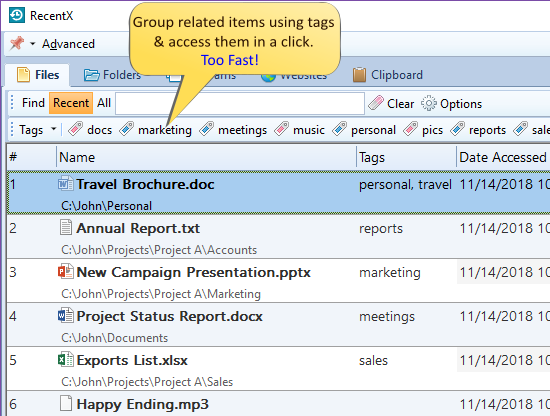
This is not the case with RecentX. Tagging anything, be it files, folders, programs, website history, or clipboard history, is smooth.

Read this blog post for more clarity:

https://www.conceptworld.com/blog/index.php/tag-files-folders-programs-websites-etc-in-windows-using-recentx/

This post will provide you more details into this.

What is RecentX?

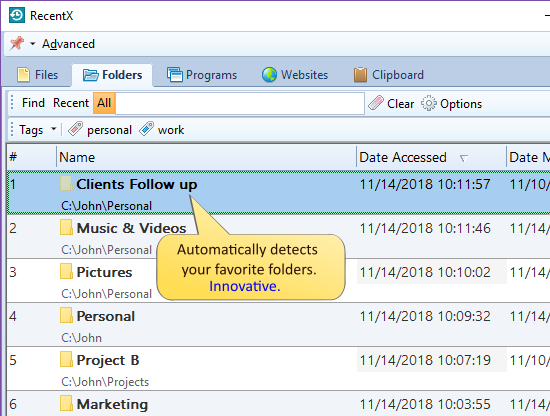
RecentX is a smart launcher for Windows designed to make your computing life joyful. Here are some of the many cool things you can do with RecentX:

  1. Effortlessly access any file, folder or program on Windows in less than 5 seconds!
  2. Assign tags to frequently used files/folders. Makes things even faster.
  3. Integrates with Windows File open/save window so that you don’t have to navigate any folder when opening or saving a document.
  4. It has a clipboard manager too that remembers all the text & pictures copied to a clipboard so that you can quickly pick & paste them again.
Tags

Tagging Files & Folders

Tags or labels are one of the most used features of RecentX because you can easily group items based on projects, topics, etc.

Here’s a short video depicting this feature:

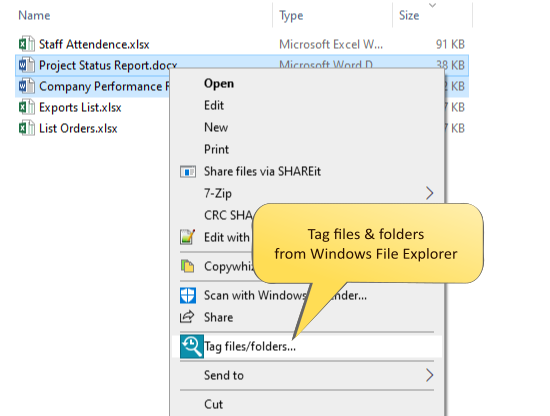
These are the steps to tag files and folders directly from Windows file explorer, using RecentX:

  1. Go to Windows File Explorer.
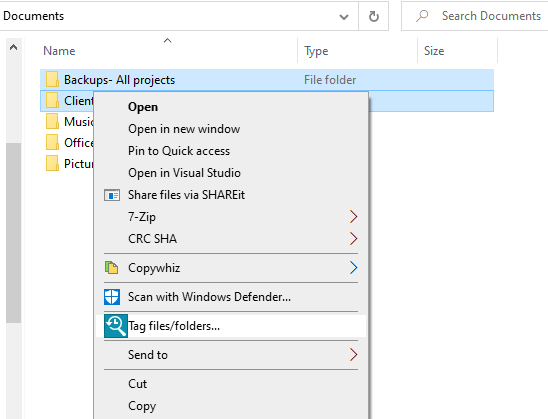
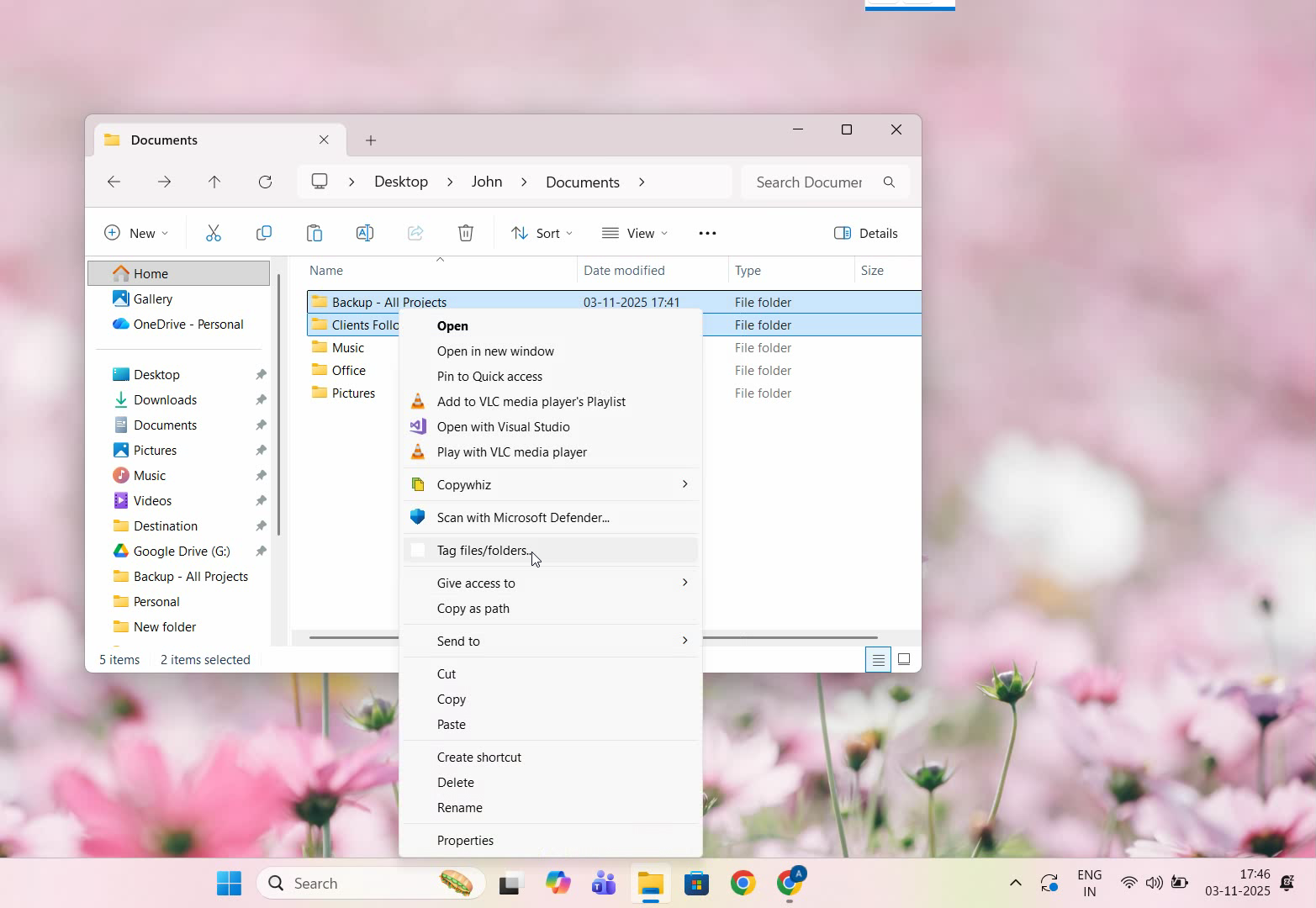
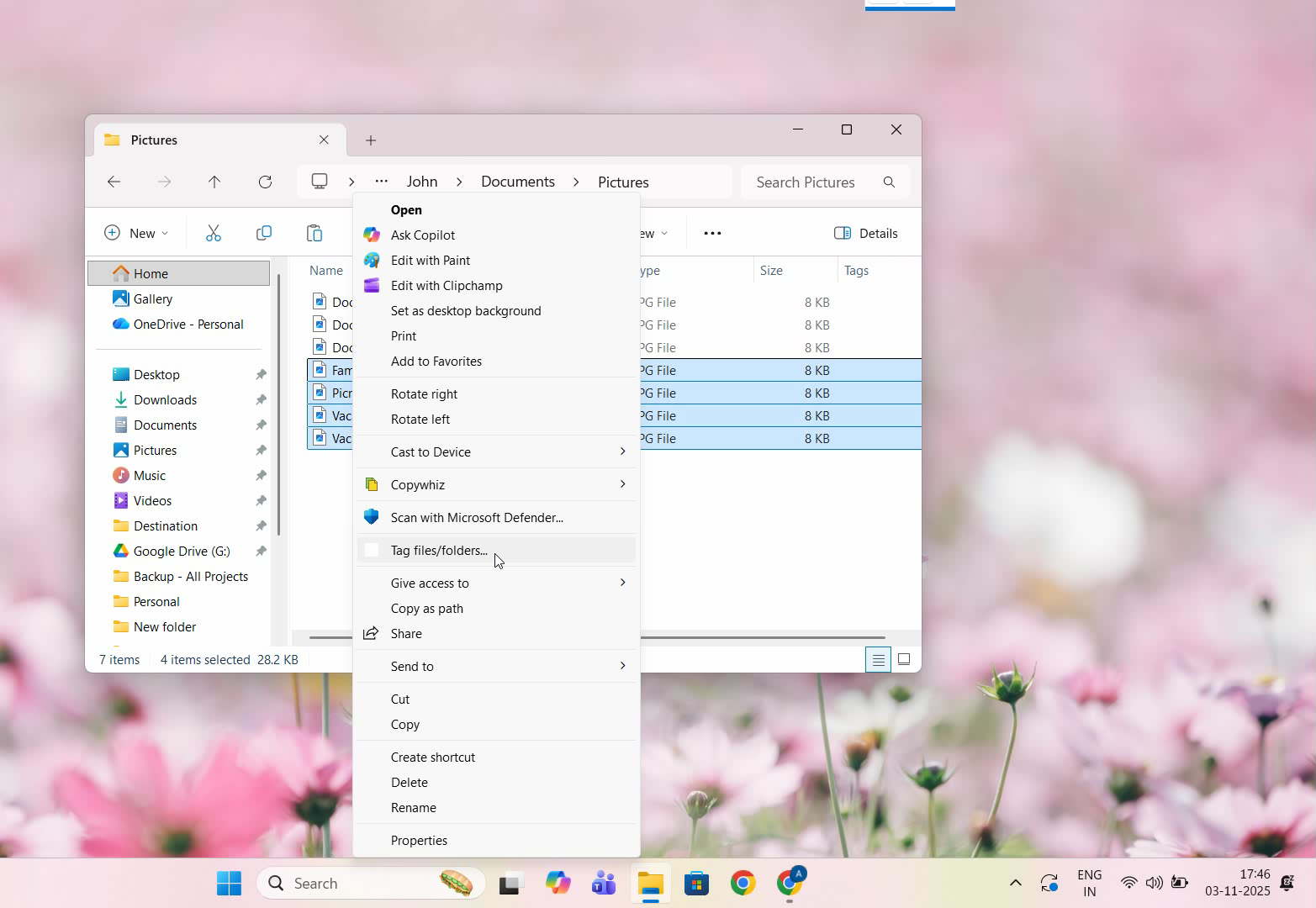
  2. Right-click on the file(s) you wish to tag and choose the ‘Tag files/folders’ option.

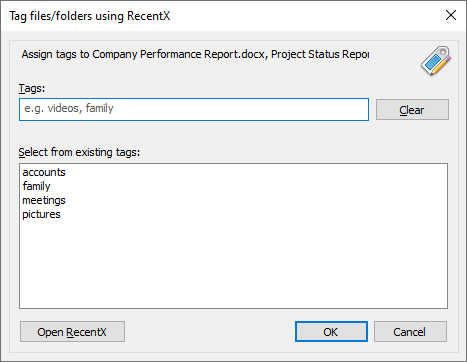
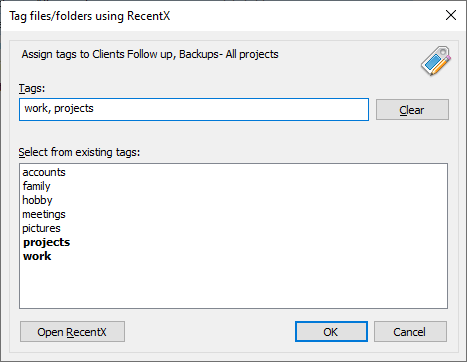
3. The RecentX Tags window will open where you can assign tags.

4. Click on ‘OK’ and the tag will be assigned immediately.

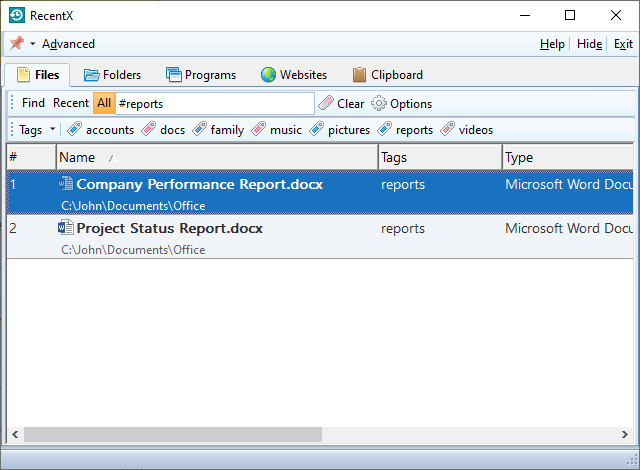
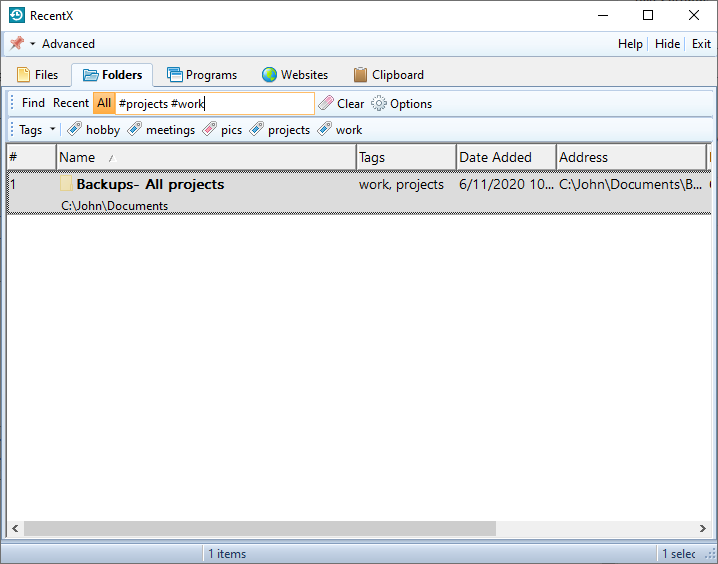
5. You can go to RecentX and click on the tags to find your files there.

Tagging folders is also done in the same way as files.

An easier way to tag files and folders is to drag and drop it from within RecentX over the tag button to assign that tag. You can also drag and drop from Windows File Explorer over the tag button to assign that tag.

Why RecentX?

You now have seen how easy it is to assign tags using RecentX. Unlike Windows, the procedure is much simpler.

Another limitation that Windows has is that it only permits tagging of images, videos, and documents. You might not see the tagging option even on supported file types on rare occasions, depending on the file format.

Also, if you use a different file system, or transfer or shift your files to other computers or external hard drives and thumb drives, then the tags do not stay. Tagging of folders is also not supported in Windows.

All these factors make RecentX a good alternative to Windows File Explorer when you want to tag files and folders.

Another cool thing about RecentX is that it allows searching by multiple tags also. Hold the Ctrl key and select the second tag button from the toolbar in RecentX. You will see the second tag being added automatically.

Download RecentX for free, from here.

For tutorial videos, check out this page.

Check out our YouTube channel.

Have a good day.

Thanks for reading :)
Tag/label folders in Windows using a Windows File Explorer alternative

We have hundreds of folders in our systems. And it gets really hectic to look for specific files lost somewhere in the lot.

Tagging folders is therefore what i would suggest. Just like how you tag files, tagging folders will help you stay organized and makes things more accessible.

In our previous post, we gave steps on how to tag files directly from Windows File explorer, using RecentX, and why it is better than Windows.

Windows offers the ability to tag files. But it only permits tagging of images, videos, and documents. You cannot tag any other type of file in Windows. Plus Windows doesn’t let you tag a folder.

This post will show you how you can tag folders in Windows using the Windows File Explorer and an alternative software, RecentX. RecentX lets you tag any file or folder. This is the most important difference between RecentX and Windows tagging system.

This post will tell you how to tag folders directly from File Explorer using RecentX. You will be able tag even files in the same way.

What is RecentX?

RecentX is a smart launcher for Windows designed to make your computing life joyful. Here are some of the many cool things you can do with RecentX:

  1. Effortlessly access any file, folder or program on Windows in less than 5 seconds!
  2. Assign tags to frequently used files/folders. Makes things even faster.
  3. Integrates with Windows File open/save window so that you don’t have to navigate any folder when opening or saving a document.
  4. It has a clipboard manager too that remembers all the text & pictures copied to a clipboard so that you can quickly pick & paste them again.
Folder Launcher

Tagging folders using Windows File Explorer

Sadly, Windows does not have a direct way to tag folders. You have to use third party apps to do that.

But don’t worry. RecentX has you covered.

Tagging folders from Windows File Explorer using RecentX

Here’s a short video about this feature:

Here are the steps to follow:

  1. Go to Windows File Explorer.
  2. Right-click on the folder(s) you wish to tag and choose the ‘Tag files/folders’ option.

3. The RecentX Tags window will open where you can assign tags.

Click on ‘OK’ and the tag will be assigned immediately.

5. You can go to RecentX and click on the tags to find your files there.

We also have an easier way to tag whereby you can drag and drop the folders from within RecentX over the tag button or drag and drop from Windows File Explorer over the tag button to assign that tag.

Conclusion

Tagging things with RecentX is fast and easy. All your items can be accessed quickly.

You can do a lot more with RecentX. It has amazing features you should definitely try.

Another cool thing about RecentX is that it allows searching by multiple tags also. Hold the Ctrl key and select the second tag button from the toolbar in RecentX. You will see the second tag being added automatically.

Download RecentX for free, from here.

For tutorial videos, check out this page.

Check out our YouTube channel.

Have a good day.

Thank you :)

Tag/label files in Windows using a Windows File Explorer alternative

Tags or labels are very important when working with files. They help you stay organized and increase productivity by saving your time and effort on looking for things.

We know that Windows offers the ability to tag files. But it only permits tagging of images, videos, and documents. You cannot tag any file in Windows. Plus Windows doesn’t let you tag a folder.

This post will show you how you can tag files in Windows using the Windows File Explorer and an alternative software, RecentX. RecentX lets you tag any file or folder. This is the most important difference.

What is RecentX?

RecentX is a smart launcher for Windows designed to make your computing life joyful. Here are some of the many cool things you can do with RecentX:

  1. Effortlessly access any file, folder or program on Windows in less than 5 seconds!
  2. Assign tags to frequently used files/folders. Makes things even faster.
  3. Integrates with Windows File open/save window so that you don’t have to navigate any folder when opening or saving a document.
  4. It has a clipboard manager too that remembers all the text & pictures copied to a clipboard so that you can quickly pick & paste them again.
Tags

Tagging files using Windows File Explorer

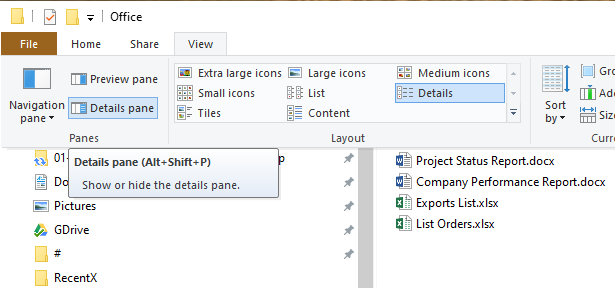
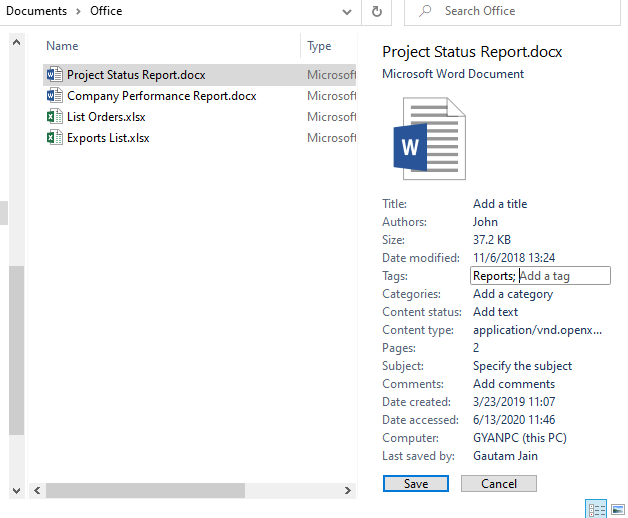
Windows has two methods to tag files. One is from the Properties Windows and the other from the Details Pane.

Since tagging from the Details Pane is a bit easier than the former, we will see the steps for this.

  1. Open the File Explorer using the keyboard shortcut ‘Windows+E’.
  2. In the File Explorer click on the “View” tab and select the “Details Pane” option from the navigation pane. The Details pane will appear on the right side of the File Explorer.

3. To tag a file, select the file from the main window and then add tags in the Tags field appearing in the Details panel. Click on Save.

That’s it.

Tagging files from Windows File Explorer using RecentX

Before we look at the steps, here’s a short video depicting the steps:

Let us look at the steps to do this using RecentX:

  1. Go to Windows File Explorer.
  2. Right-click on the file(s) you wish to tag and choose the ‘Tag files/folders’ option.

3. The RecentX Tags window will open where you can assign tags.

4. Click on ‘OK’ and the tag will be assigned immediately.

5. You can go to RecentX and click on the tags to find your files there.

We also have an easier way to tag whereby you can drag and drop the files from within RecentX over the tag button or drag and drop from Windows File Explorer over the tag button to assign that tag.

Our Verdict

Both Windows and RecentX have minimal steps to tag files.

However, there’s a twist here. Windows has a limitation so it only permits tagging of images, videos, and documents. You might not see the tagging option even on supported file types on rare occasions, depending on the file format.

Also, if you use a different file system, or transfer or shift your files to other computers or external hard drives and thumb drives, then the tags are removed.

Thereby, we would definitely go with something reliable like RecentX.

Another cool thing about RecentX is that it allows searching by multiple tags also. Hold the Ctrl key and select the second tag button from the toolbar in RecentX. You will see the second tag being added automatically.

Download RecentX for free, from here.

For tutorial videos, check out this page.

Check out our YouTube channel.

Have a good day.

Thanks for your time :)