Hey Guys! Searching files inside a specific folder using Filezo is extremely efficient because it focuses only on the location you choose, avoiding a full-system scan. This targeted search helps you get results much faster, especially when dealing with large drives or complex directory structures.
With Filezo, you can quickly find files contained inside specific folders in Windows. This is otherwise quite difficult using the Windows Search. We will show you how to do this using Filezo.
Accessing a folder using the traditional way takes a lot of time! You need to go through the long folder hierarchy each and every time. But with filezo we can save a lot of time. It also remembers your favorite files and folders for faster easier launch.
What is Filezo?
Filezo is a superfast launcher for Windows designed to make your computing life joyful. It gives you instant access to any of your files, folders and apps without the need to browse through hierarchical folders. Type and go! That’s it.
Here is are some of the key Filezo features:
- Lightning speed access to any file, folder or app on your Windows PC.
- Tag files and folders. Supports color-coded and hierarchical tags.
- Pin frequently used files and folders on top of the list for quick one click access.
- Add a note to any file without modifying the file itself.
- Integrates with the Windows File open/save window. Directly select a file or jump to any folder in Windows File open/save window using Filezo.
- Preview various types of files including audio/video. Install previewer add-ons to support more files.
- Quick manage files (copy, rename, delete, move) directly from Filezo without the need to open your File manager like Windows File Explorer..
- Share tagged files and folders with other Filezo users over network.
- Share annotated files and folders with other Filezo users over network.
- Quickly find and drag/drop a file over other apps such as the Internet browser, email app, messaging app etc.
- Many more hidden nuggets designed to make file and folder access easier.
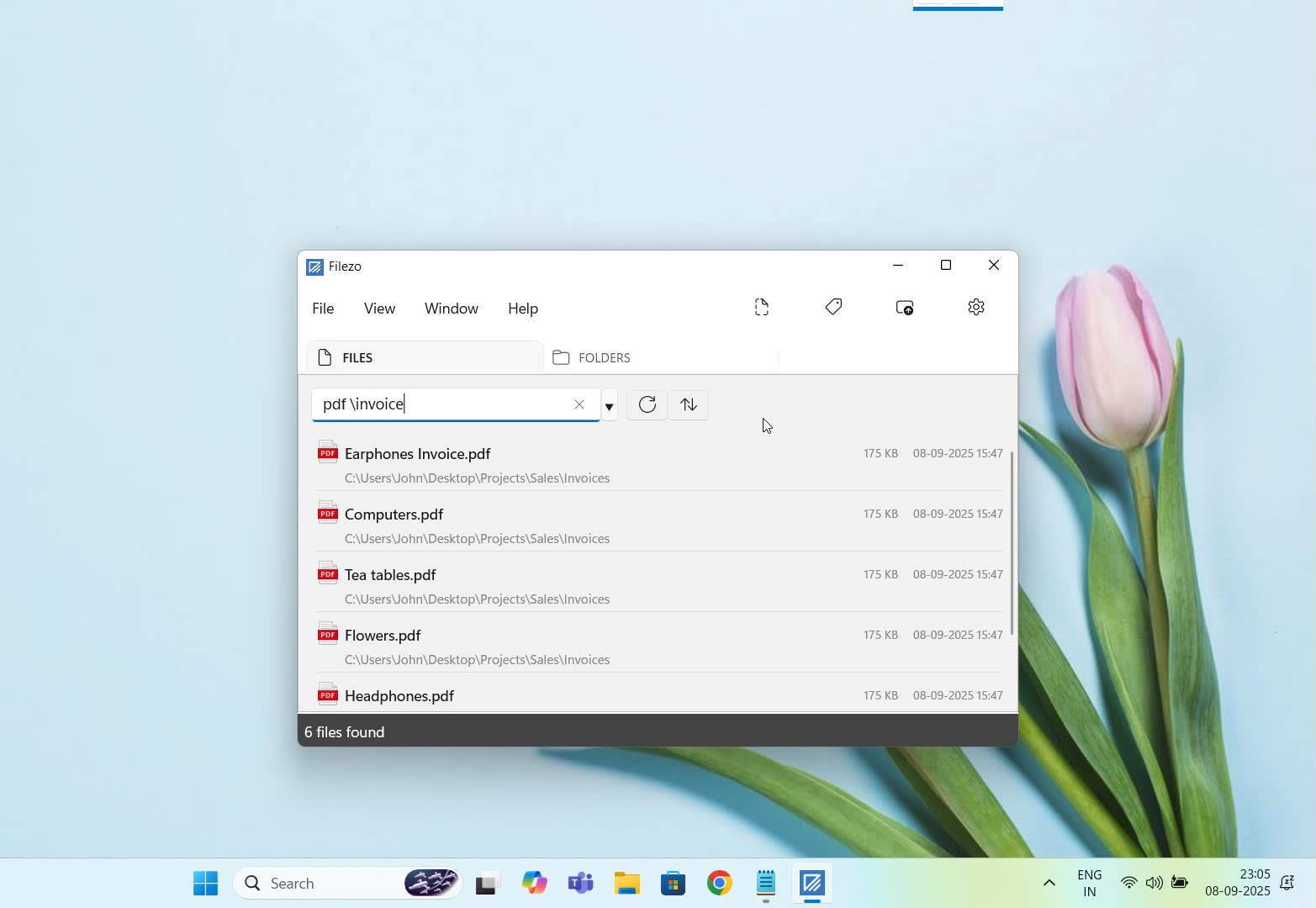
Finding files inside particular folder using Filezo.
Here’s a short video about this feature:
Transcription of the above video:
- As shown in the video, open the Files tab in Filezo.
- Let’s look up a file. Type the keyword and instantly get your document wherever it is on your system.
- To open any document, simply double-click it or press the Ctrl key and the number shown next to the file name.
- Now let’s look for another file inside a specific folder.
- Use the backslash prefix to search inside a specific folder. And the files are here.
- You can also save your favorite keywords to access the same results in just 2 clicks.
- Filezo supports advanced search options as shown in the video.
- To organize we will drag a tag from the tags pane and drop it onto the file, as you can see in the video.
- Filezo also allows us to show a quick preview of any file. It supports several file types including audio and video.
- Filezo can annotate any file or folder, just right-click and select ‘Note’.
- Type additional comment to the file for your reference without actually modifying the file. This can be really useful.
- Let’s open Notepad and click on File Open from the menu.
- As you could see, Filezo automatically integrates with every file open save window on your system. You can select an existing file or jump to any folder any deep, directly using Filezo.
Filezo supports hierarchical and color-coded tags. A cool feature is that you can tag your folders. You can also assign multiple tags to a single folder. Taggged and annotated files can be shared with other users over the network. They just have to install Filezo and index the same shared folders. That’s it.
This way you can save a lot of time and efforts.
Download and install the free trial version of Filezo from our website https://www.conceptworld.com/Filezo
Check out our YouTube channel for tutorial videos.
Have a good day!
Thanks :)