Copy Files to every sub-folder inside a folder in Windows using Fastcopy alternative replacement tool

Hello everyone! Copying files to every sub-folder inside a folder may seem a long process as duplicating a specific file or set of files into each sub-folder, ensuring that the contents are consistently updated across the directory structure. In this blog post we will share how to accomplish this using Copywhiz and Fastcopy.

First we will see how to achieve this using Copywhiz.

What is Copywhiz?

Copywhiz enhances your file-copy experience by letting you to have more flexibility & control over the file copying and backup process.

Here is how Copywhiz makes file copying a breeze:

  • Copy only new or modified files
  • Easily pick files by name, extension, folder etc from bunch of folders
  • Automatically organize files based on file attributes and metadata
  • Copy files to multiple folders/computers
  • Copy files from multiple folders and paste them at once
  • Sync files between source and destination
  • Pick files from multiple folders and compress in single .zip file
  • Schedule file backups
  • Verify copied files for data integrity
  • Retain security attributes of files & folders (ownership/user access)
  • Several more hidden nuggets designed to make your file-copy task easier.

Here’s a short video on this feature:

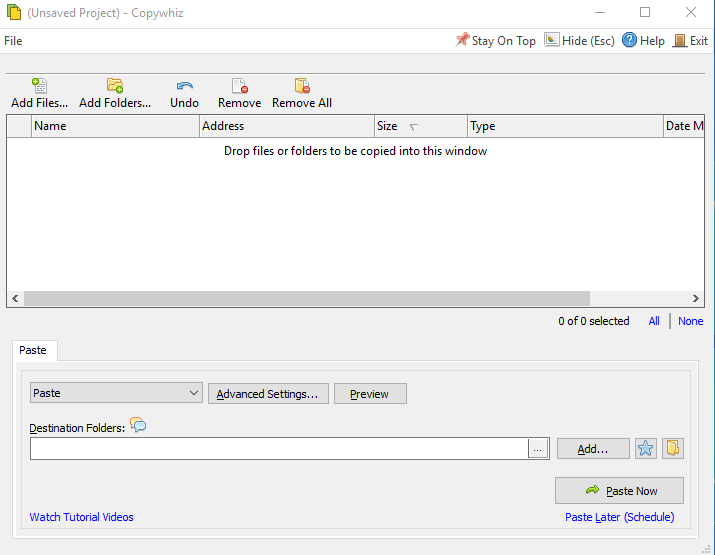
1. After you select your files in Copywhiz, go to the destination folder and Choose ‘Copywhiz -> Paste Advanced’.

2. The Copywhiz main window will open. Choose the Advanced Settings Tab from there.
3. Go to the Destination Tab and choose the ‘Paste a copy to every sub-folder under the destination tab ’ option. Here you can choose to paste under all sub-folders, or just first-level sub-folders, in the folder structure.
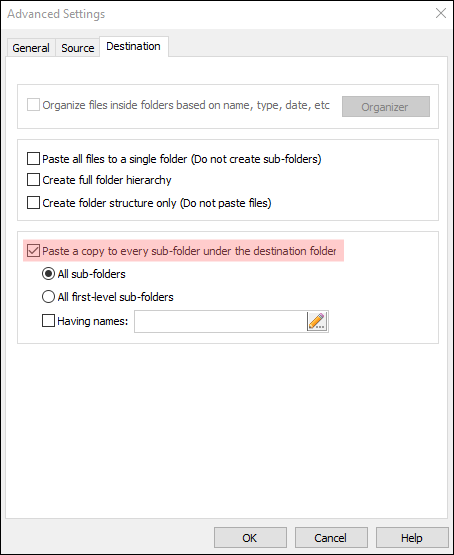
4. Click on OK and then the ‘Paste Now’ option.

Method 2: Using Fastcopy

  1. Install FastCopy
  2. Place the source file (e.g., Readme.txt) in a folder like D:\SourceFiles.
  3. Create a batch file (CopyToSubfolders.bat) with the following script: batCopyEdit@echo off for /d %%f in ("D:\Projects\*") do ( "C:\Program Files\FastCopy\FastCopy.exe" /cmd=diff /force_close /auto_close /speed=full /no_confirm_stop /src="D:\SourceFiles\Readme.txt" /to="%%f" ) ? Adjust the path to FastCopy.exe if it’s different on your system.
  4. Run the batch file by double-clicking it or running it from the Command Prompt.

Advantages of Copywhiz:

  • User-Friendly Interface: No scripting knowledge required.
  • Advanced Options: Filter files by type, skip duplicates, and customize behavior.
  • Error Handling: Provides detailed logs and recovery options.
  • Time-Saving: Significantly faster for large-scale operations.

Conclusion:

If you want a visual, no-code solution that’s quick and easy for anyone to use, Copywhiz is hard to beat.

Copywhiz thus is a simple and easy tool with advanced features and huge benefits!

You can also schedule automatic file backups and take incremental backups using Copywhiz.

Learn more about Copywhiz. Download the free trial from here.

For short tutorial videos, Check out this page.

Subscribe to our YouTube channel for interesting videos.

Check out our other cool products.

Have a good day!

Thanks for reading till the end :)
Copy Files to every sub-folder inside a folder in Windows using Teracopy alternative replacement tool

Hello Guys! In this blog post we will walk you through on how to Copy files to every sub-folder inside a folder. This may seem as an endless task but we have an interesting approach towards how to achieve this. Here we have two various tools Copywhiz and Teracopy which will help us.

First we have is Copywhiz we’ll walk you through how to use each tool step-by-step.

What is Copywhiz?

Copywhiz enhances your file-copy experience by letting you to have more flexibility & control over the file copying and backup process.

Here is how Copywhiz makes file copying a breeze:

  • Copy only new or modified files
  • Easily pick files by name, extension, folder etc from bunch of folders
  • Automatically organize files based on file attributes and metadata
  • Copy files to multiple folders/computers
  • Copy files from multiple folders and paste them at once
  • Sync files between source and destination
  • Pick files from multiple folders and compress in single .zip file
  • Schedule file backups
  • Verify copied files for data integrity
  • Retain security attributes of files & folders (ownership/user access)
  • Several more hidden nuggets designed to make your file-copy task easier.

Here’s a short video on this feature:

1. After you select your files in Copywhiz, go to the destination folder and Choose ‘Copywhiz -> Paste Advanced’.

2. The Copywhiz main window will open. Choose the Advanced Settings Tab from there.

3. Go to the Destination Tab and choose the ‘Paste a copy to every sub-folder under the destination tab ’ option. Here you can choose to paste under all sub-folders, or just first-level sub-folders, in the folder structure.

4. Click on OK and then the ‘Paste Now’ option.

Method 2: Using Teracopy

  1. Install TeraCopy
  2. Place the source file (e.g., Info.txt) in a folder like D:\SourceFiles.
  3. Create a batch script (e.g., TeraCopyToSubfolders.bat) with the following content: batCopyEdit@echo off for /d %%f in ("D:\ClientProjects\*") do ( "C:\Program Files\TeraCopy\TeraCopy.exe" Copy "D:\SourceFiles\Info.txt" "%%f" /Close )
    Be sure to adjust the paths to match your actual folders and TeraCopy installation directory.
  4. Run the batch file
    Double-click it or run it from Command Prompt.

Conclusion:

Copywhiz thus is a simple and easy tool with advanced features and huge benefits!

You can also schedule automatic file backups and take incremental backups using Copywhiz.

Learn more about Copywhiz. Download the free trial from here.

For short tutorial videos, Check out this page.

Subscribe to our YouTube channel for interesting videos.

Check out our other cool products.

Have a good day!

Thanks for reading till the end :)
Copy Files to every sub-folder inside a folder in Windows using Xcopy alternative replacement tool

Hey Guys! We all know how lengthy a task can be when it comes to copying files to every sub-folder inside a folder can be. We are here to help you and through this blog post we will see how these two tools that is Copywhiz and Xcopy help us achieve this feature.

The advantages of copying files to every sub-folder automatically include increased efficiency, reduced errors, and improved consistency, making it an essential skill for individuals working with complex directory structures.

What is Copywhiz?

Copywhiz enhances your file-copy experience by letting you to have more flexibility & control over the file copying and backup process.

Here is how Copywhiz makes file copying a breeze:

  • Copy only new or modified files
  • Easily pick files by name, extension, folder etc from bunch of folders
  • Automatically organize files based on file attributes and metadata
  • Copy files to multiple folders/computers
  • Copy files from multiple folders and paste them at once
  • Sync files between source and destination
  • Pick files from multiple folders and compress in single .zip file
  • Schedule file backups
  • Verify copied files for data integrity
  • Retain security attributes of files & folders (ownership/user access)
  • Several more hidden nuggets designed to make your file-copy task easier.

Here’s a short video on this feature:

1. After you select your files in Copywhiz, go to the destination folder and Choose ‘Copywhiz -> Paste Advanced’.

2. The Copywhiz main window will open. Choose the Advanced Settings Tab from there.

3. Go to the Destination Tab and choose the ‘Paste a copy to every sub-folder under the destination tab ’ option. Here you can choose to paste under all sub-folders, or just first-level sub-folders, in the folder structure.

4. Click on OK and then the ‘Paste Now’ option.

Method 2: Using Xcopy

  1. Place your source file (the file you want to copy) somewhere accessible, say C:\Source\example.txt.
  2. Identify the parent folder that contains all the sub-folders. Let’s say it’s C:\TargetFolders.
  3. Open Command Prompt:
    • Press Win + R, type cmd, and hit Enter.
  4. Run the following command: cmdCopyEditfor /d %d in (C:\TargetFolders\*) do xcopy /Y C:\Source\example.txt "%d\" What this does:
    • for /d %d in (...): Loops through each sub-directory.
    • xcopy /Y: Copies the file and suppresses overwrite confirmation.
    • "%d\": Ensures the file lands inside each sub-folder.
  5. Check your folders — your file should now appear in every sub-folder!

Advantages of Copywhiz:

  • User-Friendly Interface: No scripting knowledge required.
  • Advanced Options: Filter files by type, skip duplicates, and customize behavior.
  • Error Handling: Provides detailed logs and recovery options.
  • Time-Saving: Significantly faster for large-scale operations.

Conclusion:

If you prefer a visual, more intuitive interface with added flexibility and preview features, Copywhiz is well worth considering.

Copywhiz thus is a simple and easy tool with advanced features and huge benefits!

You can also schedule automatic file backups and take incremental backups using Copywhiz.

Learn more about Copywhiz. Download the free trial from here.

For short tutorial videos, Check out this page.

Subscribe to our YouTube channel for interesting videos.

Check out our other cool products.

Have a good day!

Thanks for reading till the end :)
Copy Files to Multiple Folders or Computers in Windows using Xcopy alternative replacement

Hey Guys! Copying files to multiple folders or computers streamlines file sharing, collaboration, and data management, saving time and boosting productivity. In this blog post we will cover how to copy files to multiple folders or computers using Copywhiz and Xcopy.

Copywhiz copies files simultaneously to multiple locations speeding up the whole process.

What is Copywhiz?

Copywhiz enhances your file-copy experience by letting you to have more flexibility & control over the file copying and backup process.

Here is how Copywhiz makes file copying a breeze:

  • Copy only new or modified files
  • Easily pick files by name, extension, folder etc from bunch of folders
  • Automatically organize files based on file attributes and metadata
  • Copy files to multiple folders/computers
  • Copy files from multiple folders and paste them at once
  • Sync files between source and destination
  • Pick files from multiple folders and compress in single .zip file
  • Schedule file backups
  • Verify copied files for data integrity
  • Retain security attributes of files & folders (ownership/user access)
  • Several more hidden nuggets designed to make your file-copy task easier.

Transcription:

  1. Select files using Windows Explorer, right-click on them and choose Copywhiz–>Copy from the menu.
  2. Right-click inside any folder and select Copywhiz–> Paste Advanced.
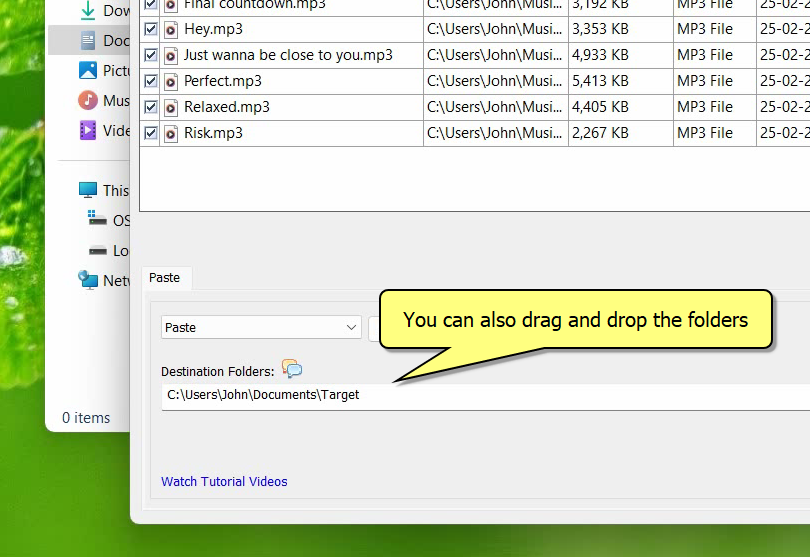
  3. Copywhiz window will open. You can add multiple folders by clicking on the Add button placed next to the Destination Folders text box. Alternatively, you can simply drag and drop target folders over the Destination Folders text box. When specifying the Destination Folders, you can suffix the name with %date% or %datetime% variables if you wish to have a dated folder name.


  4. Click on Paste Now. Files will now be copied to all the destination folders sequentially.

That’s it in this video.

Let’s have a look on step by step process using Xcopy.

Using Xcopy:

Step 1: Open Command Prompt

  1. Press Win + R, type cmd, and hit Enter to open the Command Prompt.

Step 2: Use Xcopy to Copy Files

To copy a file or folder to multiple destinations, use the following syntax:

xcopy "C:\SourceFolder" "C:\DestinationFolder1" /E /I /Y
xcopy "C:\SourceFolder" "C:\DestinationFolder2" /E /I /Y

This will copy all files and subfolders from C:\SourceFolder to both C:\DestinationFolder1 and C:\DestinationFolder2.

Step 3: Copy Files to Multiple Network Computers

If you need to copy files to network locations, use this command:

xcopy "C:\SourceFolder" "\\PC1\SharedFolder" /E /I /Y
xcopy "C:\SourceFolder" "\\PC2\SharedFolder" /E /I /Y

This sends the files to the shared folder on PC1 and PC2.

Step 4: Automate the Process (Optional)

You can create a batch file to automate the task:

  1. Open Notepad and paste the Xcopy commands.
  2. Save the file as copy_files.bat.
  3. Double-click the batch file to execute the copy process automatically.

Conclusion

If you value a user-friendly interface and advanced options like filtering and scheduling, Copywhiz is an ideal choice.

For more tutorial videos, click here .

Subscribe to our YouTube channel for regular updates and interesting videos!

Learn more about Copywhiz.

Download the free trial from here.

Check out our other cool products.

Have a good day.

Thanks for reading till the end :)
Copy Files to Multiple Folders or Computers in Windows using Fastcopy alternative replacement

Copying files to multiple folders or computers is an essential skill and a frequent task. In this guide, we’ll explore two powerful tools: Copywhiz and Fastcopy. We’ll walk through step-by-step methods for both tools. First we will cover Copywhiz.

Copywhiz copies files simultaneously to multiple locations. Saves time.

What is Copywhiz?

Copywhiz enhances your file-copy experience by letting you to have more flexibility & control over the file copying and backup process.

Here is how Copywhiz makes file copying a breeze:

  • Copy only new or modified files
  • Easily pick files by name, extension, folder etc from bunch of folders
  • Automatically organize files based on file attributes and metadata
  • Copy files to multiple folders/computers
  • Copy files from multiple folders and paste them at once
  • Sync files between source and destination
  • Pick files from multiple folders and compress in single .zip file
  • Schedule file backups
  • Verify copied files for data integrity
  • Retain security attributes of files & folders (ownership/user access)
  • Several more hidden nuggets designed to make your file-copy task easier.

Transcription:

  1. Select files using Windows Explorer, right-click on them and choose Copywhiz–>Copy from the menu.
  2. Right-click inside any folder and select Copywhiz–> Paste Advanced.
  3. Copywhiz window will open. You can add multiple folders by clicking on the Add button placed next to the Destination Folders text box. Alternatively, you can simply drag and drop target folders over the Destination Folders text box. When specifying the Destination Folders, you can suffix the name with %date% or %datetime% variables if you wish to have a dated folder name.


  4. Click on Paste Now. Files will now be copied to all the destination folders sequentially.

That’s it in this video.

Let’s have a look on step by step process using Fastcopy.

Using Fastcopy:

Step 1: Download and Install FastCopy

  1. Download FastCopy from https://fastcopy.jp/en/.
  2. Install the software and launch it.

Step 2: Select Source Files

  1. Open FastCopy.
  2. Click the Source button and select the folder or files you want to copy.

Step 3: Select Multiple Destination Folders

  1. Click the Destination button and enter multiple destination paths separated by |.
    • Example: C:\Folder1|C:\Folder2|\NetworkPC\SharedFolder
  2. Choose the appropriate copy method (Diff, Sync, Move, etc.).
  3. Click Execute to start copying files.

Step 4: Monitor the Copy Process

  • FastCopy provides a real-time progress bar.
  • If an error occurs, it logs the issue without stopping the entire process.

Similarly you can copy files to multiple computers by adding remote destination folders (Network folders/shares).

Conclusion

If you value a user-friendly interface and advanced options like filtering and scheduling, Copywhiz is an ideal choice.

For more tutorial videos, click here .

Subscribe to our YouTube channel for regular updates and interesting videos!

Learn more about Copywhiz.

Download the free trial from here.

Check out our other cool products.

Have a good day.

Thanks for reading till the end :)

Copy Files to Multiple Folders or Computers in Windows using Teracopy alternative replacement

Copying files to multiple folders or computers is a common task that can be accomplished efficiently using various methods. By duplicating files across multiple destinations, you can streamline file sharing, collaboration, and data management, saving time and increasing productivity.

In this post we’ll explore how to copy files to multiple folders or computers using Copywhiz and Teracopy.

Copywhiz copies files simultaneously to multiple locations, thus completing the tasks faster.

What is Copywhiz?

Copywhiz enhances your file-copy experience by letting you to have more flexibility & control over the file copying and backup process.

Here is how Copywhiz makes file copying a breeze:

  • Copy only new or modified files
  • Easily pick files by name, extension, folder etc from bunch of folders
  • Automatically organize files based on file attributes and metadata
  • Copy files to multiple folders/computers
  • Copy files from multiple folders and paste them at once
  • Sync files between source and destination
  • Pick files from multiple folders and compress in single .zip file
  • Schedule file backups
  • Verify copied files for data integrity
  • Retain security attributes of files & folders (ownership/user access)
  • Several more hidden nuggets designed to make your file-copy task easier.

Transcription:

  1. Select files using Windows Explorer, right-click on them and choose Copywhiz–>Copy from the menu.
  2. Right-click inside any folder and select Copywhiz–> Paste Advanced.
  3. Copywhiz window will open. You can add multiple folders by clicking on the Add button placed next to the Destination Folders text box. Alternatively, you can simply drag and drop target folders over the Destination Folders text box. When specifying the Destination Folders, you can suffix the name with %date% or %datetime% variables if you wish to have a dated folder name.


  4. Click on Paste Now. Files will now be copied to all the destination folders sequentially.

That’s it in this video.

Let’s have a look on step by step process using Teracopy.

Using Teracopy:

Step 1: Download and Install TeraCopy

  1. Download TeraCopy from https://www.codesector.com/teracopy.
  2. Install the software and launch it.

Step 2: Select Files to Copy

  1. Open File Explorer and navigate to the files or folders you want to copy.
  2. Right-click the files and select TeraCopy.
  3. Click Copy (or Move, if needed).

Step 3: Add Multiple Destination Folders

  1. Click on the Browse button to select the first destination folder.
  2. Click the “+” (plus) button to add more destination folders.
  3. Once all the destination folders are added, click Start to begin copying.

Step 4: Monitor the Copy Process

  • TeraCopy shows real-time transfer progress.
  • If an error occurs, TeraCopy retries the transfer instead of failing the entire process.
  • Once completed, a log report is available for review.

Conclusion

If you need greater flexibility, automation, and filtering options, Copywhiz is the superior tool.

For more tutorial videos, click here .

Subscribe to our YouTube channel for regular updates and interesting videos!

Learn more about Copywhiz.

Download the free trial from here.

Check out our other cool products.

Have a good day.

Thanks for reading till the end :)

Copy Files to Multiple Folders or Computers in Windows using Robocopy alternative replacement

Copying files to multiple folders or computers in Windows streamlines file sharing, collaboration, and data management. In this guide, we’ll explore two powerful tools: Copywhiz and Robocopy. We’ll walk through step-by-step methods for both tools.

Copywhiz copies files simultaneously to multiple locations, thus completing the tasks faster.

What is Copywhiz?

Copywhiz enhances your file-copy experience by letting you to have more flexibility & control over the file copying and backup process.

Here is how Copywhiz makes file copying a breeze:

  • Copy only new or modified files
  • Easily pick files by name, extension, folder etc from bunch of folders
  • Automatically organize files based on file attributes and metadata
  • Copy files to multiple folders/computers
  • Copy files from multiple folders and paste them at once
  • Sync files between source and destination
  • Pick files from multiple folders and compress in single .zip file
  • Schedule file backups
  • Verify copied files for data integrity
  • Retain security attributes of files & folders (ownership/user access)
  • Several more hidden nuggets designed to make your file-copy task easier.

Transcription:

  1. Select files using Windows Explorer, right-click on them and choose Copywhiz–>Copy from the menu.
  2. Right-click inside any folder and select Copywhiz–> Paste Advanced.
  3. Copywhiz window will open. You can add multiple folders by clicking on the Add button placed next to the Destination Folders text box. Alternatively, you can simply drag and drop target folders over the Destination Folders text box. When specifying the Destination Folders, you can suffix the name with %date% or %datetime% variables if you wish to have a dated folder name.


  4. Click on Paste Now. Files will now be copied to all the destination folders sequentially.

That’s it in this video.

Let’s have a look on step by step process using Robocopy.

Using Robocopy:

Step 1: Open Command Prompt

  1. Press Win + R, type cmd, and hit Enter to open the Command Prompt.

Step 2: Use Robocopy to Copy Files

To copy a file or folder to multiple destinations, use the following syntax:

robocopy "C:\SourceFolder" "C:\DestinationFolder1" /E
robocopy "C:\SourceFolder" "C:\DestinationFolder2" /E

This will copy all files and subfolders from C:\SourceFolder to both C:\DestinationFolder1 and C:\DestinationFolder2.

Step 3: Copy Files to Multiple Network Computers

If you need to copy files to network locations, use this command:

robocopy "C:\SourceFolder" "\\PC1\SharedFolder" /E
robocopy "C:\SourceFolder" "\\PC2\SharedFolder" /E

This sends the files to the shared folder on PC1 and PC2.

Step 4: Automate the Process (Optional)

You can create a batch file to automate the task:

  1. Open Notepad and paste the Robocopy commands.
  2. Save the file as copy_files.bat.
  3. Double-click the batch file to execute the copy process automatically.

Conclusion

If you prefer a user-friendly GUI with more flexibility, Copywhiz is a great.

For more tutorial videos, click here .

Subscribe to our YouTube channel for regular updates and interesting videos!

Learn more about Copywhiz.

Download the free trial from here.

Check out our other cool products.

Have a good day.

Thanks for reading till the end :)

Replace a file with another file having a different name using PowerShell alternative replacement tool

Hey Guys! This blog post will guide you step-by-step on how we can replace a file with another file having a different name using two methods: PowerShell and Copywhiz. This technique is useful for updating files, correcting errors, or revising content without altering the original file’s location or permissions.

Let’s explore Copywhiz first.

What is Copywhiz?

Copywhiz enhances your file-copy experience by letting you to have more flexibility & control over the file copying and backup process.

Here is how Copywhiz makes file copying a breeze:

  • Copy only new or modified files
  • Easily pick files by name, extension, folder etc from bunch of folders
  • Automatically organize files based on file attributes and metadata
  • Copy files to multiple folders/computers
  • Copy files from multiple folders and paste them at once
  • Sync files between source and destination
  • Pick files from multiple folders and compress in single .zip file
  • Schedule file backups
  • Verify copied files for data integrity
  • Retain security attributes of files & folders (ownership/user access)
  • Several more hidden nuggets designed to make your file-copy task easier.

Below is a short video for further reference:

Video Transcription:

  1. As shown in the video, we already have a file.
  2. And we also have is the new updated file.
  3. We will now copy the new file and replace the old.
  4. Select the file into Copywhiz.
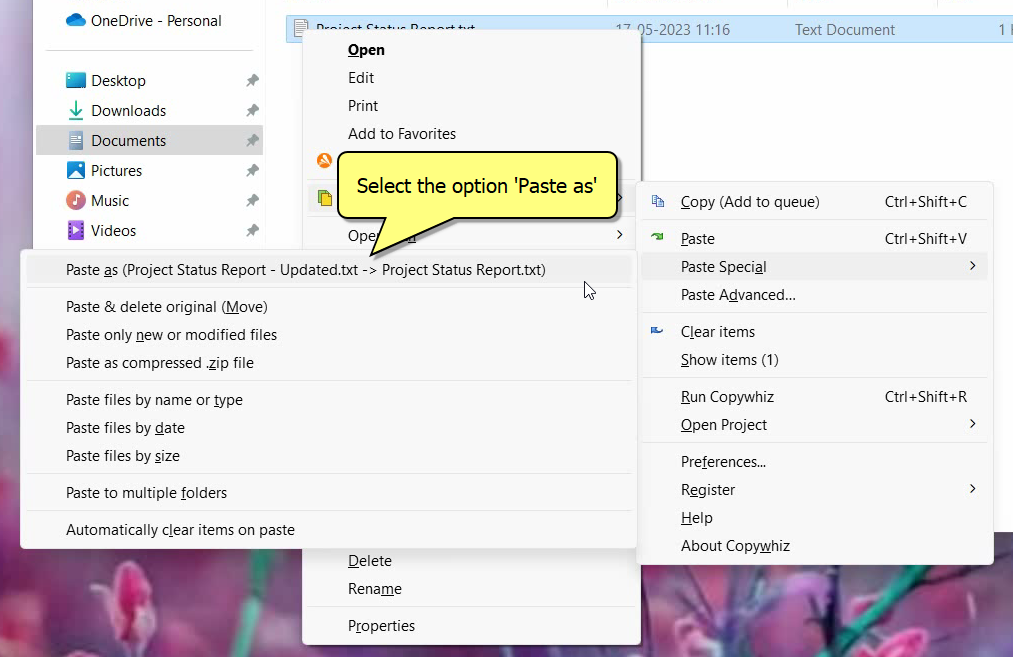
  5. Now, go to the destination, right click and select Copywhiz ‘Paste Special’ option.
  6. Select the option “Paste as”


  7. As we see in the video, the file contents have been updated and the file name remains intact.

Step-by-Step Guide: Using PowerShell

PowerShell provides a scripting interface for advanced file operations, including copying and replacing locked files. Here’s how to do it:

1. Copy Locked Files Using PowerShell

Locked files can’t be copied directly while they’re in use. However, you can:

  • Use Volume Shadow Copy Service (VSS) to create a snapshot of the disk and access locked files from the snapshot.

Steps:

  1. Open PowerShell as Administrator.
  2. Use the DiskShadow command to create a shadow copy: diskshadow create expose shadow=<shadow_id> <drive_letter>
  3. Navigate to the exposed drive and copy the locked file using Copy-Item: Copy-Item "<source_path>" -Destination "<destination_path>"

2. Replace Files on Reboot

To replace a file that is in use, the system must be instructed to perform the replacement during the next reboot.

Steps:

  1. Use the MoveFileEx API via PowerShell to schedule the replacement: [DllImport("kernel32.dll", SetLastError=true)] static extern bool MoveFileEx(string lpExistingFileName, string lpNewFileName, int dwFlags); $existingFile = "C:\\path\\to\\lockedfile.txt" $newFile = "C:\\path\\to\\replacementfile.txt" MoveFileEx($existingFile, $newFile, 0x4) # 0x4 indicates the MOVEFILE_DELAY_UNTIL_REBOOT flag
  2. Restart the system to apply the change.

Why Choose Copywhiz:

Copywhiz, is designed with simplicity and efficiency in mind. It:

  • Saves time by automating complex tasks.
  • Provides advanced features like file filtering and backup options.
  • Ensures a seamless experience with minimal effort.

For most users—especially those without advanced scripting knowledge—Copywhiz is the ideal solution for managing locked files and scheduling file replacements.


Conclusion

Copywhiz simplifies the process for everyone. By choosing Copywhiz, you gain a reliable, efficient, and user-friendly solution for copying and replacing locked files.

Download Copywhiz today and experience hassle-free file management like never before!

Subscribe to our YouTube channel for interesting videos.

Check out our other cool products.

Have a good day!

Thanks :)

Schedule file copy for automatic backups using PowerShell alternative replacement

Hi Guys! Scheduling backups automatic backups provides peace of mind, protects your valuable data and ensures business continuity.

Here’s a step-by-step guide using Copywhiz and PowerShell on how we can schedule a file backup. With Copywhiz you can also compress the whole file set into a zip file. Alternatively you can continuously have scheduled syncing of files between source and destination folders.

What is Copywhiz?

Copywhiz enhances your file-copy experience by letting you to have more flexibility & control over the file copying and backup process.

Here is how Copywhiz makes file copying a breeze:

  • Copy only new or modified files
  • Easily pick files by name, extension, folder etc from bunch of folders
  • Automatically organize files based on file attributes and metadata
  • Copy files to multiple folders/computers
  • Copy files from multiple folders and paste them at once
  • Sync files between source and destination
  • Pick files from multiple folders and compress in single .zip file
  • Schedule file backups
  • Verify copied files for data integrity
  • Retain security attributes of files & folders (ownership/user access)
  • Several more hidden nuggets designed to make your file-copy task easier.

Here is a short video that shows how to achieve the above mentioned feature:

Video Transcription:

  1. In this video, we will take automatic file back ups at specific time.
  2. Select the folder, right-click and add it to Copywhiz.
  3. Go to the destination folder, right-click and choose Copywhiz Paste Advanced.
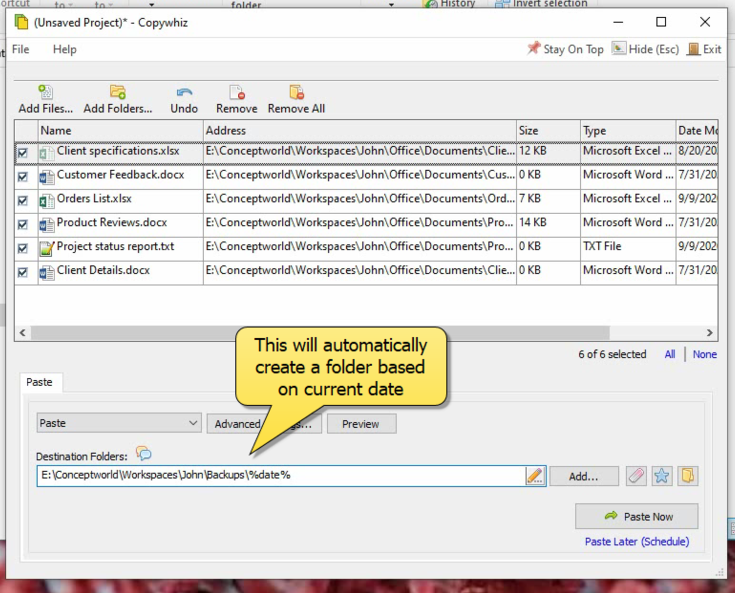
  4. We will add %date% in the destination folder address, to automatically create a new destination folder each time based on the current date, then we will paste now.


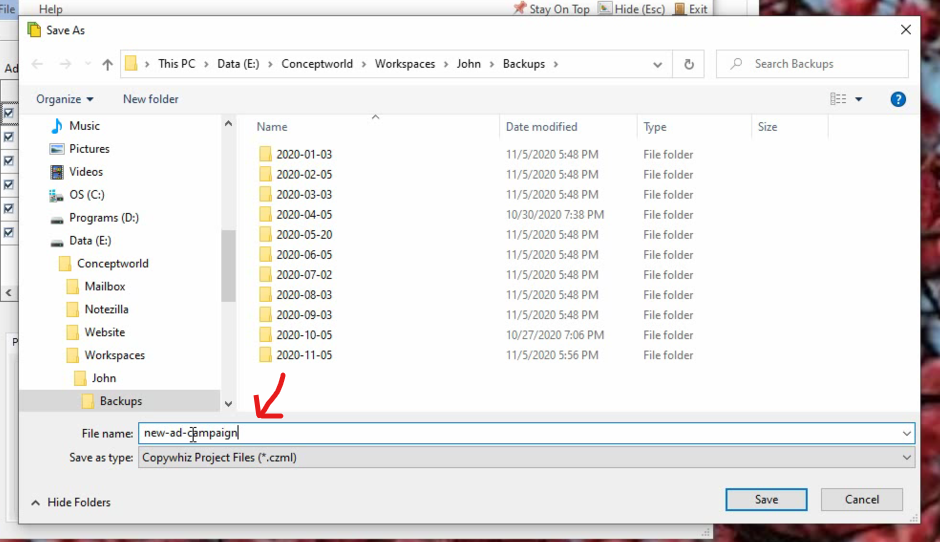
  5. To schedule automatic backups of these files, let’s first save them as a Copywhiz project.
  6. To save a copywhiz project, click on the ‘File’ tab and select the ‘Save as’ option.
  7. Name the project and save it.


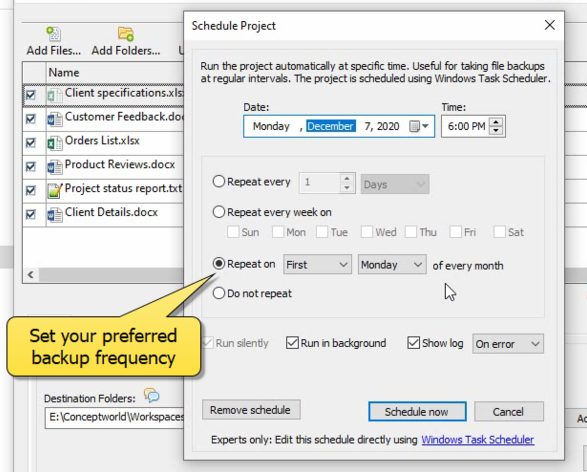
  8. Select the option “Paste Later” to schedule this project.

Copywhiz will now automatically take backups.

Key Features of Copywhiz:

  • User-Friendly Interface: Offers a graphical interface that’s easy to navigate, even for beginners.
  • Selective File Copying: Allows you to pick specific files or folders based on name, type, or date.
  • Advanced Scheduling: Schedule backups without needing additional tools like Task Scheduler.
  • Error Handling: Provides better error management with detailed logs.
  • Integration: Works seamlessly with Windows Explorer.
  • Paid Software: Offers a free trial but requires a purchase for full functionality.

Step-by-Step Guide to Using PowerShell

Step 1: Create a PowerShell Backup Script

  1. Open Notepad and paste the following script:
    $Source = "C:\Source"
    $Destination = "D:\Backup"
    Copy-Item -Path $Source -Destination $Destination -Recurse -Force
  2. Save the file as backup.ps1 in a convenient location (e.g., C:\Scripts).

Step 2: Automate with Windows Task Scheduler

  1. Open Task Scheduler (Press Win + R, type taskschd.msc, and hit Enter).
  2. Click Create Basic Task.
  3. Name the task (e.g., “PowerShell Backup”).
  4. Set the Trigger (Daily, Weekly, or at System Startup).
  5. Choose Start a Program as the action.
  6. In Program/Script, enter powershell.exe.
  7. In Add Arguments, enter:
    -File "C:\Scripts\backup.ps1"
  8. Click Finish to save the task.

Your backup will now run automatically based on the schedule you set.

Conclusion:

Using Copywhiz, scheduling file copy for automatic backups is a seamless and efficient process.

Learn more about Copywhiz. Download the free trial from here.

For short tutorial videos, Check out this page.

Subscribe to our YouTube channel for interesting videos.

Check out our other cool products.

Have a good day!

Thanks for reading :)

Copy from Multiple Locations to a Single Folder in Windows using an Teracopy alternative replacement tool

Hello Guys! Managing files often requires consolidating files from multiple locations into a single folder. Instead of manually copying and pasting files, you can use specialized tools like Copywhiz and TeraCopy to automate and speed up the process. This guide will show you how to use both tools.

First we will use Copywhiz tool.

What is Copywhiz?

Copywhiz enhances your file-copy experience by letting you to have more flexibility & control over the file copying and backup process.

Here is how Copywhiz makes file copying a breeze:

  • Copy only new or modified files
  • Easily pick files by name, extension, folder etc from bunch of folders
  • Automatically organize files based on file attributes and metadata
  • Copy files to multiple folders/computers
  • Copy files from multiple folders and paste them at once
  • Sync files between source and destination
  • Pick files from multiple folders and compress in single .zip file
  • Schedule file backups
  • Verify copied files for data integrity
  • Retain security attributes of files & folders (ownership/user access)
  • Several more hidden nuggets designed to make your file-copy task easier.

Method 1: Using Copywhiz:

Below is a short video describing this feature:

Transcription:

  1. Select files using Windows Explorer, right-click on them and choose Copywhiz->Copy from the menu.
  2. Repeat above step to copy files from different folders.
  3. Go to the destination folder, right-click inside the folder and select Copywhiz–>Paste. All the selected files from different folders will be copied successfully.

That’s it in this video.

Method 2: Using Teracopy:

  1. Download and Install TeraCopy
  2. Open TeraCopy
    • Launch the TeraCopy application.
  3. Select the Files and Folders to Copy
    • Open File Explorer.
    • Select multiple files and folders from different locations.
    • Right-click and choose TeraCopy > Copy.
  4. Choose the Destination Folder
    • In the TeraCopy window, click Browse to select the folder where you want to consolidate the files.
  5. Set Copy Preferences
    • Choose whether to overwrite existing files, rename duplicates, or skip errors.
    • Enable File Verification to ensure data integrity.
  6. Start the Copy Process
    • Click Start to begin copying files.

Conclusion

If you value simplicity, time saving, and advanced features without the need to code, Copywhiz is a superior alternative.

Learn more about Copywhiz.

Download the free trial from here.

For more tutorial videos, click here .

Subscribe to our YouTube channel for regular updates and interesting videos!

Check out our other cool products.

Have a good day.

Thanks for reading till the end :)