 Filezo - Find Files Magically & Tag Files Smartly in Windows.
Learn about Filezo.
Filezo - Find Files Magically & Tag Files Smartly in Windows.
Learn about Filezo.
Filezo automatically remembers everything you copy to the clipboard (Ctrl+C) using any app in Windows. This clipboard history is available under the Clipboard tab, so you can go back and reuse any previous clip whenever you need it.
Use the 'Search clipboard history' box at the top of the Clipboard tab to quickly find an older clip by its text, tag or note. The same search keywords used for files and folders also work here — for example, prefix a tag with # or a note keyword with a colon (:).
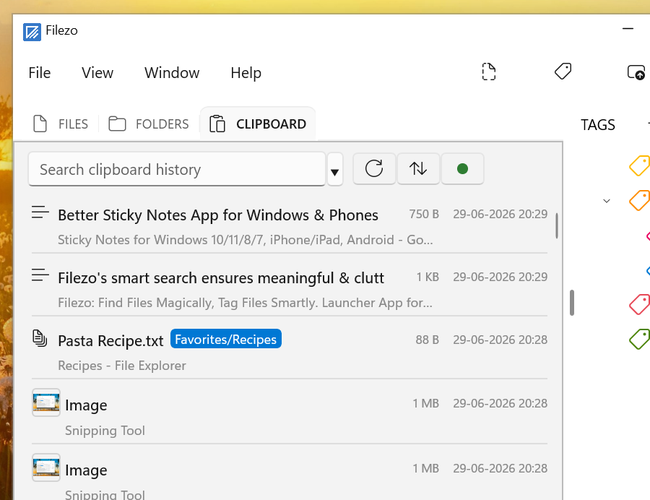
Right click on any clip in the Clipboard tab to access the following actions.
| Action | Shortcut | Description |
|---|---|---|
| Copy | Ctrl+Num | Copies the clip back to the Windows clipboard so that you can paste it in any app. |
| Paste inline | Ctrl+Alt+V | Pastes the clip directly into the currently active app at the cursor position, without having to switch back to it manually. You can configure this shortcut keys from Hotkeys settings page. |
| Preview | Space | Opens the clip in the preview pane so you can view its full content before using it. |
| Edit | Lets you edit the content of a clip directly within Filezo. | |
| Pin | Pins the clip so that it stays easily accessible near the top and is not removed when older clips are cleared from the history. | |
| Tags... | Ctrl+T | Assigns one or more tags to the clip, just like tagging a file or folder. |
| Note | Adds a short note/comment to the clip, which can also be searched later. | |
| Save to file | Saves the clip's content (text, image etc) to a file on disk. | |
| Delete | Delete | Removes the clip from the clipboard history. |
| Rename | F2 | Renames the clip's display name in the list, making it easier to identify later. |
Clips support the same tagging, annotating and previewing features available for files and folders. See Assigning tags, Adding a note and Previewing to learn more.