 Filezo - Find Files Magically & Tag Files Smartly in Windows.
Learn about Filezo.
Filezo - Find Files Magically & Tag Files Smartly in Windows.
Learn about Filezo.
Filezo lets you paste any clip from your clipboard history directly into the currently active app, at the cursor position, without having to switch back and forth between windows.
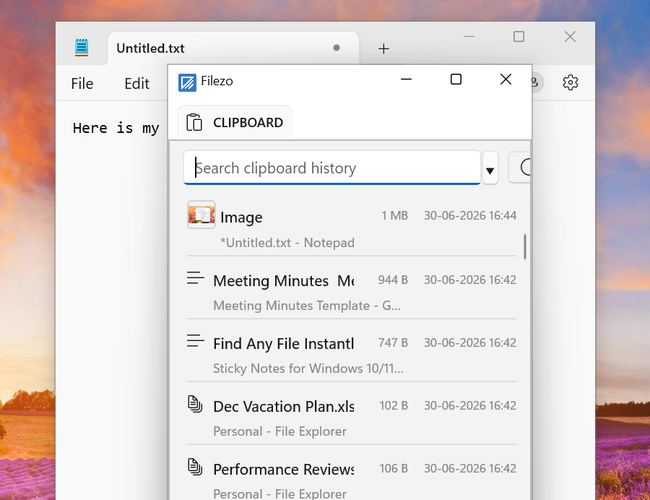
Press the 'Paste a clip inline' hotkey (default: Ctrl+Alt+V) from anywhere in Windows to open Filezo's clipboard history popup. Search for a clip using keywords, tags or notes and select it — it is instantly pasted at the cursor position in the app that was active before you invoked the hotkey.
This hotkey can be changed from the Hotkeys settings page.