 Notezilla - The sticky notes app for Windows & Phones.
Learn about Notezilla.
Notezilla - The sticky notes app for Windows & Phones.
Learn about Notezilla.
To know how to do this, follow the steps below.
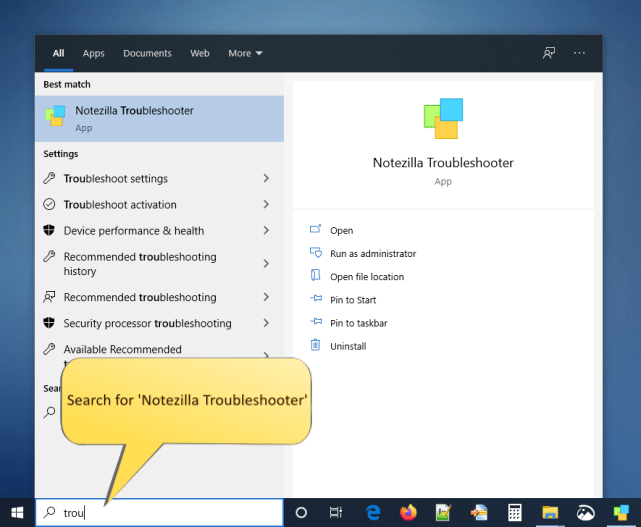
Search Notezilla Troubleshooter
The following window will appear.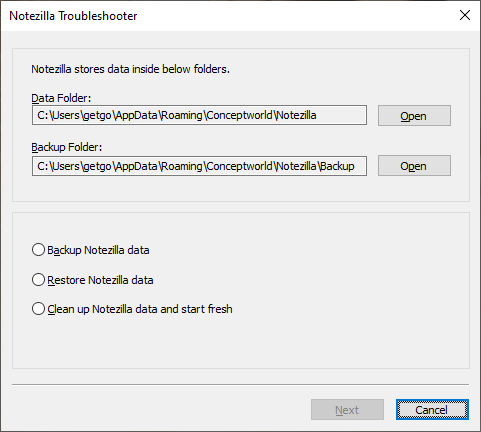
Troubleshooter Window
Note: If you do not find the Notezilla Troubleshooter on your system, kindly download the latest version of Notezilla from here: https://www.conceptworld.com/Notezilla/Download
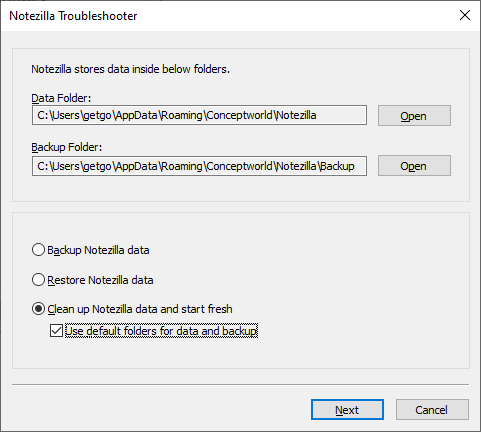
Clean up data
You have the option to use Notezilla's default folders for backup and restore or choose another folder of your choice. Choose the preferred option and click 'Next.'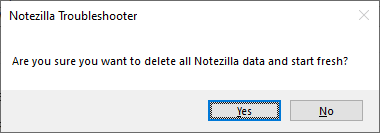
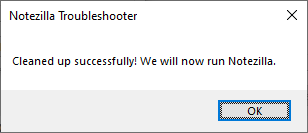
Clean up Success
All your existing data will erase immediately, and Notezilla will run fresh as a new account.