 Copywhiz - Flexible File Copy & Backup Tool for Windows.
Learn about Copywhiz.
Copywhiz - Flexible File Copy & Backup Tool for Windows.
Learn about Copywhiz.
Using Copywhiz, you can keep your source and destination files in sync.
If a file is removed from the source folder, it will be deleted from the destination folder as well. This feature is a blend to the existing 'Automatically identify and paste only new and modified files' feature. You have to copy only recently modified files and delete a file from the destination if deleted from the source.
This feature will let you keep the same set of files in multiple folders.
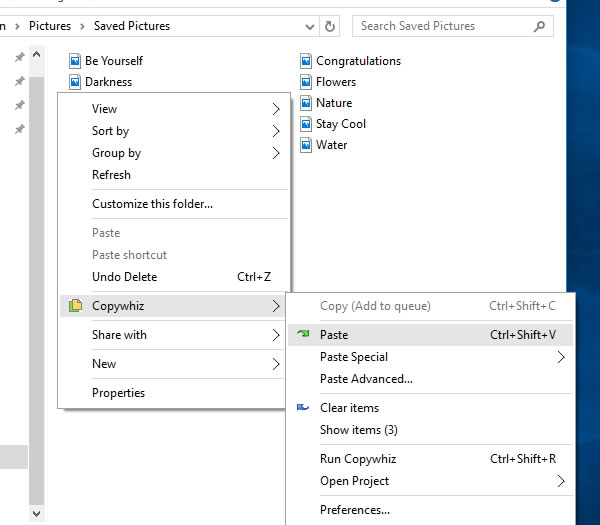
If you have selected files in Copywhiz using the File Explorer (Windows Explorer), then go to the destination folder. Right-click inside the folder, choose Copywhiz → Paste Advanced to open the Copywhiz window and click on the 'Advanced Settings' button as shown in the picture below.
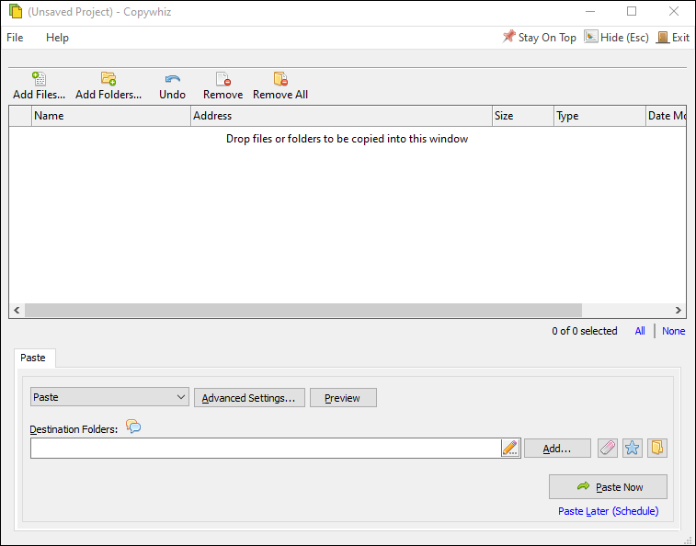
If you have Copywhiz's main window already open, then you can directly click on the 'Advanced Settings' button as shown in the picture below.
Now go to the General Tab and check the option 'Automatically identify & paste only new or modified files".
After that, choose the 'Delete file from destination if deleted from source' option.
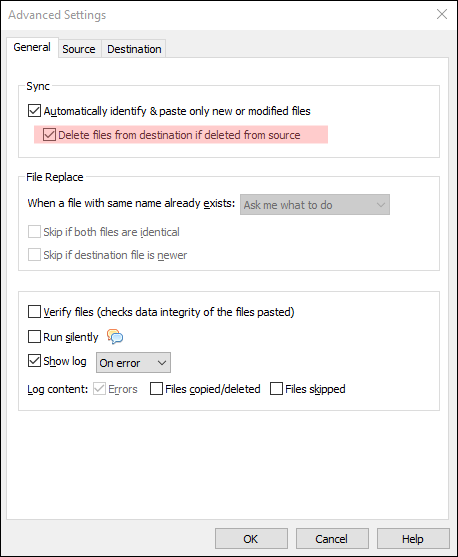
Press the OK button and click on the 'Paste Now' button to finally copy only new & modified files and deleted from destination if deleted from source. A sound plays indicating the successful completion of a file copy task.