 Copywhiz - Flexible File Copy & Backup Tool for Windows.
Learn about Copywhiz.
Copywhiz - Flexible File Copy & Backup Tool for Windows.
Learn about Copywhiz.
Copywhiz allows you create a copy of your files in specific sub-folders in the destination folder, if you do not want them in all sub-folders.
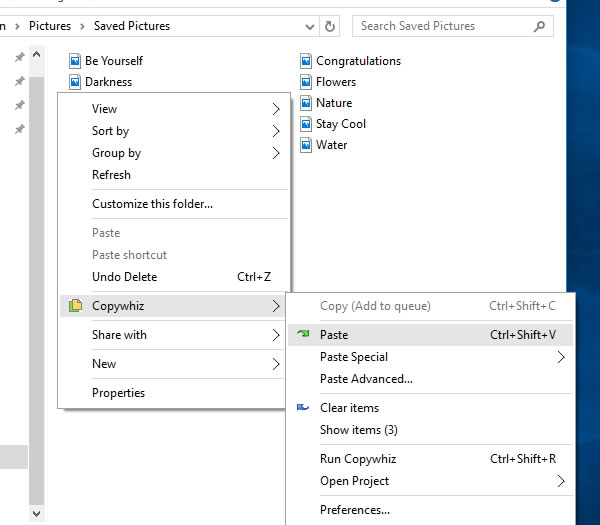
If you have selected files in Copywhiz using the File Explorer (Windows Explorer), then go to the destination folder. Right-click inside the folder, choose Copywhiz → Paste Advanced to open the Copywhiz window and click on the 'Advanced Settings' button as shown in the picture below.
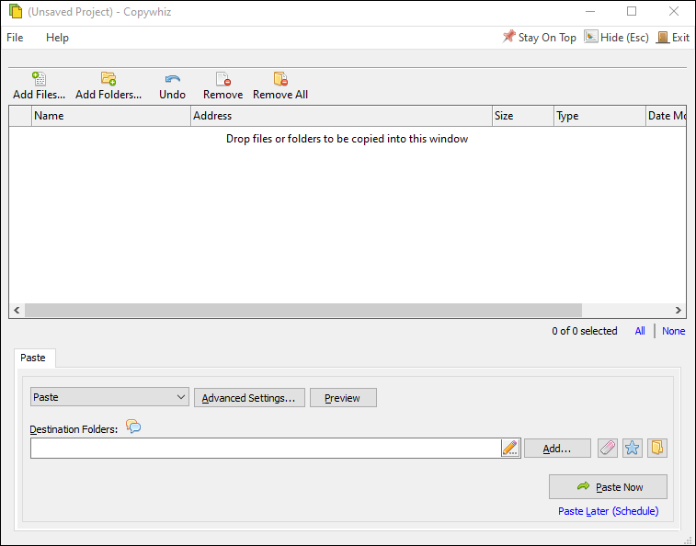
If you have Copywhiz's main window already open, then you can directly click on the 'Advanced Settings' button as shown in the picture below.
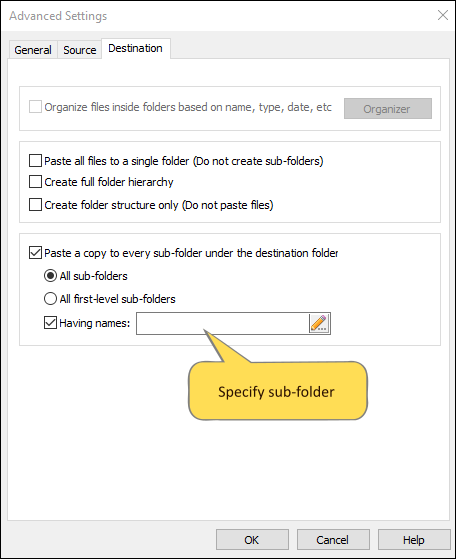
Now check the option 'Paste a copy to every sub-folder under the destination folder' and select the option 'having names'. Just type in the names of the folders you want a copy in.
Press the OK button and click on the 'Paste Now' button to finally copy the files in a full folder hierarchy structure. A sound plays indicating the successful completion of a file copy task.