 Copywhiz - Flexible File Copy & Backup Tool for Windows.
Learn about Copywhiz.
Copywhiz - Flexible File Copy & Backup Tool for Windows.
Learn about Copywhiz.
You can either run Copywhiz from Windows start menu like any other program or
access it from Windows File Explorer.
Below, we will learn how use Copywhiz from within Windows File Explorer.
Open Windows File Explorer, go to the folder that contains files/folders to be copied, select the files/folders, right-click on it and choose Copywhiz → Copy from the context menu as shown in below picture.
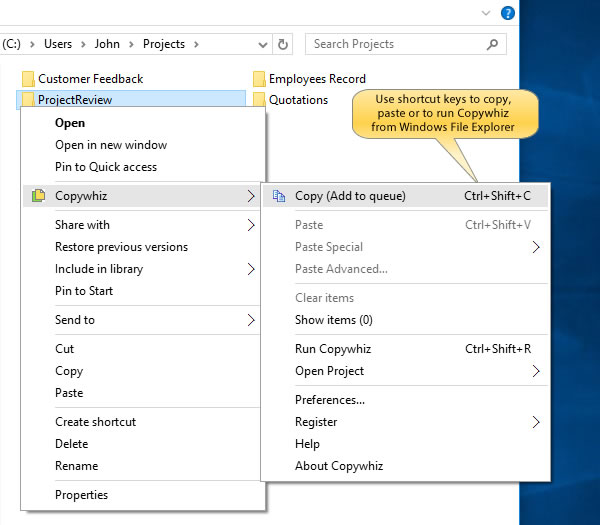
Note: Unlike File Explorer, you can keep selecting more files using Copywhiz before actually pasting them to the final destination folder. To do so, Repeat the above step.
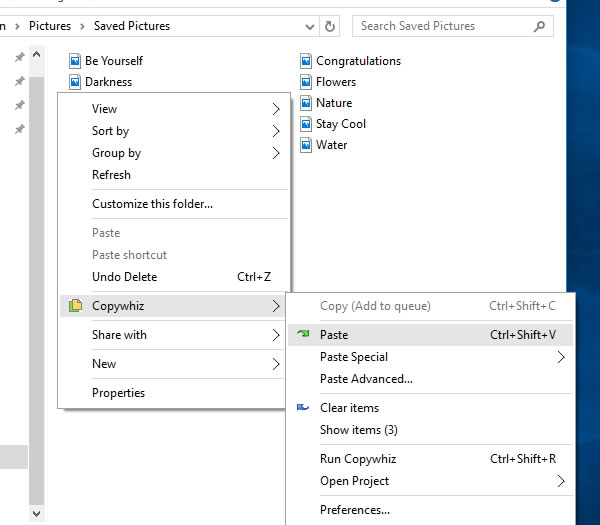
Go to the destination folder, right-click inside the folder and choose Copywhiz → Paste to copy the files as shown in the picture below.
A sound plays, indicating the successful completion of a file copy task.
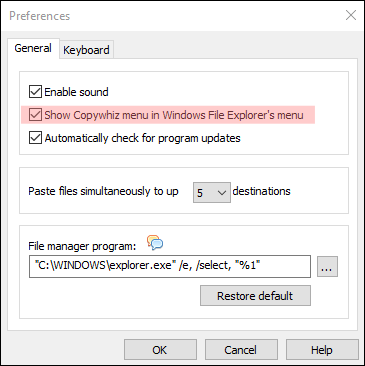
Copywhiz also has the option to disable the Copywhiz menu appearing in the Windows File Explorer. This is a useful option if you
want to run Copywhiz from the Windows Start menu, to use keyboard shortcuts for copy and paste or if you want to use the Portable version of Copywhiz.
You can disable the option from the General Tab of Copywhiz Preferences.
You may want to watch short tutorial videos to learn about advanced & useful Copywhiz features.