 Notezilla - The sticky notes app for Windows & Phones.
Learn about Notezilla.
Notezilla - The sticky notes app for Windows & Phones.
Learn about Notezilla.
To view a sticky note, double click on the note in the notes list (top view of a memoboard) of the Notes Browser.
If you wish to view a desktop sticky note inside the Notes Browser, then select the desktop sticky note, go to the note's menu and choose 'Stick to memoboard / Go to memoboard' from the menu.
In the Notes Browser, go to the filter called 'On desktop'. Double click on the the note inside the notes list to view it on the desktop.
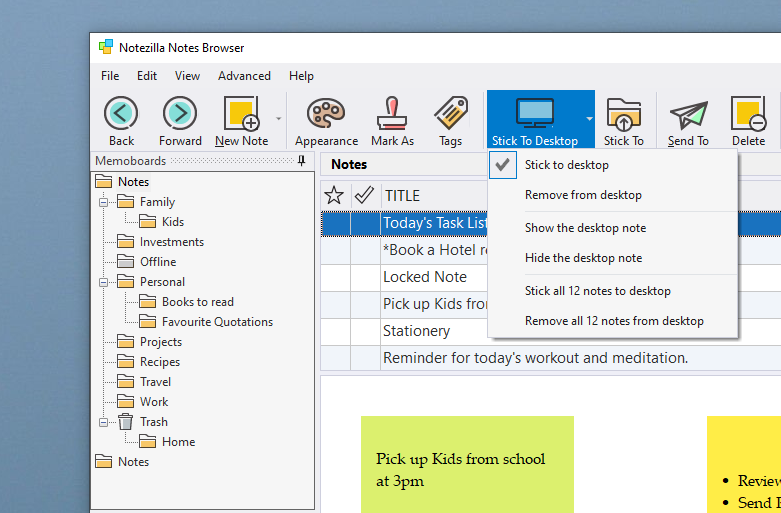
If the note is not already stuck to the desktop, you can go to the note in the Notes Browser and click on the 'Stick to desktop' button from the top toolbar.
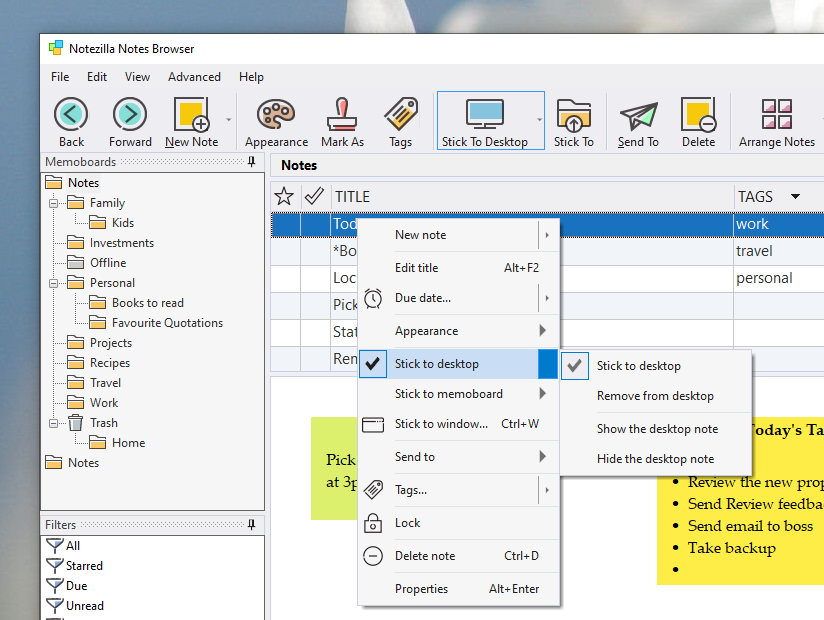
Alternatively, you can also right-click on the note and choose ‘Stick to Desktop -> Show the desktop note’ from the menu.
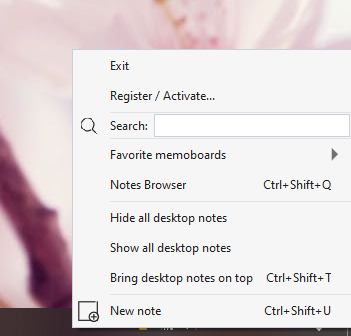
To show all desktop notes (including hidden notes), left-click on the Notezilla icon and choose 'Show all desktop notes' from the menu.
You can also right-click on the Notezilla icon and choose 'Desktop notes / Show all notes' from the menu.
The faster and recommended way of showing all desktop notes is to use a hotkey. You can set a hotkey for showing
all desktop notes using Settings.
To hide all desktop notes, left-click on the Notezilla icon and choose 'Hide all desktop notes' from the menu.
You can also right-click on the Notezilla icon and choose 'Desktop notes / Hide all notes' from the menu.
The faster and recommended way of hiding all desktop notes is to use a hotkey. You can set a hotkey for hiding all desktop notes using Settings.