 Notezilla - The sticky notes app for Windows & Phones.
Learn about Notezilla.
Notezilla - The sticky notes app for Windows & Phones.
Learn about Notezilla.
Notezilla allows you to delete all data and start fresh as if newly installed.
To know how to do this, follow the steps below.
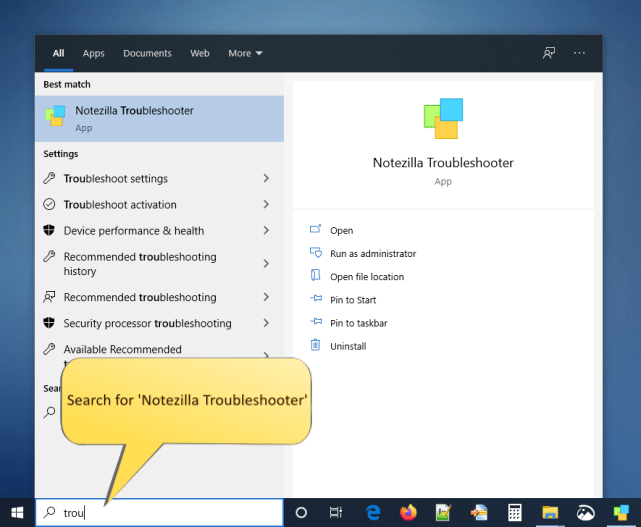
From Windows Search look for Notezilla Troubleshooter app and run it.
You can also run this tool from Notezilla's Notes Browser. Right click on Notezilla icon (next to the clock) in the taskbar and select Notes Browser from the menu. Then go to File / Backup & Restore option. This will run the Notezilla Troubleshooter tool.
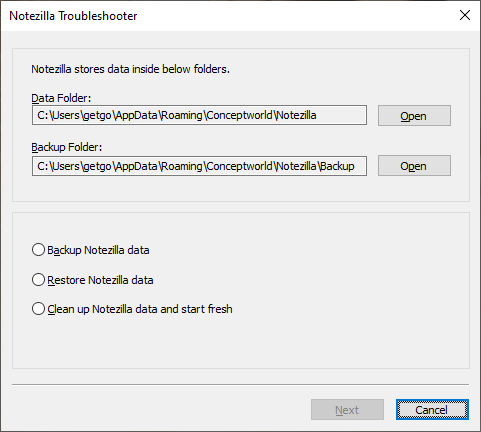
The following window will appear with backup and restore options.
Select the 'Clean up Notezilla data and start fresh' option and click 'Next'.
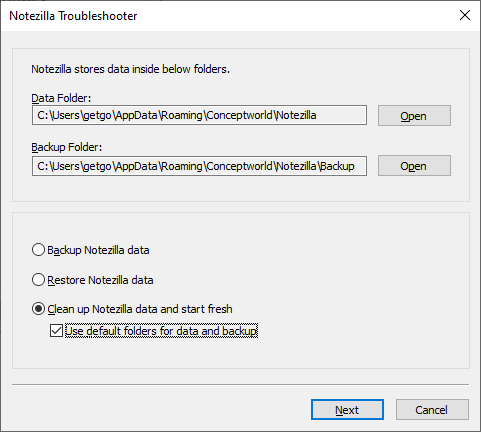
You have the option to use Notezilla's default folders for data and backup folders. Choose the preferred option and click 'Next'.
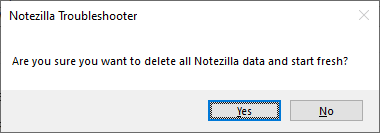
You will then be asked for confirmation to delete all data and start fresh. Click on 'Yes' to proceed.
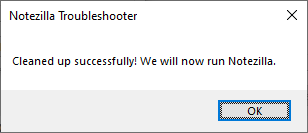
All your existing data is erased and Notezilla will run as if newly installed.